
Overview
In one of my previous articles, I announced my new project, hybris Runtime Development Tools. This post is about some important updates to the package.
hybris Runtime Development Tools is a set of web and command-line utilities for hybris developers to work faster on everyday tasks and troubleshooting. Each utility is available both as a command-line application and as an API interface, so you can freely combine these components with your own toolset, whether web-based or standalone.
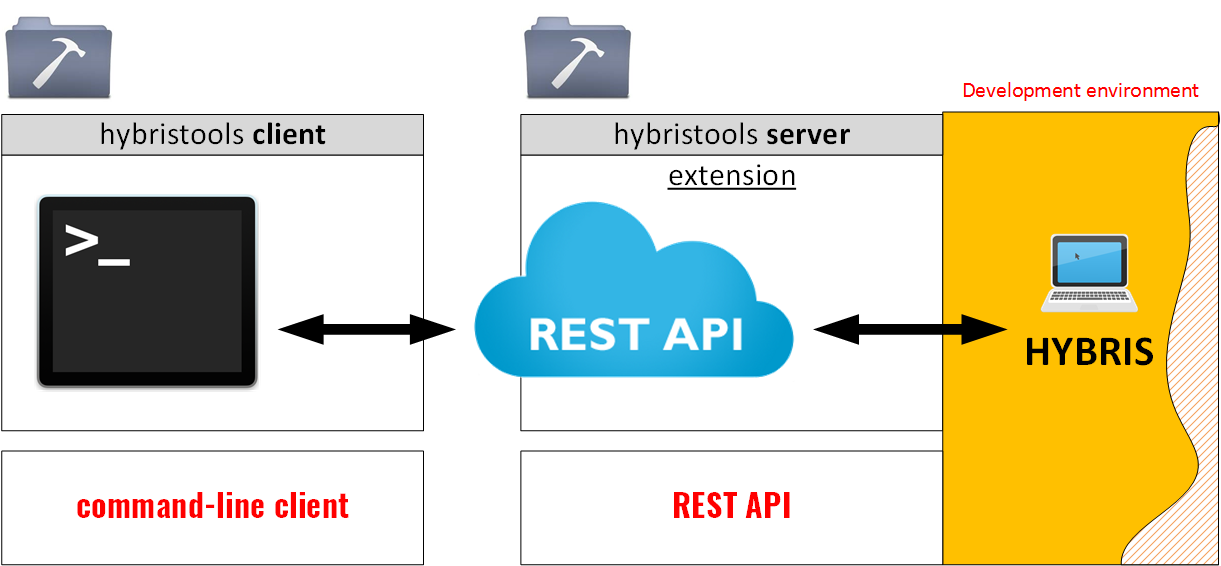
The updates are marked with (NEW!)
hybrisFlexibleSearch (100% ready)
- REST API and a console tool for
FlexibleSearchService, - FlexibleSearch command-line interface,
- Various output formats, such as TXT, TSV, CSV, and XML,
- Using pipes and filters (
grep,awk,perl, etc.), - Cascading reference resolution (no more PKs in output),
- Handy for testing and troubleshooting,
- NEW! Search by PK. No need to specify a type, just a PK.
- NEW! FlexibleSearch built-in beautifier (reformatter)
- NEW! Supporting a registry of hybris types without unique fields for proper resolution (see below)
- NEW! Mixing types in SELECT is now available
- REST API and a console tool for
hybrisTypeSystem (100% ready)
- REST API and a console tool for the type system,
- Shows all available types,
- Shows detailed information about a type,
- Shows detailed information about a type attribute.
- NEW! Supporting collection types
- NEW! Search for the type of an item by its PK
hybrisBeans (100% ready)
- REST API and console tool with common configuration,
- Shows information about a specific bean,
- Changes bean values (!) on the fly.
hybrisImpex (100% ready) NEW!
- REST API and console tool with common configuration
- NEW! ImpEx beautifier (reformatter) NEW!
- NEW! executing ImpExes from files (HAC-like mode)
- NEW! executing ImpExes from Media (HMC-like mode)
hybrisMedia (100% ready) NEW!
- NEW! REST API and console interface to Media resources
- NEW! requesting information about a media item by code
- NEW! saving/displaying a media item by code
- NEW! uploading media files by media code
hybrisConfiguration (100% ready) NEW!
- NEW! all configuration parameters with values
- NEW! changing configuration parameters (key/value)
- NEW! synchronizing configuration parameters in memory with configuration files
hybrisGroovy (0%)
- executing Groovy scripts
hybrisCronjob (0%)
- REST API and console interface to Cronjobs
- Starting/stopping cronjobs
- Changing cronjob attributes
hybrisSession (0%)
- REST API and console interface to sessions
- Changing session attributes
hybrisUsers (0%)
- REST API and console interface to the user and customer service
- Sets up a current user by login
- Changes user-related runtime information
hybrisLog (0%)
- Log parsing operations
- Activating/deactivating debug mode for classes
- Hooks for FlexibleSearch requests and Solr requests
hybrisSOLR (0%)
- REST API and console interface to SOLR search and SOLR indexer
- Start/stop index
- Request for SOLR data
- REST API and console tool with common configuration
- Execute Groovy scripts easily
hybrisPWS (0%)
- Console interface to Platform Web Services
See details about the updates in forthcoming publications.
hybrisFlexibleSearch
Please refer to the previous post to see the basic capabilities. This utility is designed for performing FlexibleSearch requests from the command line.
Major updates are the following:
- NEW! Search by PK. No need to specify a type, just a PK.
- NEW! FlexibleSearch built-in beautifier (reformatter)
- NEW! Supporting a registry of hybris types without unique fields for proper resolution (see below)
- NEW! Mixing types in SELECT is now available
Search by PK
If you have the PK of any object in hybris, you can see detailed information about this object. It is no longer necessary to know what type this object has.
$ ./hybrisFlexibleSearch.sh -pk 8796176187393
catalogVersion code
electronicsProductCatalog:Online 4135570

$ ./hybrisFlexibleSearch.sh -pk 8796093120544
isocode
es
For the API version of this feature, a new URL parameter, pk, is introduced.
Flexible Search reformatter
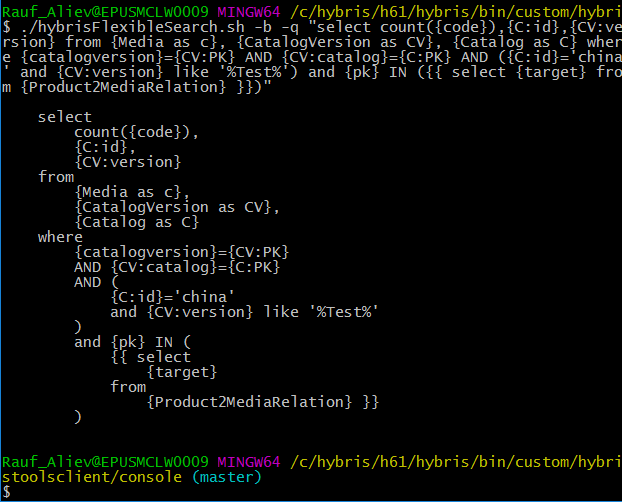
For the API version of this feature, a new URL parameter, beautify, is introduced (boolean).
Registry of hybris types without unique fields
This feature is about PK resolution. In hybris, the response from the FlexibleSearch service contains Java objects. However, to export data, you need to convert these objects into text. For atomic types like String or Integer, the conversion is automatic.
The default hybris FlexibleSearch viewer can’t resolve references, and you need to rewrite your queries. For example, this is what a typical response looks like in HAC:
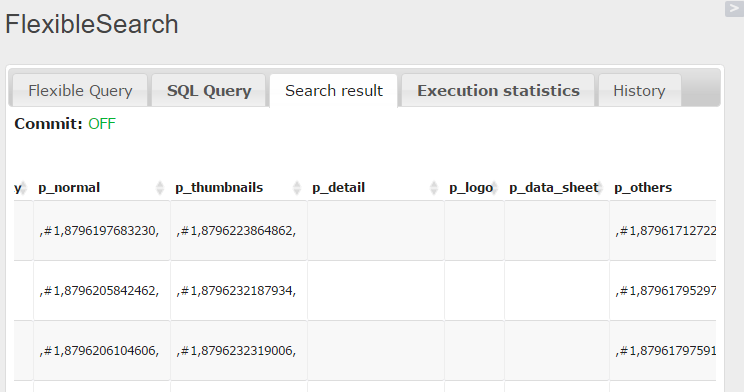
All reference links, collections, and maps are “encoded” (each in its own way).
My FlexibleSearch console application accomplishes this task by cascading resolution. For the example above, in response to the FlexibleSearch request select {pk}, {normal} from {Product}, my application will return the following:
$ ./hybrisFlexibleSearch.sh -q "Select {pk} from {Product}" -f "pk,normal" -mr 4
pk normal
8796167176193 (electronicsProductCatalog:Online:/300Wx300H/266899-5310.jpg)
8796167340033 (electronicsProductCatalog:Online:/300Wx300H/284533-9485.jpg)
8796167372801 (electronicsProductCatalog:Online:/300Wx300H/107701-5509.jpg)
normal is a collection of Media, so this is why the value is in parentheses. In my example, there is only one item in the list. This item is of the Media type. According to the utility configuration, Media has two keys: catalogVersion and code. The other utility, hybrisTypeSystem, helps to see it easily:
$ ./hybrisTypeSystem.sh -t Media | grep UNIQ
catalogVersion CatalogVersion [UNIQ], [!]
code java.lang.String [UNIQ], [!]
code is an atomic type. In the example above, /300Wx300H/266899-5310.jpg is the code of the item with pk=8796167176193. Why do we see three components rather than two? It is because the first component, CatalogVersion, is also a composed type, and my utility performs an additional request to resolve it into Catalog and catalogVersion. Both catalog and catalogVersion are also composed types, and the system retrieves their unique codes.
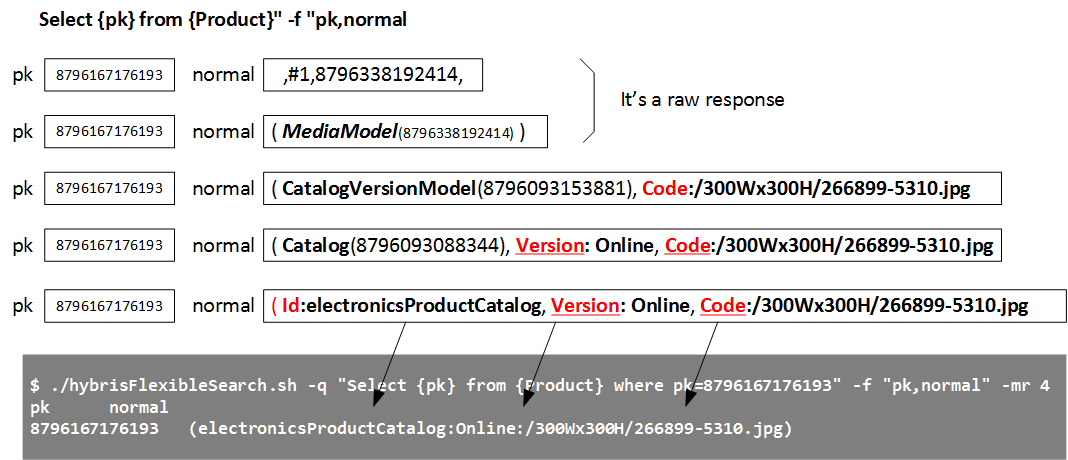
What rules are used for the resolution? For the example above, how does the system understand that Media should be resolved into CatalogVersion + Code, that CatalogVersion should be resolved into Catalog + Version, and that Catalog should be resolved into Id?
The rules are simple:
- If the type has unique fields, they are used for the resolution.
- If the type has no unique fields, manual rules are used.
However, there are too many types that have no unique fields: 452 in hybris 6.1. There is a list of these types in the updated version of the application, types-without-uniq-fields.txt. The format of this file is simple:
AbstractAdvancedSavedQuerySearchParameter:pk
AbstractComment:pk
...
WorkflowTemplateActionTemplateRelation:pk
Each line is a rule. The rule X:Y1,Y2,Y3 says that type X should be resolved into fields Y1,Y2,Y3. Most of the rules have only pk on the right side. I changed some of the frequently used types from this list to my convenient rules. The rule for the PriceRow type:
PriceRow:currency,priceIf you try to see the price of a Product, the price will be resolved according to this rule:
$ ./hybrisFlexibleSearch.sh -q "select {pk} from {PriceRow}" -mr 1
currency price
JPY 3030.0
Mixing types in SELECTs and joins
In the first release of hybrisFlexibleSearch, there were no capabilities to request more than one object from the request. The PK of this object is the first component of the SELECT query. For example, select {pk} from {Product} returns a set of objects of the Product type. However, if you wanted to show prices along with the product, the previous version of hybrisFlexibleSearch wasn’t able to do so.
I added this feature to the new version of hybrisFlexibleSearch. Now you are able to process requests like:
select
     {pk}, {PriceRow}
 from
     {Product},
     {PriceRow}
 where
     {PriceRow.ProductId}={Product.code}
(Instead of
./hybrisFlexibleSearch.sh -q "select {pk} from {Product}" -f code,europe1Pricesthat was available in the previous version)
However, there is an issue with type resolution from the attributes in the response. For example, for the FlexibleSearch request above, {PriceRow} is hybris’ PriceRow type, and the hybris FlexibleSearch engine is not capable of identifying this type without any clues. In the new version of the utility, there is a command-line option named resultTypes (-r for short) that is designed to show the types of the resulting set. Compare the output with and without this option:
Without resultTypes:
$ ./hybrisFlexibleSearch.sh -q "select {pk}, {PriceRow.pk} from {Product}, {PriceRow} where {PriceRow.ProductId}={Product.code}" -mr 5
catalogVersion code
electronicsProductCatalog:Online 266899 8796093088799
electronicsProductCatalog:Online 266899 8796093252639
electronicsProductCatalog:Online 65652 8796096201759
electronicsProductCatalog:Online 65652 8796096300063
electronicsProductCatalog:Online 284533 8796098200607
With resultTypes:
$ ./hybrisFlexibleSearch.sh -q "select {pk}, {PriceRow.pk} from {Product}, {PriceRow} where {PriceRow.ProductId}={Product.code}" -mr 5 -r Item,PriceRow
catalogVersion code
electronicsProductCatalog:Online 266899 USD:86.86
electronicsProductCatalog:Online 266899 JPY:7400.0
electronicsProductCatalog:Online 65652 USD:358.88
electronicsProductCatalog:Online 65652 JPY:30570.0
electronicsProductCatalog:Online 284533 USD:419.43
By default, the type of fields in the SELECT part is String. So resultTypes will help you convert the PKs from this list into human-readable form.
For the API version of this feature, a new URL parameter, resultTypes, is introduced.
hybrisTypeSystem
Please refer to the previous post to see the basic capabilities. This utility is designed for requesting information about hybris types.
Features
Supporting collection types
$ ./hybrisTypeSystem.sh -t CommentItemRelationcommentsColl
The Element of collection (type): Comment
Code: CommentItemRelationcommentsColl
Extension name: comments
Description: null
XML definition: <collectiontype code=CommentItemRelationcommentsColl elementtype="Comment autocreate="false generate="false/>
Search for an item type by PK
Now you can also find a type by PK (in a similar way as described above).
$ ./hybrisTypeSystem.sh -pk 8796176187393
Product
hybrisImpex
Features
- REST API and console tool with common configuration
- NEW! ImpEx beautifier (reformatter) NEW!
- NEW! executing ImpExes from files (HAC-like mode)
- NEW! executing ImpExes from Media (HMC-like mode)
Command-line interface
The command-line app is a console wrapper for the API. See the API for details.
Usage:
./hybrisImpex.sh -i file1.impex file2.impex
./hybrisImpex.sh -i folder/*
./hybrisImpex.sh -c <mediaCode>
For the last example, you need to upload an ImpEx file to Media storage using the following command:
./hybrisMedia -c <mediaCode> -i <impexFile> -mt ImpExMediaParameters
| parameter | Description | Example |
|---|---|---|
| –? | Help, available options. Only for the console version. | |
| beautify (-b) | Reformats the ImpEx file. All other commands are ignored. | -b |
| legacy (-l) | Legacy mode on. Default value is false. |
-l |
| maxThreads (-mt) | Maximum number of threads. By default, 16 threads. | -mt 16 |
| validationMode (-mode) | Validation mode (strict/relaxed). Default value is strict. |
-mode=strict |
| codeExec (-ce) | Enable code execution. By default, it is disabled. | -ce |
| mediaCode (-mc) | The code of the media of the ImpExMedia type to import. First, you need to upload the ImpEx as a media object with this code. |
-mt 16 |
Examples
Reformatter (beautifier)
./hybrisImpex.sh -b data/products-classifications_en.impex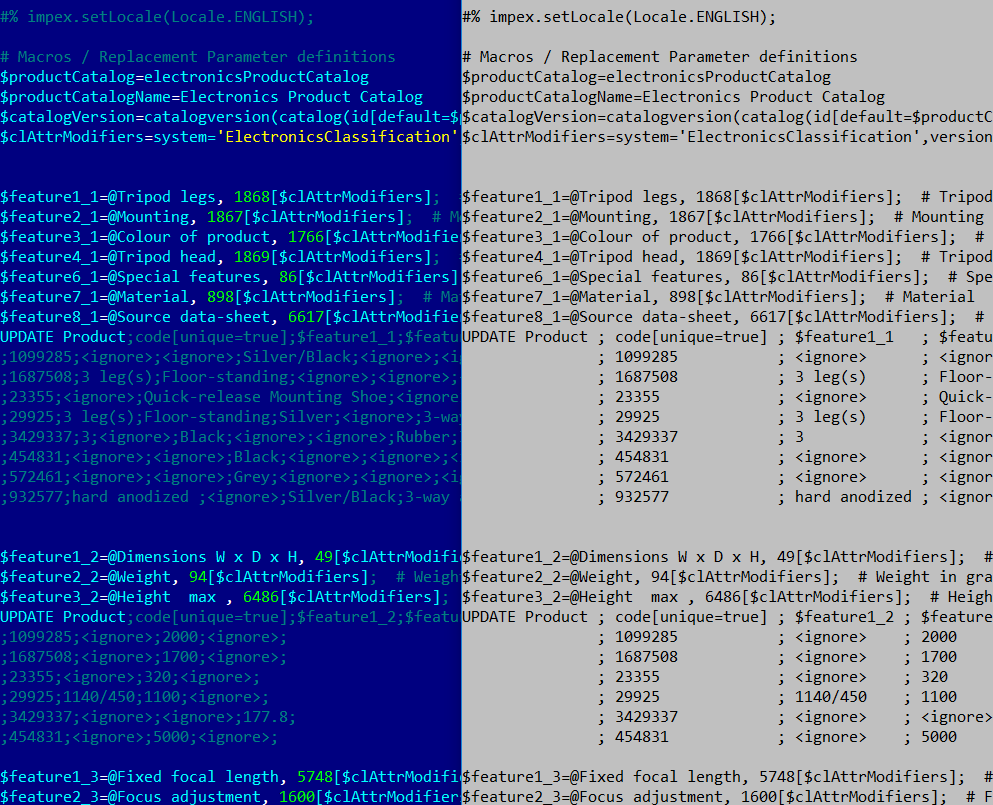
Executing ImpExes
There are two options for executing ImpExes: load the ImpEx file directly to the hybris Runtime Development Tools server and execute it there, or upload it as media (using tools or not) and execute the ImpEx file by reference to the media.
hybrisMedia
It is a new utility for uploading media to the system directly from the command line.
Features
- NEW! REST API and console interface to Media resources
- NEW! uploading media files by media code
Console
All media (it is a long list):
./hybrisMedia.sh -amAll media formats (to use with the -mt option):
./hybrisMedia.sh -amfUploading a file, creating an item of the Media type in hybris:
./hybrisMedia.sh -c <mediaCode> -i <file name> -mt MediaShow information about the image with the specified Media code:
./hybrisMedia.sh -c <mediaCode>Download the media file with the specified Media code to the current directory:
./hybrisMedia.sh -c <mediaCode> -dUploading an ImpEx file. It can be processed later with the hybrisImpex utility:
./hybrisMedia.sh -c <mediaCode> -i <ImpexFilename> -mt ImpExMediaDownload and show the contents of the file (use for text files only!):
./hybrisMedia.sh -c <mediaCode> -dDownload and save the contents of the file:
./hybrisMedia.sh -c <mediaCode> -d -t <localFile>Parameters
| parameter | Description | Example |
|---|---|---|
| –? | Help, available options. Only for the console version. | |
| -all-medias (-a) | The plain list of all media items (code). | -a |
| -all-media-formats (-amf) | Displays all media formats. | -amf |
| mediaFormat (-mf) | Specifies the media format. | -mf 300Wx300H |
| download (-d) | Download file from hybris. | -d |
| tofile (-t) | Save the downloaded file. | -t file.jpg |
| mediaType (-mt) | Media type of a newly created item. The following media types are available OOTB: Media, BarcodeMedia, CatalogUnawareMedia, CatalogVersionSyncScheduleMedia, ConfigurationMedia, Document, EmailAttachment, Formatter, ImpExMedia, JasperMedia, LDIFMedia, LogFile, ScriptMedia. | -mt ImpExMedia |
| download (-d) | Download the media file with the specified media code (should be used with -c). |
-c mediacode_01 -d |
| code (-c) | Code of the item to retrieve (-d / download / or no other options for the info) or create (with -i). |
-c |
hybrisConfiguration
This utility is designed for runtime configuration management. Basically, all the capabilities are also available in HAC, on the Configuration tab, except the sync feature.
Logging
You are able to see hybris logs in the tool’s output:
$ ./hybrisImpex.sh -i data/products.impex
[READING IMPEX] data/products.impex
INFO   | jvm 2    | main    | 2016/08/21 14:06:21.580 | INFO  [hybrisHTTP5] [DefaultImportService] Starting import synchronous using cronjob with code=00000G7D
INFO   | jvm 2    | main    | 2016/08/21 14:06:21.585 | INFO  [hybrisHTTP5] (00000G7D) [ImpExImportJob] Starting multi-threaded ImpEx cronjob "ImpEx-Import" (16 threads)
INFO   | jvm 2    | main    | 2016/08/21 14:06:21.621 | WARN  [ImpExReaderWorker] [ImpExReader] line 2 at main script: skipped code line line 2 at main script:impex.setLocale( Locale.GERMAN ) since bean shell is not enabled
INFO   | jvm 2    | main    | 2016/08/21 14:06:26.943 | INFO  [hybrisHTTP5] (00000G7D) [Importer] Finished 1 pass in 0d 00h:00m:05s:354ms - processed: 1954, no lines dumped (last pass 0)
INFO   | jvm 2    | main    | 2016/08/21 14:06:27.050 | INFO  [hybrisHTTP5] [DefaultImportService] Import was successful (using cronjob with code=00000G7D)
Status: SUCCESSFUL
Parameters
| parameter | Description | Example |
|---|---|---|
| –? | Help, available options. Only for the console version. | |
| extension (-e) | Extension name. | -e trainingstorefront |
| name (-n) | Name of the property to change. | -n sso.redirect.url |
| value (-v) | New value of the property. | -v “value value” |
| list (-l) | All available configuration properties (not only for the specified extension). | -l |
| check (-c) | Compares property files with the memory state. | -c |
| sync (-s) | Copy all new/updated property values from files to memory. | -c |
Examples of usage
Setting/creating/changing a configuration property:
./hybrisConfiguration.sh -e hybristoolsclient -n test1 -v value1Find the value of a specific property:
./hybrisConfiguration.sh -e hybristoolsclient -list | grep test1Scan the property files and compare them with the information in memory:
./hybrisConfiguration.sh -e hybristoolsclient -checkSync the property files with memory (one-way sync; only memory information will be changed):
./hybrisConfiguration.sh -e hybristoolsclient -syncVideo
For reference, part I of the demonstration:
Download
The extension is available by request. E-mail: Rauf_Aliev@epam.com. Skype: rauf_aliev
© Rauf Aliev, August 2016
Discussion
Powered by GitHub Discussions — sign in with a GitHub account to join the conversation.