
The hybris Cockpit Framework was introduced many years ago and is now being decommissioned. However, for various reasons, new projects and almost all existing projects actively use this framework for extending hybris cockpits.
It is one of the most challenging areas in hybris because the framework is underdocumented and the code is very old. This article sheds some light on the topic and makes difficult things clearer. I hope this information will be a useful addition to the official documentation.
Cockpit core architecture
The hybris Cockpit Framework is based on ZK Framework 3.6, a rich internet application framework that enables desktop-like GUIs within a web browser. The starting page of all cockpits is index.zul. Let’s start our journey with this file.
<window xmlns="http://www.zkoss.org/2005/zul" xmlns:xsi="http://www.w3.org/2001/XMLSchema-instance" xmlns:h="http://www.w3.org/1999/xhtml" xmlns:zk="http://www.zkoss.org/2005/zk" xsi:schemaLocation="http://www.zkoss.org/2005/zul http://www.zkoss.org/2005/zul/zul.xsd " id="mainWin" mode="embedded" height="100%" sclass="hywin" use="de.hybris.platform.cockpit.components.impl.MainWindow" shadow="false">

</window>
The use parameter of the window tag defines the component implementation. For the main window, the implementation class is de.hybris.platform.cockpit.components.impl.MainWindow.
MainWindow and perspectives
“Perspectives” are something like “tabs” in the UI, but with a slightly different look. Each perspective is based on the same page structure if you use the built-in BasePerspectiveComponent.
MainWindow creates a UICockpitSession. It manages, for example, the available cockpit perspectives. You can define your own perspective by creating a bean in the following way:
<bean id="MyCockpitSession" class="de.hybris.platform.cockpit.session.impl.UISessionImpl" scope="session" init-method="registerAdditionalPerspectives">
...
<property name="availablePerspectives">
<list>
<ref bean="MyPerspective1"/>
<ref bean="MyPerspective2"/>
</list>
</property>
..
</bean>
registerAdditionalPerspectives
adds all the perspectives defined in the beans of
PerspectivePluginList.class
into a collection named
avPerspUnrestricted
(an attribute of UICockpitSession). Cockpit Framework applies restrictions to this list; the results are saved in
availablePerspectives.
<property name="cachePerspectivesEnabled" value="true" />
<property name="requestHandler" ref="CMSRequestHandler" />
<property name="dragOverPerspectivesEnabled" value="true" />
<property name="sendEventsImmediately" value="false" />
<property name="pushContainers">
<list value-type="de.hybris.platform.cockpit.session.impl.PushCreationContainer">
<ref bean="WorkflowPushContainer" />
<ref bean="CommentPushContainer" />
</list>
</property>
dragOverPerspectivesEnabled – you can drag an object over a perspective name. hybris will change the perspective to allow you to drop the object into the other perspective’s area. By default,
dragOverPerspEnabledisfalse.Did you know that you can drag a product from the Product perspective to Catalog and link it to one of the categories? This parameter enables it.
requestHandler defines the request event handlers for jump-in URLs. By default, the following events are defined: “activation”, “search”, “celum”, “msg”. The Product Cockpit extension extends this list with “wf” (workflow). CMS Cockpit extends it with “cmsnavigation”, “pageviewnavigation”, “liveedit”, “liveeditpagenavigation”, and “wf”. Example of a jump-in URL: https://localhost:9002/admincockpit/index.zul?persp=admincockpit.perspective.validation&events=msg&msg-title=Test%20Message
<bean id="CMSRequestHandler" class="de.hybris.platform.cockpit.session.impl.DefaultRequestHandler" scope="session">
<property name="requestEventHandlers">
<map>
<entry key="activation">
<bean class="de.hybris.platform.cockpit.session.impl.ActivationEventHandler">
<property name="prefix" value="act" />
</bean>
</entry>
<entry key="search">
<bean class="de.hybris.platform.cockpit.session.impl.SearchEventHandler">
<property name="prefix" value="srch" />
</bean>
</entry>
...
</bean>- sendEventsImmediately defines the event processing mode. If
true, global events are pushed into perspective event handlers immediately. Otherwise, the event cache is used and there is a delay. - pushContainers defines
PushComponents. A push component enables the server to push messages into the cockpit (reverse AJAX). hybris injects them intoMainWindow. For each bean, hybris creates a controller.PushComponentoperates like a cron job inside the cockpit app. One of the parameters of the push component is the update interval. For example,WorkflowPushContainer:
<bean id="WorkflowPushContainer" class="de.hybris.platform.cockpit.session.impl.PushCreationContainer" scope="session">
<constructor-arg value="de.hybris.platform.importcockpit.session.impl.CronJobsPushController" index="0"/>
<constructor-arg index="1">
<map>
<entry key="updateInterval" value="500"/>
</map>

</constructor-arg>
</bean><bean id="ValidationPerspective" class=" de.hybris.platform.admincockpit.session.impl.AbstractConstraintPerspective" scope="session" parent="BasePerspective">
<property name="uid" value="admincockpit.perspective.validation" /> <!-- unique ID of the perspective -->
<property name="label" value="admincockpit.perspective.validation" /> <!-- localization key for the label of the perspective -->
<property name="customCsaURI" value="/admincockpit/validationCSA.zul" /> <!-- file with optional custom client side actions -->customCsaURI commonly refers to the ZUL template with JavaScript specific to the perspective.
Note that this bean extends BasePerspective:
<bean id="BasePerspective" class="de.hybris.platform.cockpit.session.impl.BaseUICockpitPerspective" abstract="true" scope="session">
<property name="viewURI" value="/cockpit/basePerspective.zul"/>
<property name="activationEffectEnabled" value="false"/>
<property name="effectDuration" value="0.7"/>
<property name="moveTargetX" value="130"/>
<property name="moveTargetY" value="50"/>
<property name="effectBorderColor" value="#BCD2EF"/>
<property name="cockpitTypeService" ref="cockpitTypeService"/>
<property name="uiConfigurationService" ref="uiConfigurationService"/>
<property name="popupEditorArea">
<bean id="DefaultPopupEditor" parent="BasePopupEditor"/>
</property>
</bean>
As we can see, BasePerspective has a very simple template (/cockpit/basePerspective.zul):
<div width="100%" height="100%" use="de.hybris.platform.cockpit.components.BasePerspectiveComponent"></div>There is one component defined in the perspective template: BasePerspectiveComponent.
BasePerspectiveComponent initializes the following subcomponents if they are defined:
baseNavigationComponentin the navigationAreaBasePopupEditorComponentin popupEditorAreaBrowserContainerin browserAreaBaseEditorAreaComponentin editorAreaCustomCsaIncludeHelperin customCsaURI (*CSA.zul)
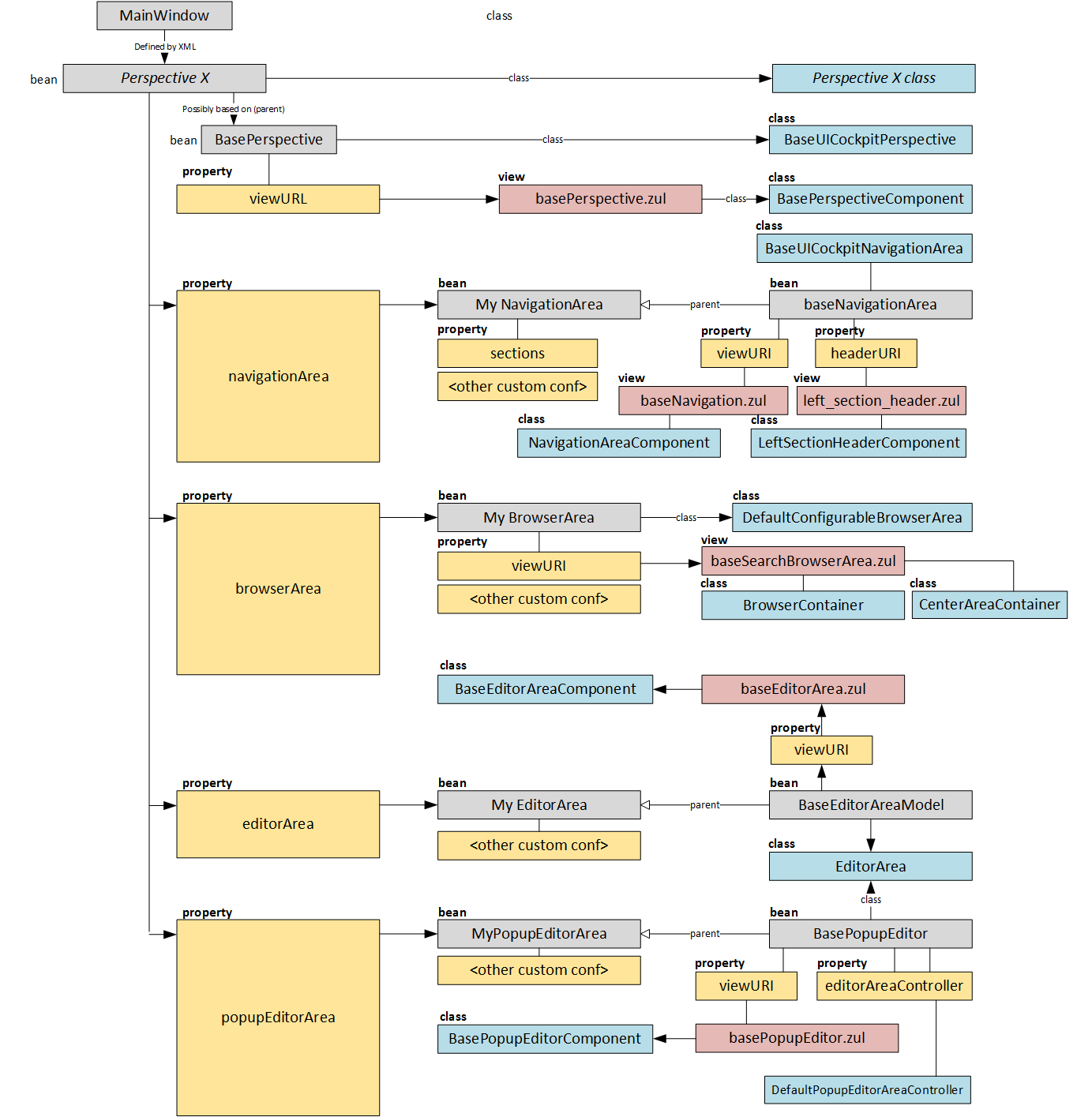
Below is an example from admincockpit that shows how new perspectives can be created.
</pre>
<bean id="ValidationPerspective" class=" de.hybris.platform.admincockpit.session.impl.AbstractConstraintPerspective" scope="session" parent="BasePerspective">
....
<property name="navigationArea">
<ref bean="ValidationNavigationArea" />
</property>
...
</bean>
<bean id="ValidationNavigationArea" class="de.hybris.platform.admincockpit.session.impl.AdmincockpitNavigationArea" scope="session" parent="BaseNavigationArea">
<property name="sectionModel">
<ref bean="ValidationNavigationAreaModel"/>
</property>
<property name="infoSlotRenderer">
<bean class="de.hybris.platform.cockpit.components.navigationarea.renderer.InfoBoxRenderer"/>
</property>
<property name="sections">
<list>
<ref bean="ValidationConstraintsSection" />
<ref bean="ValidationConstraintGroupsSection" />
<ref bean="AdmincockpitUndoSection" />
</list>
</property>
<property name="cockpitTypeService" ref="cockpitTypeService"/>
</bean>
Note that the bean ValidationNavigationArea extends BaseNavigationArea.
NavigationArea
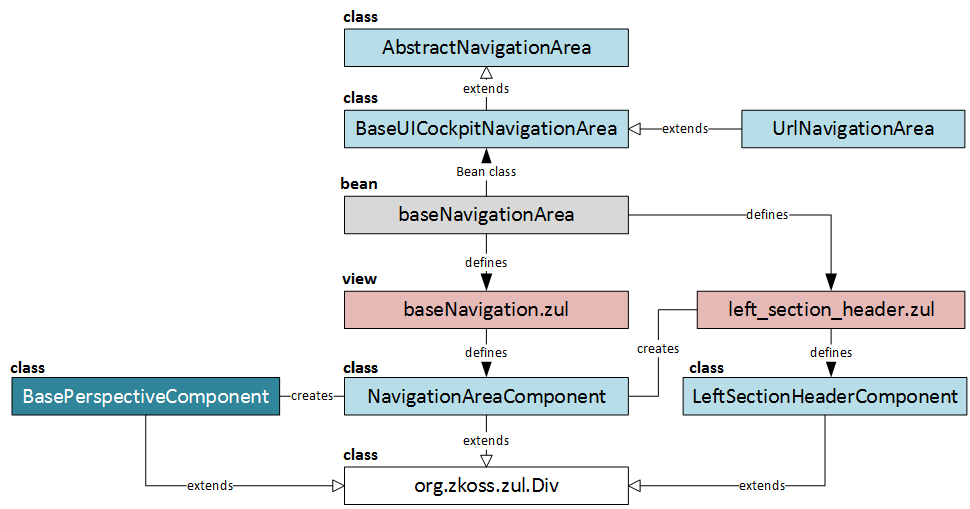
To customize the navigation area, you may:
Create a new
navigationAreabean with the OOTB implementation (BaseUICockpitNavigationArea). However, you can use custom values for bean parameters or custom implementations for the beans referenced in thenavigationAreaparameters, such as:viewURIandheaderURI. You can introduce your own ZUL files instead of the OOTBbaseNavigation.zulandleft_section_header.zul. You can use your own component implementations in your own ZUL files to replace the OOTBNavigationAreaComponentandLeftSectionHeaderComponent, respectively.sections. This parameter defines a list of prototype-type beans that implementNavigationPanelSection. For each bean, you can specify the custom renderer.contentSlotRenderer.infoSlotRenderer.
Create a new
navigationAreabean with a custom implementation. See the example fromadmincockpitabove.Redefine a Navigation Area component by extending
NavigationAreaComponent.
Examples of navigation area customization from hybris built-in extensions. Cockpit’s default implementations are marked in black, and extension-specific implementations are in red:
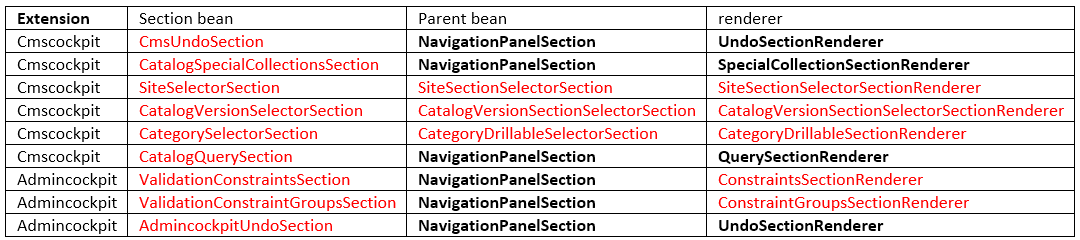
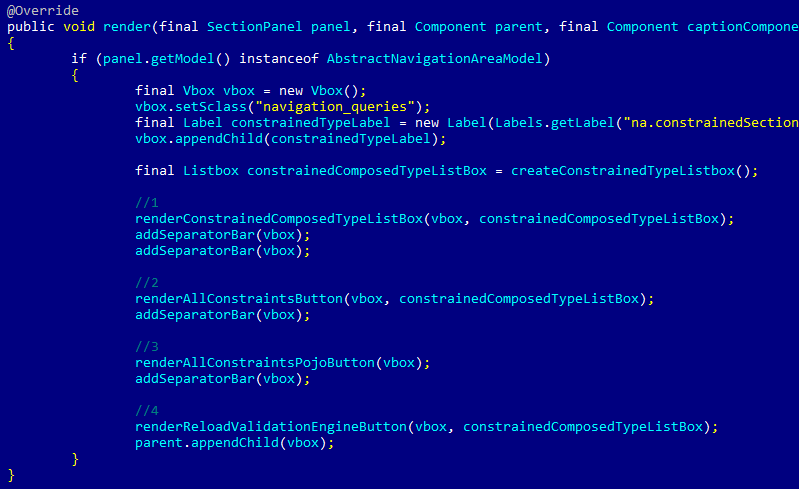
For example, in Admin Cockpit, the custom renderer defines a render method that is used by NavigationPanelSection:
public void render(SectionPanel panel, Component parent, Component captionComponent, Section section) {
Vbox vbox = new Vbox();
Label constrainedTypeLabel = new Label(Labels.getLabel("na.constrainedSection.constrained_type_label") + ": ");
vbox.appendChild(constrainedTypeLabel);
....
parent.appendChild(vbox);
}
As a result, we see these three custom sections:
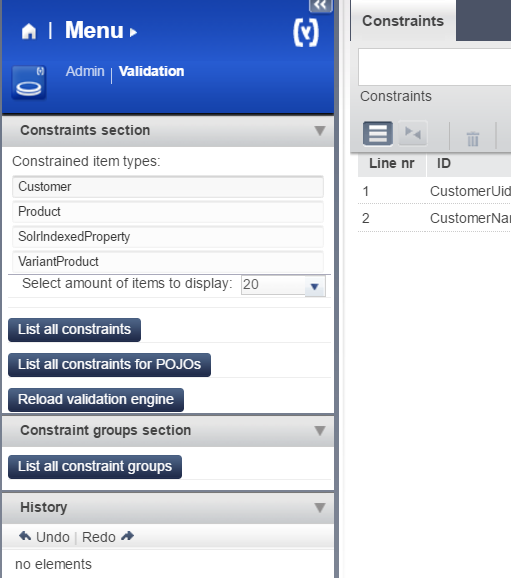
ConstraintSectionRenderer:
Browser Area
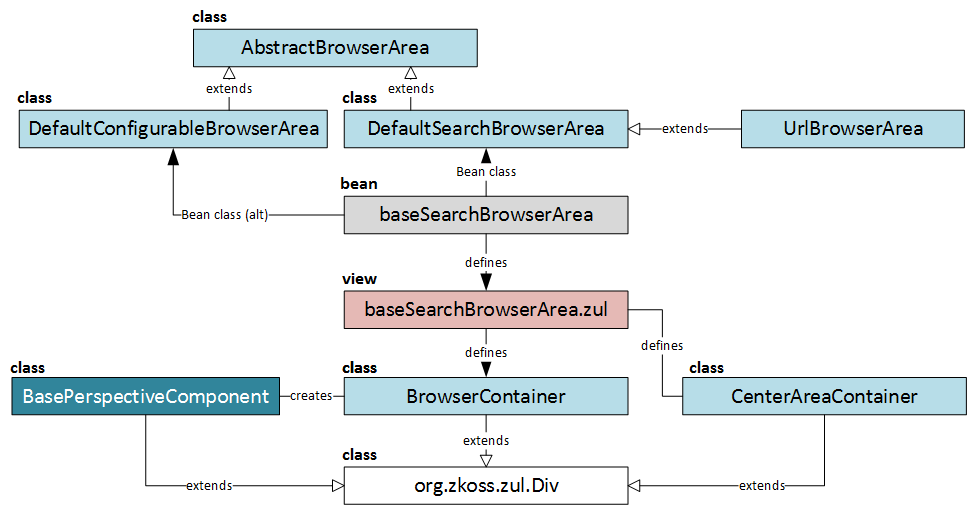
To customize the Browser Area, you can:
Create a new
browserAreabean with the OOTB implementation (DefaultConfigurableBrowserAreaorDefaultSearchBrowserArea). You can use custom values for bean parameters or custom implementations for the beans referenced in the navigation area parameters, such as:viewURI. You can introduce your own ZUL template to replace the OOTBbaseSearchBrowserArea.zul.You can use your own component implementations in your ZUL file to replace the OOTB
BrowserContainerandCenterAreaContainer.supportedBrowserIds. This parameter defines a list of prototype-type beans that implementWidgetDashboardBrowserModel. For each bean, you can specify the custom renderer. For example, CSCockpit (deprecated now) uses three browsers:csTicketPoolBrowser,csBasketBrowser, andcsEndCallBrowser.defaultBrowserIddefines a default browser from the list above. The value is a reference to a bean, not a real ID. For the example above, for example, .showCreateDefaultBrowserButton.rootSearchTypeCode. You can specify a type to browse by default. “Product” means that the browser area will display a list of products. It is defined only inDefaultSearchBrowserArea.extendedSearchBrowseris a boolean parameter. It defines which class should be used for the area:DefaultExtendedSearchBrowserModelorDefaultSearchBrowserModel.
Create a new
browserAreabean with a custom implementation. For example, CMS Cockpit follows this approach. Its custom implementation,CatalogBrowserArea, extends Cockpit’sDefaultSearchBrowserArea.Redefine a Navigation Area component by extending
BaseContainerorCenterAreaContainer.
Browser Area contains the following components:
- Browsers. These are basically tabs at the top of the area. You can create and remove tabs via browser.
- Main area component.
- Caption component. According to
QueryCaptionBrowserComponent, it contains a query text box, search and advanced search buttons, a save query button, advanced search-related functionality, and a split button. - Toolbar component. By default,
DefaultSearchContentBrowserdefines the toolbar component.
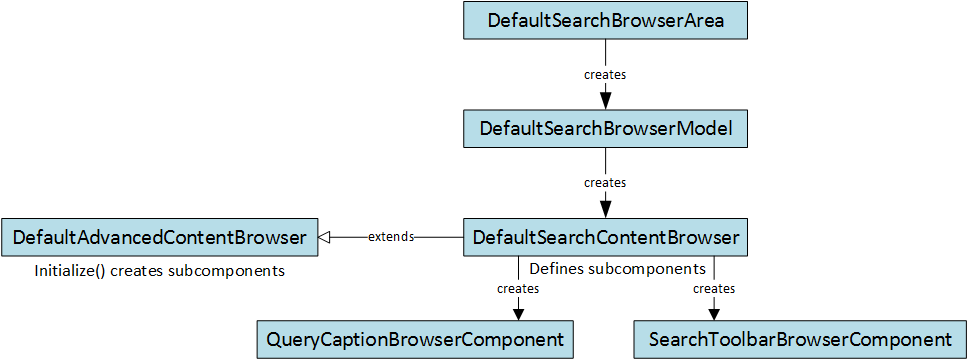
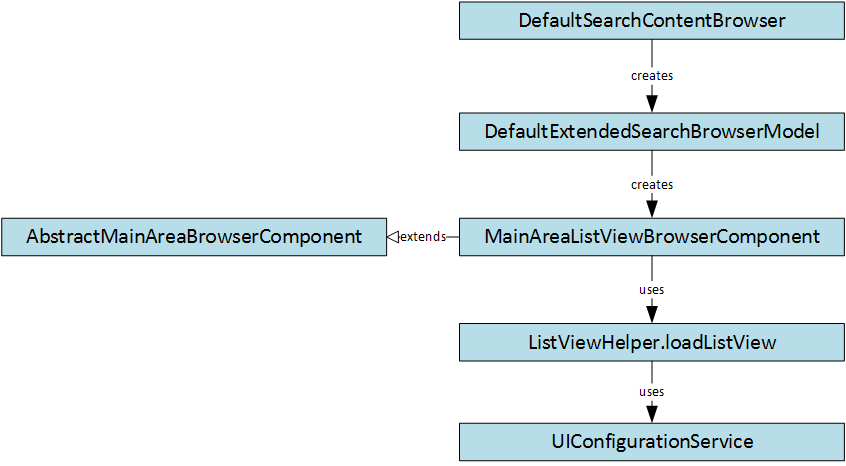
DefaultExtendedSearchBrowserModel creates MainAreaListViewBrowserComponent by default. DefaultAdvancedContentBrowser creates MainAreaGridViewBrowserComponent by default.
The configuration of UI elements is stored in XML files, such as admingroup/contentElement_CategoryPage.xml. There is a service named UIConfigurationService that sets up a configuration for the components. For the mentioned ListView component,
Editor Area
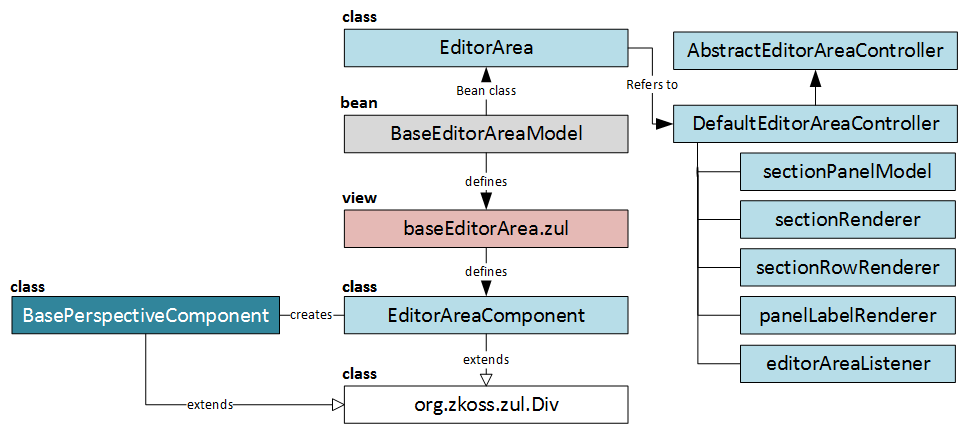
EditorAreaListener
is used to intercept the following events:
currentObjectChangednextItemClickedpreviousItemClickedvaluesStoredvaluesUpdatedbrowseItemClickedcurrentObjectUpdatedvalueChanged
For example, valueChanged is triggered once you change the value of any item in the editor pane.
To replace or extend the default Editor Area Listener, you need to add a parameter to the XML configuration.
Renderers are responsible for creating HTML code. If you need to inject something before or after the list of rows, you can extend the default renderer. However, it is not easy to inject something in the middle of the supplied code other than by rewriting that code completely.
To change editors for different types, there is a separate configuration that tells Cockpit Framework what editor should be used for what type.
Popup Editor Area
You can’t open another level of editor by default as you may have been used to doing with HMC. There are ways to allow nested popups in multiple levels. This feature can be activated for any cockpit with one of the following properties:
# activate only for specific cockpit
productcockpit.default.popUpEditor.allowOverlap=true
# activate for all cockpits
default.popUpEditor.allowOverlap=true
The result is that pencil icons will also appear for editor rows in the popup editor area. Clicking the pencil icon will simulate the next level, and a back button will appear at the top.
There is a big topic on how to operate wizards and popup windows created by ZK. This topic is for the next part.
To sum up, in this article I explained the very basics of Cockpit Framework: perspectives, areas and their components, their architecture, and the customization approach. This is just the tip of the iceberg. I’ll come back soon with other topics about Cockpit Framework and expert customization. Stay tuned!
© Rauf Aliev, November 2016
Discussion
Powered by GitHub Discussions — sign in with a GitHub account to join the conversation.