
Overview
- Key concepts
- Attribute-based Faceting and Needs-based Faceting
- Filter value-selection paradigm: Drill-down or Parallel
- Key UI components of the Facet Search
- A. Selected facet/value pairs (applied facets)
- B. Advanced Search Constraints (non-facet filters)
- C. Facet filters
- C.1. Single Selection and Multiple Options
- C.2. Search Facet Types
- C.3. Search Facet Groups
- C.4. Search Facet Visibility
- C.5. Search Facet Type UI
- C.5.1. Fixed List of items/numbers to select: Single Selection
- C.5.2. Fixed List of terms/numbers to select: Multiple selection
- C.5.3. Fixed List of icons to select: Single selection
- C.5.4. Fixed List of icons to select: Multiple selection
- C.5.5. Ranges: Free Ranges
- C.5.6. Ranges: Fixed Range Groups: Single Selection
- C.5.7. Ranges: Fixed Range Groups: Multiple Selection
- C.5.8. Dynamic Range Groups
- C.5.9. Handling Empty Facets
- C.6. Resetting Multi-Option Facets
- C.7. Aggregations in the facet values
- C.8. Special types of the facets
- C.9. Arranging Facets
- C.10. Facet Titles and Tooltips
- C.11. Facet Values/Options
- C.12. Facet States
- C.13. Quick Lookup
- D. Search Results
- Facet Navigation and Search Engine Optimization
- SAP Commerce Cloud Feature Coverage
- Bibliography
Abstract

In this article, I have structured the main concepts, best practices, design recommendations, interaction patterns, and visual design considerations for faceted search. I believe this work covers every aspect of the facet search UI: everything you need to know to create a facet search component from scratch or by using the ready-made building blocks from the SAP Commerce Cloud out-of-the-box search module. At the end of the article, you will find a summary explaining what features are implemented in the default SAP Commerce Cloud Accelerators; for those that are not implemented, you will find my ballpark estimates of the effort needed.
Key concepts
Faceted search is a technique that involves augmenting traditional search techniques with a faceted navigation system, allowing users to narrow down search results by applying multiple filters based on a faceted classification of the items. It is also called guided navigation.
Attribute-based Faceting and Needs-based Faceting
Your customers may not always be well versed in a product’s technical details. The facets may or may not be the product attributes. At the design phase, one or more product attributes can be converted into one facet. Other attributes can be simplified for use as facets or even split into two or more facets.
SAP Commerce Accelerators support the translation from product attributes into facets.
Filter value-selection paradigm: Drill-down or Parallel
There are two basic ways of selecting values for filters:
- Drill-down selection (such as links with immediate facet form submission). This is an Ajax-like technique where filtering criteria are submitted individually, sequentially, upon each selection. Often represented as links, filters can also be built using radio buttons or checkboxes. By clicking a link, a customer can either select a single value for a specific filter or drill down a level in a taxonomy, such as a category or department hierarchy. Every time a user clicks a filter link, checkbox, radio button, etc., the page refreshes (or the results refresh via AJAX), updating the search results.
- Parallel selection, or “en masse” (such as checkboxes with no immediate facet form submission). Checkboxes used in parallel selection mode let customers indicate parallel selections of multiple filter values, limiting the scope of search results to those that match them. The user must manually press a “Filter” button after selecting various checkboxes, setting up sliders, etc.
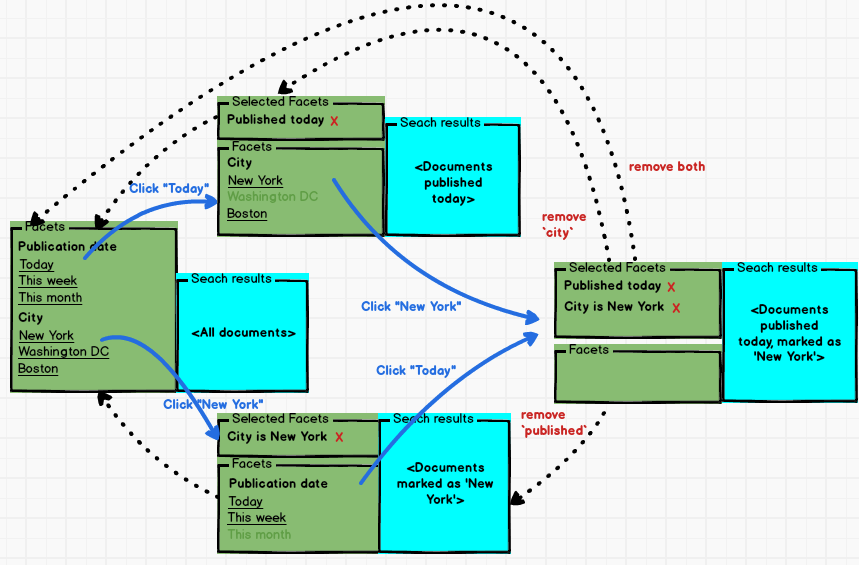
Note that in the drill-down selection approach, you can’t open all documents published today and marked as “New York” directly from the initial form. You need to perform two actions in a row: select the city, then the publication date, or vice versa.
Drill-down selection may appear slow and cumbersome to the user. For this option, using AJAX is highly recommended.
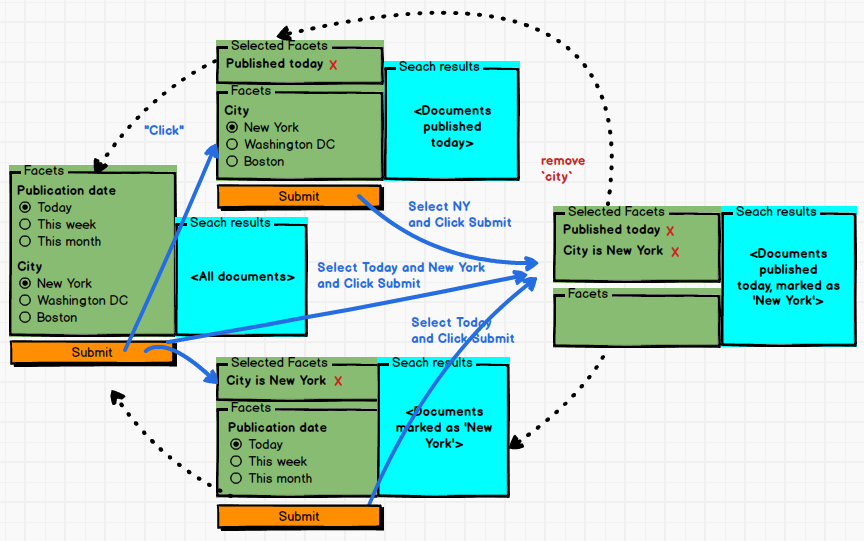
For parallel selection, the user might not realize they have to hit a “Submit” button in order to actually apply the checkboxes, radio buttons, etc. they selected. They might select some checkboxes, radio buttons, etc. and wait, but nothing happens. This causes confusion and friction for the user, which can lead to a negative experience. Also, if the list of facets is taller than the visible portion of the page, the “Submit” button, which is generally placed at the top or bottom of the page, will get pushed out of the viewable screen, causing the user not to see that there is a Submit button at all.
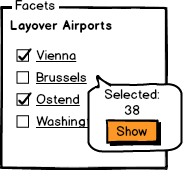
To address this issue, in some implementations, after the user selects an item, the submit button is revealed next to the selected item, along with auxiliary information, such as the number of documents fetched.
The Parallel Selection approach works well when search is quite slow and the probability of complex selection (many options) is high.
For parallel selection, you can face the problem of dependent facets. Some combinations of facet values would return no results, and you need to mark those in the form somehow. Normally, this can be done by greying out some items so that the user cannot select them. This approach also creates other edge cases you need to work out.
Drill-down selection and parallel selection complement one another very well. Drill-down selection is great where customers need to display multiple levels in a hierarchy — for example, multi-level category drill-downs. Parallel selection is great for selecting one or more options for attributes like brands or sizes, especially if the system rearranges the facets in full after submitting the selection for a single facet.
Important notice: don’t confuse this with single/multiple options per facet. This section is about selecting more than one facet per form without automatic (per-click) form submission.
Key UI components of the Facet Search
I’ve broken down the underlying components of faceted search into atomic building blocks.
Broadly, there are two main components of Facet Search:
- Facet Filters Panel (A–C)
- Facet Search Results (D)
There is also a search box, which is one of the entry points for the functionality. In this review, the search box, as well as the advanced search page, is out of scope.
The Facet Filters Panel contains:
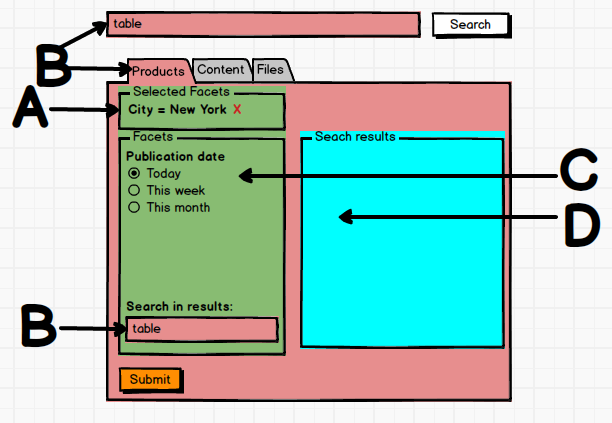
- A. Selected facet/value pairs (applied facets) — in some designs, this block is not present. Example: “Size=10”.
- B. Advanced Search Constraints (non-facet filters) — may not be present. Example: “Keyword Search in the results”.
- C. Facet filters. Each facet filter contains:
- Facet Filter Title. For example
- Facet Options
- Submit button (optional; used only in the parallel selection approach)
The Facet Search Results Panel contains a list of items (documents, products).
For the desktop version of the website, in relation to the Facet Search Results Panel, the Facet Filters Panel can be:
- Vertical, on the left side
- Vertical, on the right side
- Horizontal, along the top
- Combined:
- Left + Top: some filters are left-aligned, some are top-aligned
- Right + Top: some filters are right-aligned, some are top-aligned
For example, Geizhals.at uses a top facet bar:
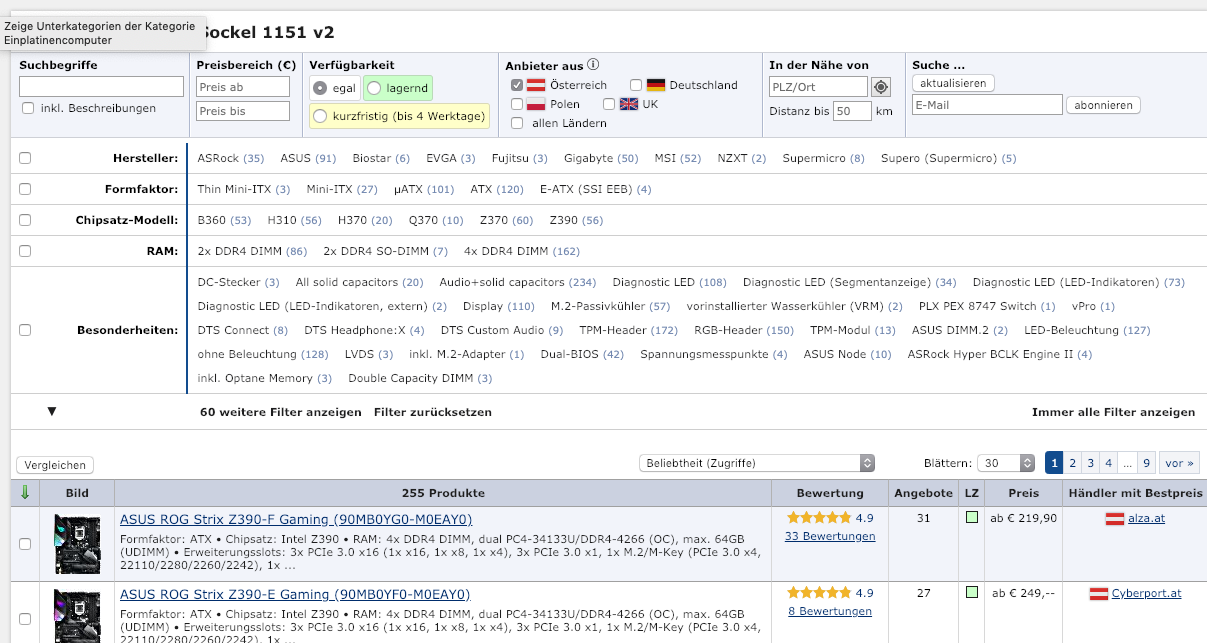
Note that the checkbox on the left is used to build a custom description.
For example, Aliexpress uses a combined approach:
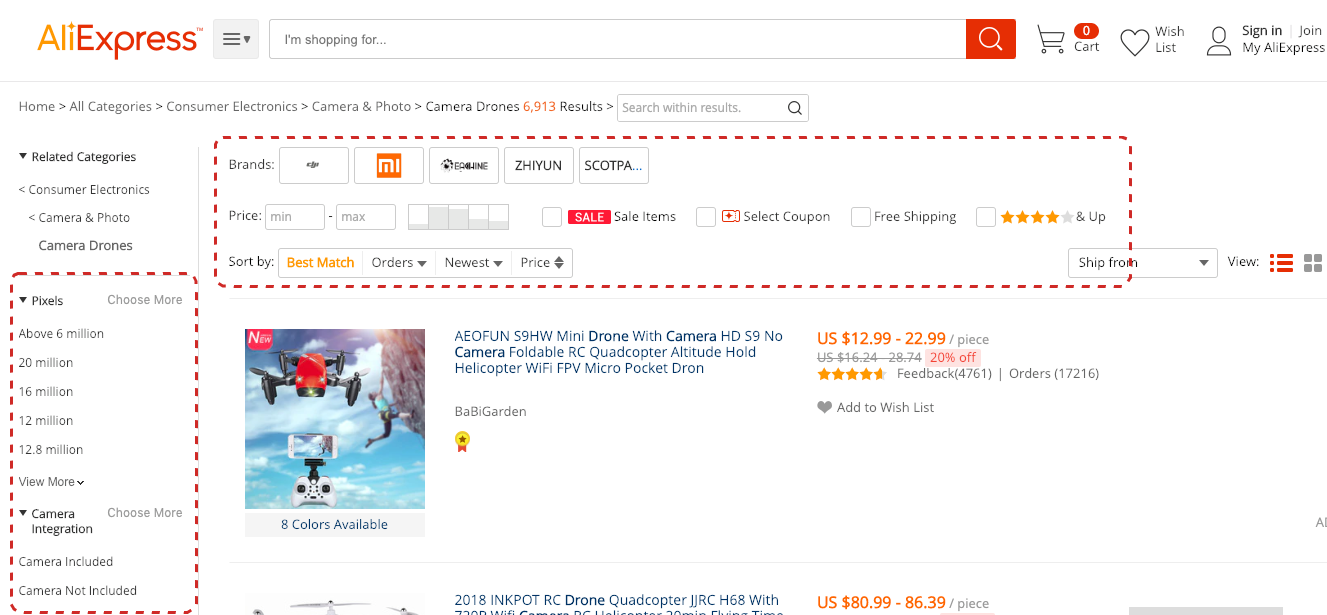
However, the top part is more or less stable, while the list filters depend on the product category. Possibly, the top part contains the advanced search constraints, while the left part contains real facets.
In SAP Commerce Accelerators, the Facet Filters Panel is on the left.
A. Selected facet/value pairs (applied facets)
Applied facets can be implemented in two ways:
- Non-dynamic list of facets
- Dynamic list of facets
A.1. Non-dynamic list of facets
All facets are displayed in full and in the same order for all facet combinations, but some values are marked as selected. Some values are greyed out as non-selectable if they lead to zero results. This approach works well only with a small number of facets.
In SAP Commerce Accelerators, this approach is not implemented by default.
A.2. Dynamic list of facets
The applied facets can be listed in a separate area. For single-selection facets, the facet block is not displayed after selection. The user can remove a filter from the list of applied filters.
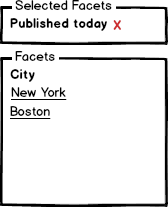
In SAP Commerce Accelerators, this approach is implemented by default.
B. Advanced Search Constraints (non-facet filters)
B.1. Advanced Search Constraints and Facet Constraints
For faceted search, there are two types of constraints:
- Non-facet constraints. Examples of non-facet constraints are keywords or current customer location. Topic, city, or country can only be a facet.
- Facet constraints. Facet constraints are based only on the variety of attribute values of the search results.
In some solutions, both types of constraints are combined on the same facet navigation pane.
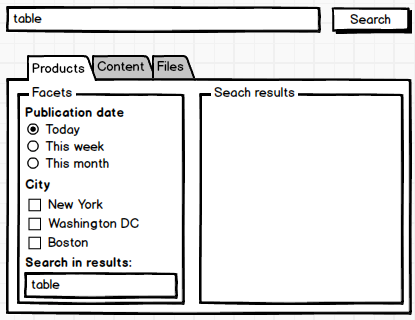
In the following example, query (“table”) and search scope (“products”) are non-facet constraints. Publication date and City are generally facet constraints.
B.2. Filters and Facets
According to Nielsen Norman Group research, there are two terms: filters and faceted navigation, and they are sometimes used interchangeably. “There is in fact quite a lot of overlap between these concepts: they share the same basic mechanism of analyzing a large set of content and excluding any objects that don’t meet certain criteria. The difference between the two is essentially one of degree, but it is an important difference. Filter means anything that analyzes a set of content and excludes some items. Faceted navigation is composed of multiple filters that comprehensively describe a set of content. Ideally, faceted navigation provides multiple filters, one for each different aspect of the content.”
In terms of this work, {Advanced Search Constraints} is {Filters} minus {Facets}.
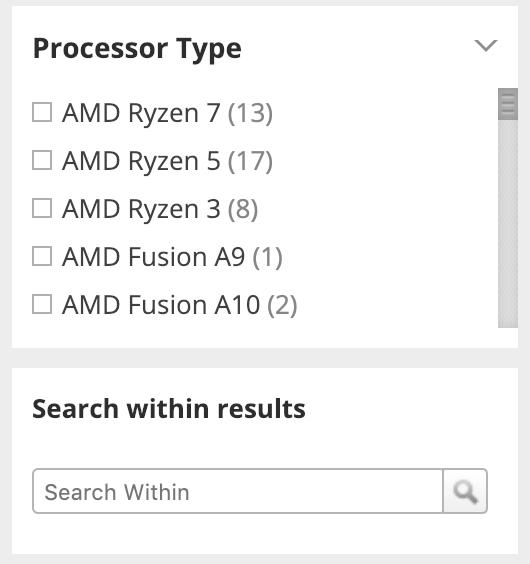
B.3. Search within the results
In this scenario, the user is able to type query strings into a text box and have that constraint added to existing query refinements. According to our terminology, filters like “Search within the results” are technically not facets; they are Advanced Search Constraints. In terms of the UI, they can be visually grouped with facets.
C. Facet filters
C.1. Single Selection and Multiple Options
The facet can be configured as:
- Single Selection
- Multiple Selection
| Type | Example |
|---|---|
| Single selection | 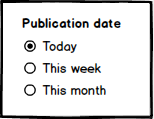 |
| Multiple selection | 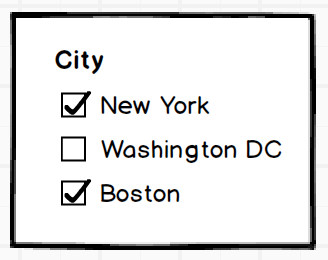 |
SAP Commerce Accelerator supports both options for facets.
Aliexpress uses a combined approach. Some facets are single-selection, but you can convert them into multiple-selection mode by clicking “Choose more”:
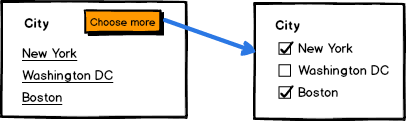
Allowing single-selection to be converted into multiple-selection is not a common interaction pattern for a user, so be careful not to overuse it.
Edge cases of multi-selection you need to work out:
- All items selected is basically the same as no items selected.
- In the drill-down selection approach, selecting many items should not result in performance problems.
C.2. Search Facet Types
The types of data exposed by facets may vary depending on the underlying elements of the document model they represent. They usually fall within five commonly used types:
- Nominal values, such as the label for a category;
- Ordinal values, a discrete ranking value that may be ordered, such as a number or text-based rating;
- Interval-type values, non-zero values representing a continuous range of values;
- Ratio-type values, similar to ordinal values but allowing zeroes;
- Free-text type, which usually holds text snippets not well suited to the other stated facet types.
Beyond these basic facet types, compound or computed facets may be used to enhance searching.
A correlated facet type is based on multiple underlying multi-valued fields, which may only exist in particular combinations such as “Size” and “Color” for an item in a retail dataset. Correlated facets may be created to express the intersections of certain non-exclusive facets and avoid both empty result sets and unnecessary multiple refinement actions. Ensuring an intuitive interaction and design is critical when implementing correlated facets.
Computed information such as the average rating or average price of a given item can be created at search time and appended to facet values to add additional information scent, guide emphasis, or influence the order of value presentation.
From the presentation perspective, these types are mapped into the following types of facets:
- Fixed List of terms to select (e.g. countries)
- Single selection
- Multiple selection
- Fixed List of numbers to select (e.g. sizes)
- Single selection
- Multiple selection
- Fixed List of icons/images to select (e.g. color samples)
- Single selection
- Multiple selection
- Boolean value (the facet has only one value and it is Yes/No).
- Ranges
- Free ranges (e.g. price slider)
- Range groups (e.g. price groups)
- Fixed
- Single Selection
- Multiple Selection
- Dynamic
- Single Selection
- Multiple Selection
- Fixed
Examples of Ranges:
- Numerical ranges (<10, 10–100, 101–1000, 1001–10000, >10000)
- Price ranges ($10 – $500)
- Weight ranges (10–50, 51–100, 101–200)
- Datetime ranges (Aug 10 – Sep 10)
- Days
- Hours
- Months
- Alphabetical ranges (A–N, O–Z)
C.3. Search Facet Groups
Facet grouping can be easily illustrated with the following example from Macys.com:
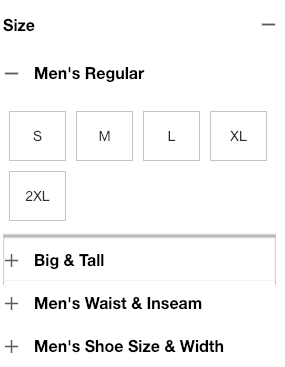
The “size” facet is actually a group named “Size”. It has four facets related to a group.
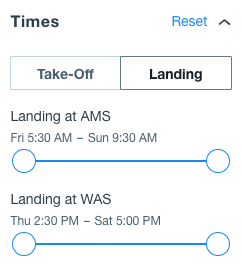
Another example shows how facets can be organized into tabs to provide a better UI:
 |
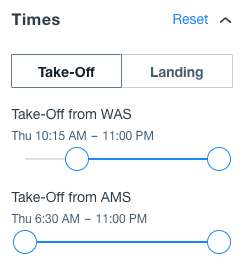 |
Although tabs are an option, they can create friction for the user because they hide facets, causing users to have to remember what they selected unless they switch back and forth.
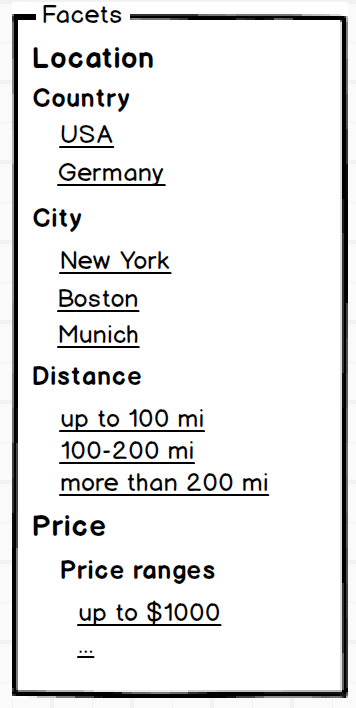
Search Facet Groups are not supported in the default SAP Commerce Accelerators. This functionality can be added as part of customization.
C.4. Search Facet Visibility
There are three possible options for facet visibility rules:
- All filters with non-zero facets are displayed.
- Only essential facets with non-zero results are displayed; all filters are available after the user clicks “all filters”. The filters with zero results are greyed out, the value list is collapsed (not displayed), and values are not clickable.
- By default, all facets with non-zero results are displayed; however, the facets can be configured as non-displayable when a specified set of facets and non-facet constraints are applied, such as categories, location, or personalization settings.
In SAP Commerce, the third approach is implemented.
C.5. Search Facet Type UI
C.5.1. Fixed List of items/numbers to select: Single Selection
The most common way of representing a single-selectable fixed list of items/numbers is a list of hyperlinks. SAP Commerce Accelerators also use this approach by default.
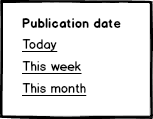
Alternative options (customization is required):
Radio buttons + a term/number with autosubmit

Radio buttons + a term/number with group submit. For this option, don’t forget to add a neutral item at the first position (“Not selected” or “Choose an option…”).

Select box with autosubmit. For this option, don’t forget to add a “neutral” item at the first position (“None selected” or “Choose an option…”).
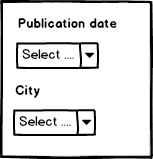
Select box with group submit. For this option, don’t forget to add a neutral item at the first position (“None selected” or “Choose an option…”).
C.5.2. Fixed List of terms/numbers to select: Multiple-selection
The most common way of representing a multiple-selectable fixed list of items/numbers is a list of checkboxes. SAP Commerce Accelerators also use this approach by default.

Alternative options (customization):
- Checkbox + term/number with manual form submit

There is a special case for organizing hierarchical structures into tree-like navigation, such as dates (year → month → day) or categories. Please read “Hierarchical facets” for details.
For large lists, providing a “Select All / Unselect All” action should be considered. It may help the user with the case of filtering out only one item from the list (an inverse operation to selecting an item).
C.5.3. Fixed List of icons to select: Single selection
The most common way of representing a single-selectable fixed list of icons is a list of clickable icons.
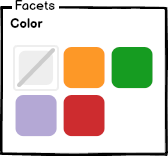
For the single-selection list of swatches with a submit button (“parallel selection”), you need to consider an option that removes the facet setting. For swatches, it may not be easy, because the icon for that is not common and may not be reliably recognizable.
Other types of facets of this kind:
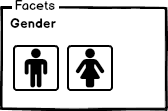
Alternative options (customization):
- Radio buttons + icon, with autosubmit
- Radio buttons + term/number with manual form submit
- Radio buttons + icon + icon description, with autosubmit
- Radio buttons + term/number with manual form submit
- Icon + description, as links
- Select box with icons
Examples:
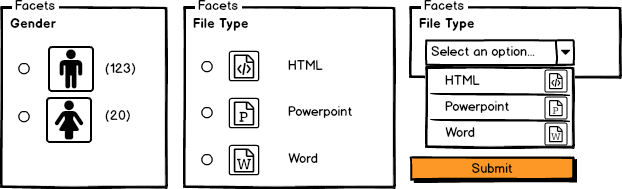
A product rating facet also relates to the “fixed list of icons” facet category:
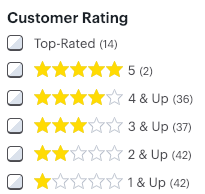
For large lists of icons, providing a “Select All / Unselect All” action should be considered. It may help the user with the case of filtering out only one item from the list (an inverse operation to selecting an item).
C.5.4. Fixed List of icons to select: Multiple selection
This approach is not implemented by default, but can be easily added via customization.
Alternative options (customization):
- Checkbox + icon with autosubmit
- Checkbox + term with manual form submit
- Select box with multiple selection
C.5.5. Ranges: Free Ranges
Free-range facets are not implemented in SAP Commerce Accelerators.
This concept is usually implemented as a slider with two knobs. Min/max are parameters that can be dynamically defined by the results returned or fixed as a facet parameter.

The range is called “free” because the step is not clearly defined in the UI.
C.5.6. Ranges: Fixed Range Groups: Single Selection
Fixed-range single-selection groups are implemented in SAP Commerce Accelerators as a list of fixed groups (from–to).
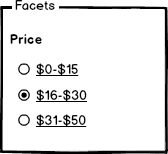
Alternative options (customization): sectioned slider with two knobs when min/max are defined.

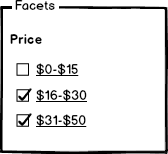
C.5.7. Ranges: Fixed Range Groups: Multiple Selection
According to this concept, the system calculates the ranges based on the search results to deliver a better customer experience.
Fixed-range multiple-selection groups are implemented in SAP Commerce Accelerators as a list of fixed groups and checkboxes (from–to).
C.5.8. Dynamic Range Groups
Dynamic Range Groups are not supported by SAP Commerce Accelerators by default; customization is needed.
For example, if prices are between 0 and 60, the following groups should be generated:
price:[* TO 20]  -> 23 items
price:[20 TO 40] -> 42 items
price:[40 TO *]  -> 33 items
For example, if prices are between 0 and 300, the following groups should be generated:
price:[* TO 100]   -> 23 items
price:[100 TO 200] -> 42 items
price:[200 TO *]   -> 33 items
The algorithms behind this may differ. For example, the system can have a defined step and merge similar data into groups dynamically. Alternatively, it may perform basic cluster analysis to reveal groups efficiently. Think about the following example: 90% of your results are evenly distributed between $0 and $10, the remaining (10% minus one) are evenly distributed between $900 and $1000, and one costs exactly $800. What ranges should your system generate for a facet?
Aliexpress has an interesting example of how dynamic ranges may work:

It has a fixed number of price groups, but the ranges are dynamic. For each range item, Aliexpress shows a percentage of the users who bought products in the price range.
The minimum price for the example above is $0.04, and the maximum price is $7880. Aliexpress split this range into five:
- 0.04 – 1.21 — 75,334 results — 10% of customers bought in this range
- 1.21 – 6.38 — 187,912 results — 38% of customers bought in this range
- 6.38 – 24.10 — 342,929 results — 38% of customers bought in this range
- 24.10 – 62.90 — 510,909 results — 11% of customers bought in this range
- 62.90 – $7880 — 306,862 results — 3% of customers bought in this range
It is unclear to me how Aliexpress splits the whole range into five subranges. The first guess could be that the calculation is based on cluster analysis and finding the middle points between the averages. With this approach, Aliexpress can detect five clusters. For the ranges above, their centers are the ranges’ middles: 0.625, 3.795, 15.24, 43.5, and 3971.45. If you have any ideas, share your thoughts in the comments.
C.5.9. Handling empty facets
There is an interesting case when the product facet attribute (or document facet attribute in general) may be present only for some products in the search results. For the remaining ones, it is undefined. In fact, we have at least two possible values of the facet: “undefined”, “value1”, “value2”, …, “valueN”.
The undefined value can be displayed or not — it depends on the design and business need:
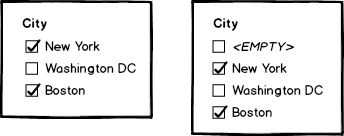
The second option is more flexible, but it exposes data-quality issues to the customer.
The following example is from Best Buy:
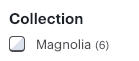
You can filter all products with collection='Magnolia', but you can’t see all products that are not in this collection.
In SAP Commerce Accelerator, empty items are not displayed in the facet as an option.
C.6. Resetting Multi-Option Facets
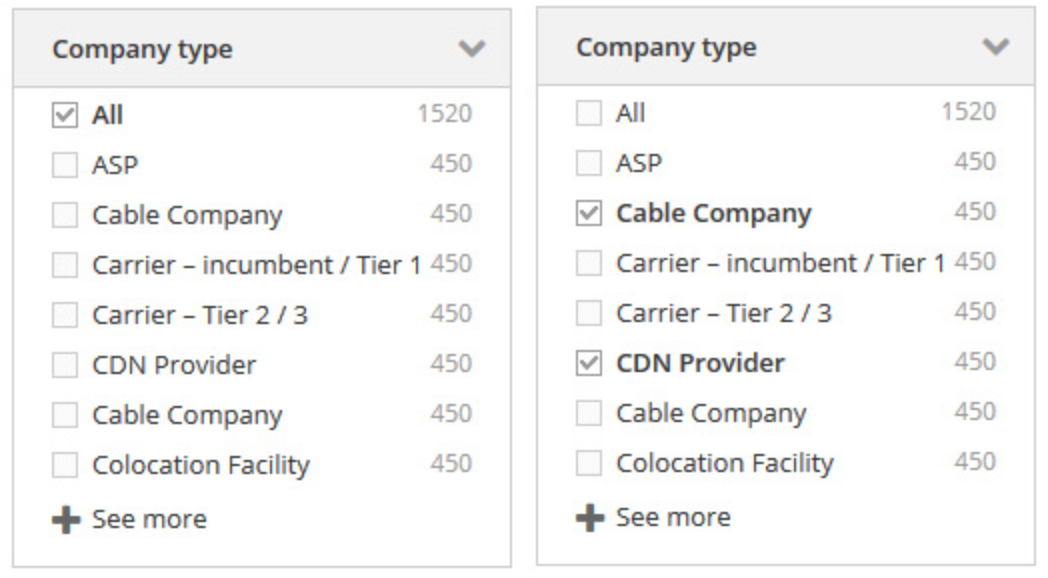
There are four ways to implement a multi-option facet reset:
- “All” checkbox on the top of multi-option facets
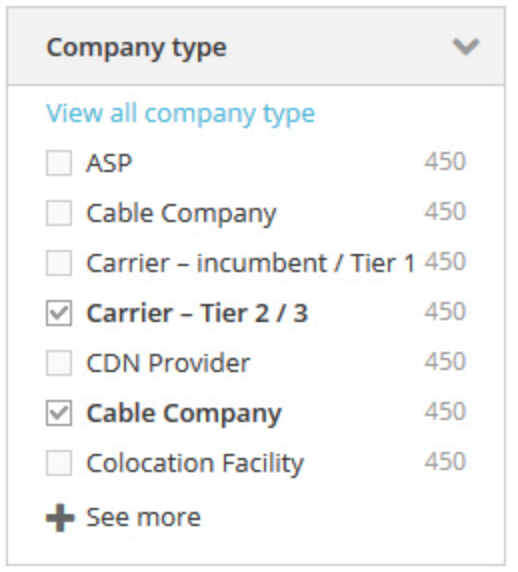
- “View all <facet name>”. Clicking it will submit the form without this facet.
- “Clear all”. Clicking it deselects all checkboxes, but does not submit the form.
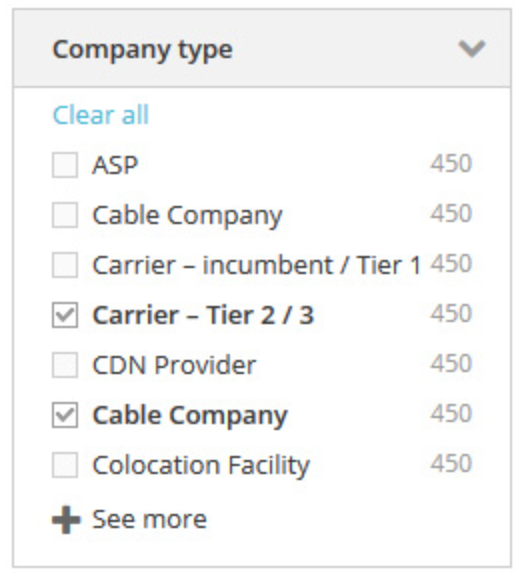
- Reset button for a filter, and “Reset All” on the top to reset all filters at once.
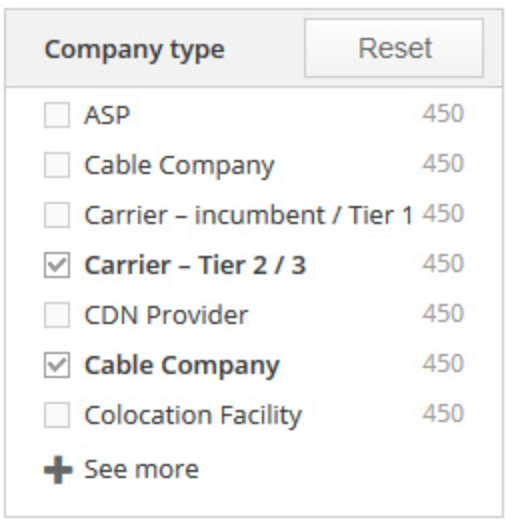
Option #4 is recommended. In SAP Commerce Accelerators, there is no way to reset facet state. However, it is a very light and minor customization.
C.7. Aggregations in the facet values
For a better UI, items in the facet values list can also have aggregation data, such as:
- Best price for the option
- Price ranges for the option
- Number of matches
Show the number of matches against each faceted filter; this helps users pick the right filters based on their search commitment and intent.

C.8. Special types of the facets
C.8.1. Color choosers
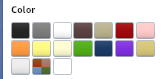
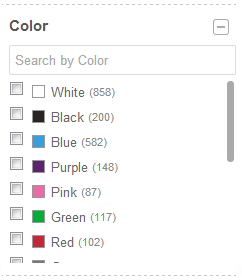
This functionality is not implemented in SAP Commerce OOTB.
C.8.2. Sliders and histograms
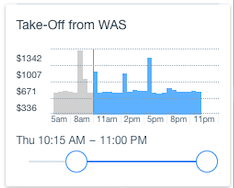
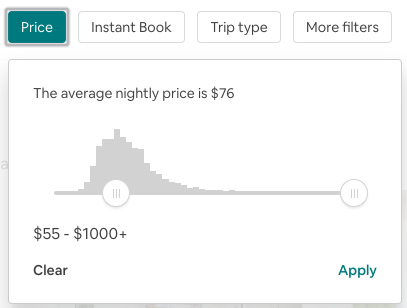
For the take-off time range, Kayak shows a histogram showing demand:
C.8.3. Tags
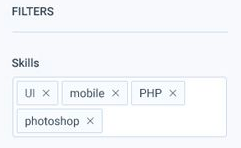
This approach works well if the number of possible values is very large. However, it is not a facet filter even if it is visually designed as a facet. This filter relates to Advanced Search Constraints (see above).
In the next example, tags are used for filtering by a skill.
C.8.4. Horizontal Single-selection Slider
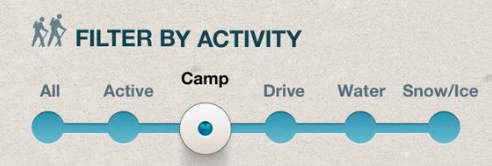
This facet is just a way of representing a single-selection list with a fixed number of values. The number of options depends on the results.
C.9. Arranging Facets
The ideal ordering of facets and their values depends on the dataset and the information needs of the user. Commonly used facets can be evaluated effectively through user studies and later adjusted through log analysis. You can use A/B tests for that too. In most cases, people prefer known, easily understood ordering schemes like alphabetical, ordinal, or popularity sorting. In cases where there are a large number of facets that may not all be shown, users prefer to see the most salient/frequent options displayed, with the ability to expand the selection using a “more” action.
The order of facets can be set globally (global facet order) or configured per category or per user query (personalized facet order).
In SAP Commerce Accelerators, you can arrange facets per category OOTB.
C.10. Facet Titles and Tooltips
The facet can have a tooltip, a message that appears when a mouse cursor is positioned over the facet or facet value. Many use a question mark icon to provide a hint about a tooltip.
C.11. Facet Values/Options
There are two variants for how facet values (or options) are displayed:
- All unique search facet values are displayed. If they aren’t used, they should be greyed out.
- Only relevant unique facet values are displayed. Relevant means that the search index has at least two items with different values for the facet.
The values can be sorted:
- By the number of products the facet is assigned to
- As numbers
- Alphabetically
- Other options
C.11.1. Arranging Search Facet Values
Each facet was analyzed to determine the most natural order for possible values. Alphabetical sorting was used most frequently, particularly for free-text value types. Where range facets are presented, we force the range values into a meaningful descending order. Most facets were very easy to assign sorting strategies to.
The values can be sorted by:
- Count descending (count = number of documents behind the option)
- Alphabetically
- As numbers:
- Ascending
- Descending
- For ranges:
- By the “From” part of the range, as numbers or alphabetically
- Top Facets by Count & Alpha, then Alpha. Before expanding, the top number of filters based on count will display alphabetically. After expanding, the additional filters will display alphabetically.
- Top Facets by Count & Alpha, then Score. Before expanding, the top number of filters based on count will display alphabetically. After expanding, filters will display in count-descending order.
- Manual / Custom (for icons, colors, month or week names, etc.)
Custom per-facet sorting is an OOTB feature of SAP Commerce Accelerators.
C.11.2. Grouping Search Facet Value List Items
Facet Unique Values can be grouped for better navigation. In the following example, the cities are grouped into countries:
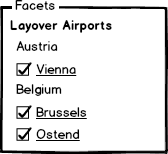
Facet value grouping is not implemented in SAP Commerce Accelerators OOTB.
C.11.3. Hierarchical facets
For some facet types, using hierarchical navigation can be more convenient than ranges.
The typical example of hierarchical navigation with limited depth is a date type:
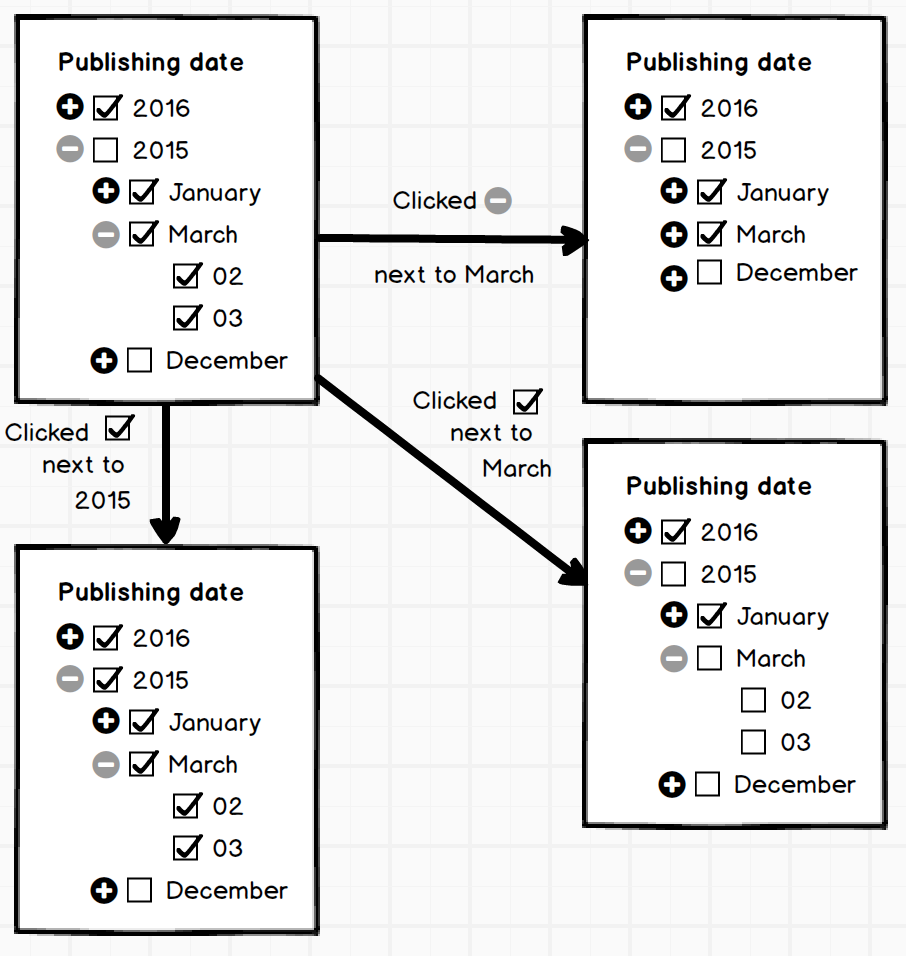
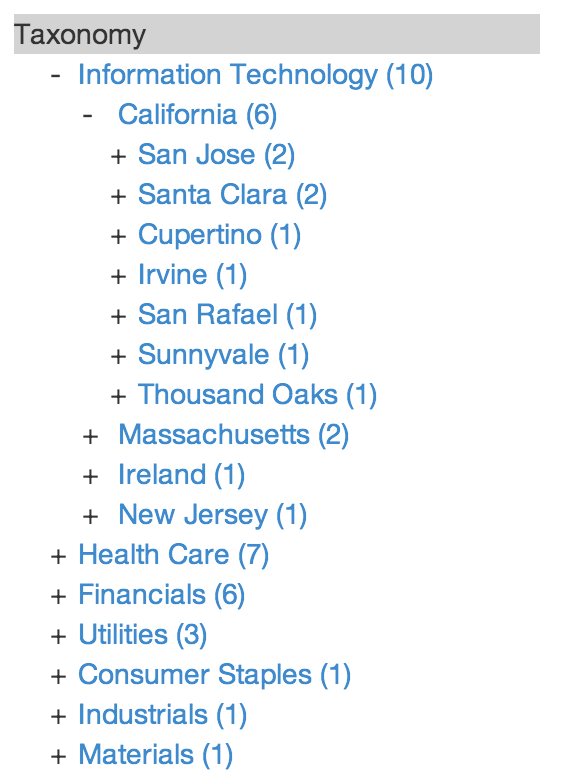
Similarly, hierarchical facets can be used for categories, for example.
The next example shows two-level facet navigation from carzone.ie:
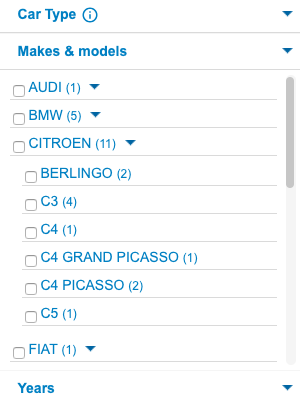
Hierarchical facets can be:
- Strict. For strict hierarchical facets, each value has only one position in the tree.
- Multi-path. For multi-path facets, the same value can be found in different branches.
C.12 Facet States and Collapsible Facet Value Lists
Facets can have different types of states depending on scope:
- Initial (by default)
- Global
- Specific to particular non-facet constraints or their set (for example, for a category)
- Session-scoped (for the current session)
- Search-session-scoped (for the whole set of non-facet constraints)
- Page-scoped (the changes are removed after leaving a page)
There are three initial facet states for available facets:
- Collapsed by default. Users can expand the collapsed facets when needed.
- Partly open (a shortened list of facet values is displayed). With this approach, you can display the most important values, the ones you think will be helpful for users in narrowing the search, in the open state and collapse the others.
- Fully open (all facet values are displayed)
Often, there’s not enough space in the UI to show all values of faceted filters in a results list by default. If the list of facet values is long:
- Inline Expand. This is perhaps one of the most commonly seen solutions, for instance on many e-commerce sites. It works well for many situations where there are a limited number of values. The approach doesn’t scale up well; it may create a very long page.
- Scrollbars. This is also a common approach. However, having a row of HTML scrollbars may not meet expectations for design aesthetics.
- New Page / a Pop-Up Window / Overlay Dialog Window. Clicking a “more” link or “show all” link could open an overlay dialog window, new page, or popup. This works well for a large number of values and for values with very long labels.
- Dynamic Menu. Clicking a link labeled “more” could also reveal an in-page menu with the additional values. This approach is widely used for small screens.
- Paging. Using pagination for facet values. A rarely used approach, not recommended.
- Quick lookups. See Quick Lookup below.
- Pop-ups. Values can be selected in the pop-up window or expandable list.
In SAP Commerce, only the first approach is implemented.
C.13. Quick Lookup
For long lists of facet values, you can use a Quick Lookup pattern:
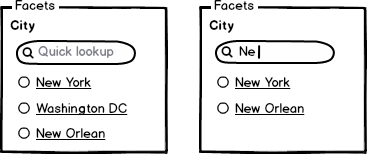
This design potentially saves time in the retrieval process for navigation-driven users. For information-driven users, it front-loads the information-scent advantage of the facet ontology, adding additional opportunities for education about the structure of the collection and presenting additional opportunities for serendipitous discovery.
D. Search Results
D.1. Banners
For a particular combination of filters, you can display a banner or banners showing product recommendations. This block must be visually different from the normal search results and titled “Our recommendations”.
In SAP Commerce Accelerators, for the basic facet configuration, this functionality can be implemented via the personalization module.
D.2. Shareable links
The link should be shareable. The user should be able to send a link to a friend, and the friend should see the same results as the user. If possible, make the link human-readable and as short as possible. Test the facet search with all facets on and the longest facet values to avoid the issue of the URL being too long. URLs over 2,000 characters will not work in the most popular web browsers.
There are two approaches to building a human-readable URL for the facet search results page:
Query Parameters:
https://example.com/category1/category11/?option1=true&option2=1Virtual Subdirectories:
https://example.com/category1/category11/filter/option1/true/option2/1
One challenge faced when structuring faceted URLs is correctly denoting taxonomy for multiple values and multiple options. As more facets are added, the URL structure becomes increasingly complicated.
The following examples illustrate two common approaches to this problem:
Query parameters
Solution #1: https://example.com/category?color=black,white
Solution #2: https://example.com/category?color=black&color=white&size=8&size=10
Solution #3: https://example.com/category?color=black,white&size=8,10
Virtual subdirectories
Solution #4: https://example.com/category/filter/color/black,white/size/8,10/
I recommend using Solution #1.
In SAP Commerce Accelerators, Solution #2 is used by default.
In both cases, ensure that all parameters are listed in some predefined order (for example, parameters are listed in alphabetical order). If they are in a different order, redirect the user to the rewritten URL. This approach will ensure that you have only one unique URL for the search query.
Also, ensure that you distinguish advanced search constraints and facet constraints in the URL.
In SAP Commerce Accelerators, the search results have a shareable link. However, the parameters are acceptable in a random order, which may create SEO issues if not configured appropriately.
D.3. Pagination vs Infinite Scrolling
Infinite scrolling is a technique that allows users to scroll through a massive chunk of content with no finish line in sight. This technique simply keeps refreshing a page when you scroll down it.
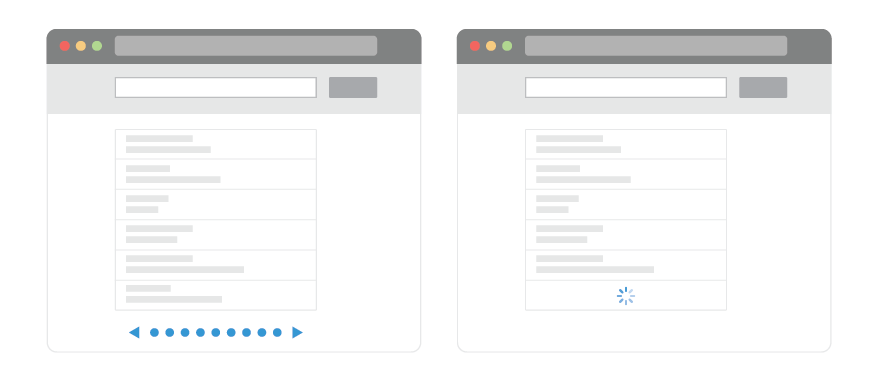
Generally, both approaches have their pros and cons. Below is a list of them for generic use of this concept, not only for search results.
| Infinite Scrolling | |
|---|---|
| Pros | Cons |
| User Engagement and Content Discovery: it may make the user stay longer on your web page and therefore increase engagement. | Page Performance and Device Resources: page performance may slow down; memory consumption. |
| Scrolling is Better Than Clicking: users have better experiences with scrolling than clicking/tapping. | Item Search and Location: users can’t bookmark their location and come back to it later. |
| Scrolling is Good For Mobile Devices: the smaller the screen, the longer the scroll. | Irrelevant Scroll Bar: it doesn’t reflect the actual amount of data available. |
| Pagination | |
|---|---|
| Pros | Cons |
| Good Conversion. Pagination is good when the user is searching for something in particular. | Extra Actions. To get to the next page in pagination, the user has to find the link target (e.g. “Next”), hover the mouse over it, click it, and wait for the new page to load. |
| The sense of Control. When users know the number of results available, they are able to make a more informed decision, rather than being left to scour an infinitely scrolling list. | |
| Item Location. Having a paginated interface lets the user keep a mental location of the item. |
The findings above are taken from UXPlanet. If you are interested in the details, please follow the link and read the whole article.
D.4. Empty Results Handling
For facet constraints, the best practice is not to allow the user to create a condition that will end in no results. However, some links on the Internet may lead to a combination of filters that is not resultative today but used to be resultative in the past.
For advanced search constraints (any filters other than faceting), a query may end with zero results.
If no search results are returned, it is recommended to provide users with something presumably useful instead of a dead end in their journey, namely:
- Spelling suggestions. Recommend spelling alternatives for full-text search that are resultative. For 100% misspellings, return the results for the suggested spelling and indicate to the user that their query did not return any results (the approach used by Google).
- Simplify the query. Recommend removing one of the constraints, such as “search all categories” instead of searching over the particular category that showed no results. In the case of no products, you can recommend that the user search over non-product content. In both examples, it is important to check whether the alternative way is resultative, even for displaying a recommendation.
- Subscription to the search results. You can offer the user the option to subscribe to a search so that they will be notified whenever results appear that match their query.
For example, Volkswagen displays the constraints that can be removed to make the search resultative.
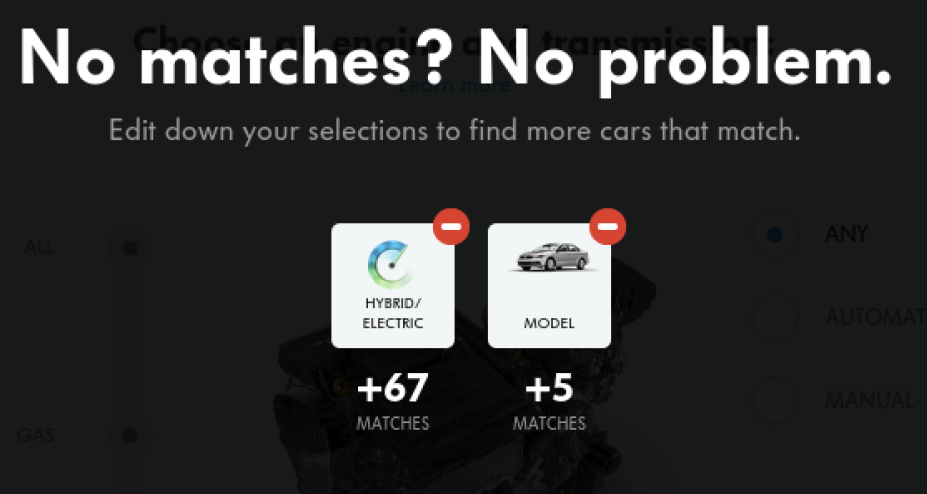
Log the no-results requests and analyze the log regularly. Possibly, for some queries, you will decide to add manual rules or personalized responses.
In SAP Commerce Accelerators, the basic response is implemented. All the recommendations listed above are customizations.
D.5. Handling “incompatible” facets
There is a case when search results contain products or documents of different types that have similar (but not the same) facets that were not designed to be shown together. For example, you have large equipment and tiny spare parts in the same catalogue. Both have an attribute length, which means a measurement of the item along its longest side. However, in the case of large equipment, the item is measured in metres, while for tiny spare parts it is measured in millimetres. You have two options for this case:
- APPROACH 1. Create two facets, “length_macro” and “length_micro”, so that all possible length values of the large equipment are grouped separately from all possible length values of tiny spare parts.
- APPROACH 2. Merge all length product attributes into one facet, “length”.
- OPTION 2.1. By converting metres and millimetres into a common unit (millimetres, for example).
- OPTION 2.2. By converting all units into a complex object where a float value (mm) is used for sorting, while a string value is used for displaying a value with the unit (“3m” or “23 mm”).
The second approach has a serious disadvantage: the facet’s definition becomes too complex in terms of its purpose. The first approach is not convenient in terms of UI: how do you display both facets on the facet pane if they have the same name, “length”? Of course, you can rename them to “Length of the large equipment” and “Length of the tiny spare parts” respectively, but it may confuse the user even more than the second approach.
Another example is having facets that may confuse the user by being in the same list because they are not compatible with each other. For example, you can’t show grocery-related facets and electronics-related facets in the same list just because they look very odd next to each other.
The best-practice approach is to display only a subset of some predefined set of valid facets for the uncategorized search results when such conflicts may occur. After restricting the search results by product category, the list of valid facets will be replaced with the one configured for the category.
Clicking a link labelled “More facets” reveals an in-page menu with additional facet values with longer titles, and yes, for different lengths, you will need to make up a distinguished name. Possibly, you may want to restrict the list of “hidden” facets to avoid such conflicts completely.
D.6. Categories as Facets or Advanced Search Constraints?
This topic is well explained in the article “Over-Categorization: Avoid Implementing Product Types as Categories (54% Get it Wrong)”. The problem is that the search results can be filtered by a facet “Category” or by going to the category section. The categories are mutually exclusive, which means they cannot be combined, and users therefore aren’t able to select and see products matching multiple values within that product type or attribute. If users don’t fully understand the product type or attribute implemented as categories, things become even more problematic because the user is now forced to select something without understanding the implications.
Over-categorization is generally observed when you decide to create a new category instead of adding a facet to create a product variant.
For example:
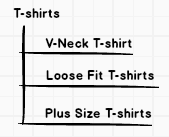
These features can be used as separate facets:
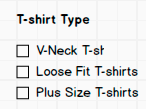
Possibly, you want to use a separate “Size” section where “Regular sizing” and “Tall sizing” are grouped, and a separate facet for Neck style, “Round Neck” and “V-Neck”. You can hide the “Size” facet until Sizing is selected. All these improvements are much better alternatives to creating subcategory navigation for sizes and styling variations on the facet panel.
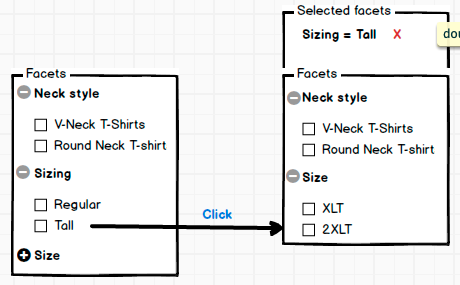
This is one of the areas where hierarchical facets can be used efficiently.
For example, we have the following category structure:
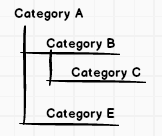
For example, we have five products:
| Product | Categories |
|---|---|
| Product ABC 1B | Category B (which is a subcategory of A), Category E (which is a subcategory of A) |
| Product ABC 1C | Category C (which is a subcategory of B, which is a subcategory of A) |
| Product ABC 1E | Category E (which is a subcategory of A) |
| Product ABC 1C | Category C (which is a subcategory of B, which is a subcategory of A) |
| Product ABC 1B | Category B (which is a subcategory of A) |
So there are two main options for organizing the category filter:
- Use a facet “Category” with the name of the deepest category the product belongs to. If needed, the component that displays a facet can convert the final category into a breadcrumb to build a hierarchical structure.
| Product | Categories |
|---|---|
| Product ABC 1B | Category B, Category E |
| Product ABC 1C | Category C |
| Product ABC 1E | Category E |
| Product ABC 1C | Category C |
| Product ABC 1B | Category B |
You can use unique category IDs instead of category names and resolve IDs into category names in the component that renders a facet.
- Use a facet “Category” with the names of all categories the product belongs to, from the current one back to the root category. In this case, the component that displays a facet already has the whole path, and all it needs to do is display it as part of a hierarchical structure.
| Product | Categories |
|---|---|
| Product ABC 1B | Category A → Category B, Category A → Category E |
| Product ABC 1C | Category A → Category B → Category C |
| Product ABC 1E | Category A → Category E |
| Product ABC 1C | Category A → Category B → Category C |
| Product ABC 1B | Category A → Category B |
You can use unique category IDs instead of category names and resolve IDs into category names in the component that renders a facet.
A list of available values for the facet is formed as a list of all unique values of some function applied to the attribute or attributes extracted from the product. This function may be simple, translating a normal product attribute to a facet value without any special processing. For example, a product weight facet is likely a simple stringify function that converts the numeric weight into a string facet value. Alternatively, this function may be complex — it may extract the components from the breadcrumbs and use the result for a facet.
For tree-like categories, the first approach works well, but it won’t work when a category can have more than one parent. This case is more or less common: the product can be linked both to the product type hierarchy and brand hierarchy. Don’t miss this point when you design a facet structure.
D.7. Collapse and Expand Results
Result grouping groups documents together with a common property and places these documents under a group. These groups are used as the hits in the search result. For example, if you have ten different color variations of a t-shirt, you can display only one “group” item in the search results along with color swatches showing the variations:
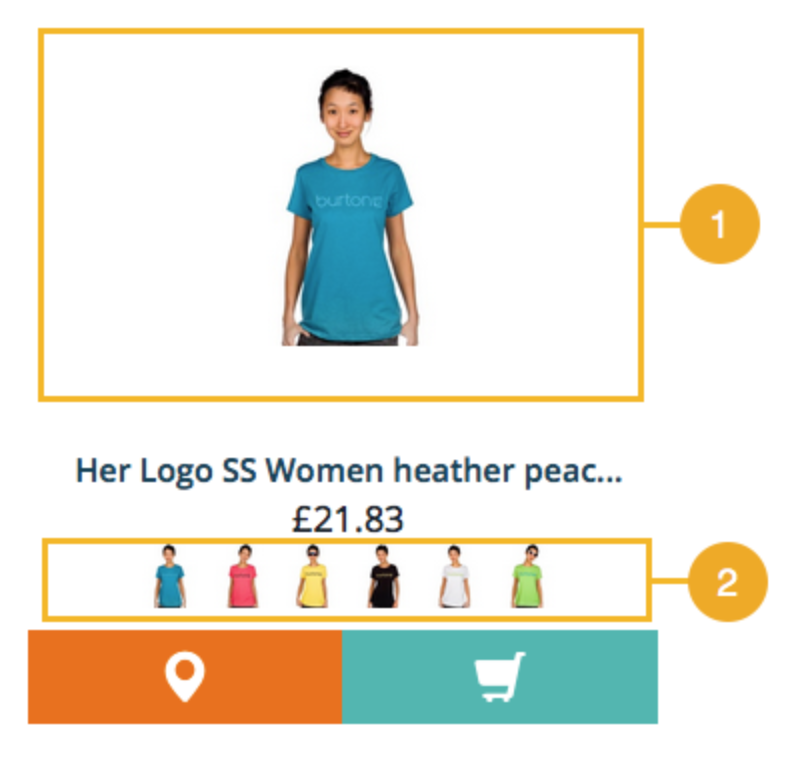
Result grouping can be used together with faceting, but it may confuse users if not implemented properly.
The main reason is that when using grouping, users expect that an item in the search is represented by a group. Faceting isn’t aware of groups, and thus the computed counts represent documents and not groups.
In SAP Commerce, result grouping is part of the out-of-the-box functionality. You can specify a field used for grouping and the number of results to return for each group. You can also specify whether facets should be computed per group or per document.
Facet Navigation and Search Engine Optimization
A caveat, though, is that faceted navigation could negatively impact your website SEO. Of course, with some planning, you can take care of this problem. There are three prominent reasons why faceted navigation could damage SEO:
- Creating duplicate content, which damages your website’s reputation. To avoid that, use the noindex tag to exclude specific pages from being indexed. This makes sure that undesirable web pages don’t start ranking for your focus keywords instead of the pages that should rank.
- It consumes your website’s crawl budget and can send incorrect signals to Google.
- It can pass link equity to pages that aren’t really important, diluting your link equity.
SAP Commerce Cloud Feature Coverage
| Summary | SAP Commerce OOTB | Customization complexity |
|---|---|---|
| Drill Down Selection | YES (OOTB) | – |
| Parallel Selection | NO | days |
| Non-dynamic list of facets | NO | days |
| Dynamic list of facets | YES (OOTB) | – |
| Search within the results | NO | days |
| Convertible facet types (single → multiple) | NO | days |
| Search facet groups | NO | days |
| Search facet visibility | YES (OOTB) | – |
| Facet values as links | YES (OOTB) | – |
| Facet values as checkboxes, autosubmit | YES (OOTB) | – |
| Facet values as radioboxes, autosubmit | NO | hours |
| Facet values as radioboxes, group submit | NO | days |
| Facet values as checkboxes, group submit | NO | days |
| Select box, autosubmit | NO | hours |
| Select box, group submit | NO | days |
| Colors, single selection, autosubmit | YES (OOTB) | – |
| Colors, multiple selection, autosubmit | YES (OOTB) | – |
| List of Icons, single selection, autosubmit | NO | hours |
| List of Icons, multiple selection, autosubmit | NO | hours |
| Ranges: Free ranges | NO | days |
| Ranges: Fixed range groups: Single selection | YES (OOTB) | – |
| Ranges: Fixed range groups: Multiple selection | YES (OOTB) | – |
| Dynamic range groups | NO | days or weeks |
| Handling empty facets | NO | hours or days |
| Resetting facets | NO | hours |
| Aggregations – count | YES (OOTB) | – |
| Aggregations – best price | NO | days |
| Aggregations – price ranges | NO | days |
| Price slider | NO | days |
| Price slider with a histogram | NO | weeks |
| Arranging facets per category | YES (OOTB) | – |
| Sorting facet values | YES (OOTB) | – |
| Short facet value list = truncated full sorted | YES (OOTB) | – |
| Quick lookup | NO | days |
| Grouping facet values | NO | days |
| Scrollbars | NO | hours |
| Popups for facet values | NO | days |
| Search results: banners with recommendations | YES (OOTB) | – |
| Shareable links | YES (OOTB) | – |
| Infinite scrolling | NO | days |
| Empty result handling | NO | days |
Facet Search Service Solutions
Below is a simple list of products used for faceted search.
- Apache Solr (free)
- Constellio.
- ElasticSearch (free).
- Sphinx (free).
- Bobo Browse (free)
- Open Semantic Search (free).
- ElasticCloud (SaaS, commercial)
- SiteSearch 360 (SaaS, commercial)
- Algolia (SaaS, commercial)
- Swiftype (SaaS, commercial)
- Oracle Endeca (commercial)
- Coveo (SaaS, commercial)
- SLI Systems (SaaS, commercial)
- Klevu (SaaS, commercial)
- Constructor.io (SaaS, commercial)
- Inbenta (SaaS, commercial)
- SearchSpring (SaaS, commercial)
- MindBreeze (SaaS, commercial)
- OpenText Decisiv (SaaS, commercial)
- Attivio
- Unbxd (SaaS, commercial)
- Sajari (SaaS, commercial)
- Amazon A9 (SaaS, commercial)
- Amazon CloudSearch.
- Microsoft Azure Search (SaaS).
- DataStax Enterprise Search (commercial)
- Searchify (SaaS, commercial)
- Searchblox (SaaS, commercial)
- Searchanise (SaaS, commercial)
- Instant Search (SaaS, commercial)
- Sooqr (SaaS, commercial)
- Doofinder (SaaS, commercial)
- Nextopia (SaaS, commercial)
- Cludo (SaaS, commercial)
- Findify (SaaS, commercial)
- Hawk Search (SaaS, commercial)
- Findologic (SaaS, commercial)
- Celebros (SaaS, commercial)
- Queryly (SaaS, commercial)
- Reflektion (SaaS, commercial)
- Groupby Searchandiser
- EasyAsk
- Interlytics
- FACT-Finder
- Funnelback
- Elicit Search
- Look54
- Xapian
It was fun to look over all these websites and features. Every second one states that their product is the best on the market. Please tell me if some links are no longer available and help me keep this list updated.
Possibly, some providers in the list are not described properly (they provide products, not SaaS). Please let me know if you find such cases.
Special thanks
Special thanks to Matthew Chamberlin, Experience Design Associate Director at EPAM, for his valuable advice, additions, and corrections.
Bibliography
The following sources were used to prepare this article:
- “Faceted Search” by Daniel Tunkelang
http://www.iro.umontreal.ca/~nie/IFT6255/Books/FacetedSearch.pdf - “Best Practices for Designing Faceted Search Filters” by Greg Nudelman
https://www.uxmatters.com/mt/archives/2009/09/best-practices-for-designing-faceted-search-filters.php - “Faceted Navigation, a UI pattern” by Martijn van Welie
http://www.welie.com/patterns/showPattern.php?patternID=faceted-navigation - “Faceted Navigation Design Gallery” by Christian Watson
https://www.smileycat.com/faceted-navigation-design-gallery/ - “Faceted Navigation Design Showcase” by Christian Watson
https://www.smileycat.com/faceted-navigation-design-showcase/ - “How to craft a kickass filtering UX” by Laura Cunha
https://uxdesign.cc/crafting-a-kickass-filtering-ux-beea1798d64b - “Faceted Search”, Wikipedia
https://en.wikipedia.org/wiki/Faceted_search - “User Interface Implementations Of Faceted Browsing” by Mike Padilla
http://www.digital-web.com/articles/user_interface_implementations_of_faceted_browsing - “Filters vs. Facets: Definitions” by Kathryn Whitenton
https://www.nngroup.com/articles/filters-vs-facets/ - “The URL Structure of Faceted Navigation” by Joey Hoer
https://joeyhoer.com/url-structure-of-faceted-navigation - “UX: Infinite Scrolling vs. Pagination” by Nick Babich
https://uxplanet.org/ux-infinite-scrolling-vs-pagination-1030d29376f1 - “How to design faceted search” by Abhijit Rawool
https://webapphuddle.com/how-to-design-faceted-search/ - Design Considerations for Faceted Search: Literature Review and Case Study
https://pdfs.semanticscholar.org/8f4d/b6f1ff2daef4afddad7f531a68111beff7a6.pdf - Designing Facet Search: Getting The Basics Right by Tony Russell-Rose
https://isquared.wordpress.com/2011/07/19/2011/06/29/2011/05/18/designing-faceted-search-getting-the-basics-right-part-1/ - Over-Categorization: Avoid Implementing Product Types as Categories (54% Get it Wrong)
https://baymard.com/blog/ecommerce-over-categorization
Discussion
Powered by GitHub Discussions — sign in with a GitHub account to join the conversation.