
This article explains how to generate and modify PDFs using various methods, libraries, and tools. I also introduce my PoC for generating PDFs using PDF templates created in Word or Excel, with fixed placeholders or dynamic substitution tags such as {FIRSTNAME} or {CURRENTDATE}.
Introduction
PDF is the de facto standard for “final form documents”; it is electronic paper. Like paper, PDF combines characteristics that encompass any document in any setting. Legal briefs, product manuals, sheet music, phone bills, articles, construction drawings — all may be faithfully represented, integrated, and exchanged with PDF.
The format was created by Adobe in 1992–1993 as part of their Acrobat product. It was turned over to ISO in 2007. Now it is an international ISO standard.
For static documents, everything is pretty clear: you can create a PDF manually using iText, PDFBox, or Apache FOP, and upload the file to the web server. I played around with these tools, and you will find some examples in this article.
To create a PDF based on dynamic information, such as database content or user input, you may face technical difficulties rooted in the nature and limitations of the PDF format. In this article, I will share them and propose solutions. I will also present my PoC for using configurable PDF templates to create a unique PDF by request.
There are some findings on how SAP hybris uses PDF generation libraries. Read the last section for this information.
Summary
- Creating PDF from scratch
- iText
- Example with iText
- PDFBox
- Apache FOP
- Example with FOP
- iText
- Using a template
- Fixed placeholders
- Example with PDFBox
- Non-fixed placeholders
- Using PDF templates
- Using fields
- Using substitution tags
- Microsoft Office templates (DOCX, XLSX)
- Example with Apache POI
- HTML templates
- PDF templates
- Example with PDFBox
- Microsoft Office templates (DOCX, XLSX)
- Using PDF templates
- Fixed placeholders
- Useful PDF manipulation utilities
- PDF generation in SAP hybris
Creating PDF from scratch
There are a number of Java libraries and tools designed for creating PDF documents dynamically.
I compared the performance of all three libraries very roughly, and this is what I got:
| iText | PDFBox | Apache FOP |
|---|---|---|
| 1.4 sec | 1.7 sec | 2.8 sec |
iText
iText is a mature open-source library for reading and writing PDF documents. It supports fillable forms and encrypted files. I think it is the most powerful library for creating and parsing PDFs, but the latest version at the time, 7.0.2, is not free; it is a commercial product. 2.7.1 is GPL, which means you can use it in open-source projects. 2.1.7 is MPL, which means the source code must be disclosed. So if you are planning to use this library, the version matters.
Document document = new Document(PageSize.A4, 50, 50, 50, 50);
PdfWriter writer = PdfWriter.getInstance(document, new FileOutputStream("C:\\temp\\ITextTest.pdf"));
document.open();

Paragraph title1 = new Paragraph("Chapter 1",
    FontFactory.getFont(FontFactory.HELVETICA,
    18, Font.BOLDITALIC, new CMYKColor(0, 255, 255, 17)));
Chapter chapter1 = new Chapter(title1, 1);
chapter1.setNumberDepth(0);

Paragraph title11 = new Paragraph("This is Section 1 in Chapter 1",
    FontFactory.getFont(FontFactory.HELVETICA, 16, Font.BOLD,
    new CMYKColor(0, 255, 255, 17)));
Section section1 = chapter1.addSection(title11);

Paragraph someSectionText = new Paragraph("This text comes as part of section 1 of chapter 1.");
section1.add(someSectionText);

someSectionText = new Paragraph("Following is a 3 X 2 table.");
section1.add(someSectionText);

PdfPTable t = new PdfPTable(3);
t.setSpacingBefore(25);
t.setSpacingAfter(25);

PdfPCell c1 = new PdfPCell(new Phrase("Header1"));
t.addCell(c1);
PdfPCell c2 = new PdfPCell(new Phrase("Header2"));
t.addCell(c2);
PdfPCell c3 = new PdfPCell(new Phrase("Header3"));
t.addCell(c3);

t.addCell("1.1");
t.addCell("1.2");
t.addCell("1.3");
section1.add(t);

com.lowagie.text.List l = new com.lowagie.text.List(true, false, 10);
l.add(new ListItem("First item of list"));
l.add(new ListItem("Second item of list"));
section1.add(l);

Image image2 = Image.getInstance("c:\\temp\\logo.bmp");
image2.scaleAbsolute(120f, 120f);
section1.add(image2);

Paragraph title2 = new Paragraph("Using Anchor",
    FontFactory.getFont(FontFactory.HELVETICA, 16, Font.BOLD,
    new CMYKColor(0, 255, 0, 0)));
section1.add(title2);
title2.setSpacingBefore(5000);

Anchor anchor2 = new Anchor("Back To Top");
anchor2.setReference("#BackToTop");
section1.add(anchor2);

document.add(chapter1);
document.close();
The resulting PDF:
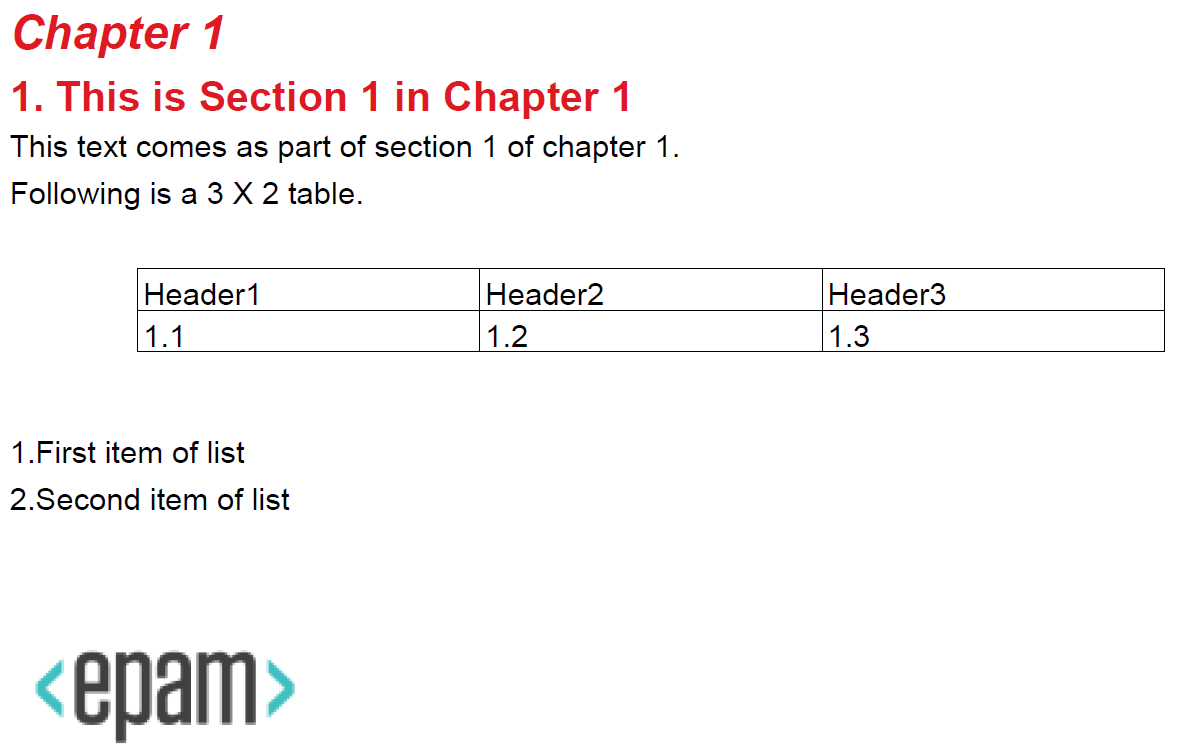
This code uses iText 2.1.7, whose license is MPL.
It takes ~1.4 seconds on my laptop (Dell E5470) to create the PDF shown above.
PDFBox
PDFBox is a library for creating and modifying PDF documents on the fly. It offers many features to generate pages, read text from existing PDF documents, and draw on blank templates.
See the examples below for how PDFBox works. It takes ~1.7 seconds on my laptop (Dell E5470) to create a PDF similar to those generated by iText (see above) and Apache FOP (see below).
Apache FOP
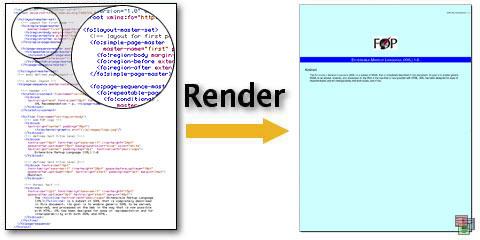
Apache FOP (Formatting Objects Processor) is an application that converts XSL Formatting Objects (XSL-FO) files to PDF or other printable formats.
Apache FOP implies that the developer creates an XML schema that describes how data objects should be organized in the final PDF. This XML schema is called XSL-FO. Commonly, this template is created by developers based on mock-ups from designers. Any changes in the mock-up will lead to changes in XSL-FO. Some minor changes may require a full rewrite of XSL-FO, which is time-consuming and not friendly to either developers or business users.
But there are a number of disadvantages with that approach, for example:
- You have to learn XSL-FO, and therefore also XPath and XSL.
- Even if you know XSL-FO, you do not want to be writing FO templates using a text editor.
- There is some logic that cannot be easily defined using XSL-FO. For example, grouping data requires you to use the so-called Muenchian method, which is not straightforward to understand.
- This approach is not good for large multi-page documents with a comprehensive structure and layout.
- Supporting large and sophisticated XSL-FO may be difficult, time-consuming, and costly.
- Business users will need to ask developers for any change in the template, even a minor one.
For example, Hybris Financial Accelerator uses Apache FOP for generating downloadable policies.
File xsltFile =
    new File(RESOURCES_DIR + "//template.xsl");

// the XML file which provides the input
StreamSource xmlSource = new StreamSource(
    new File(RESOURCES_DIR + "//Employees.xml"));

// create an instance of fop factory
FopFactory fopFactory = FopFactory.newInstance(new File(".").toURI());

// a user agent is needed for transformation
FOUserAgent foUserAgent = fopFactory.newFOUserAgent();

// Setup output
OutputStream out;
out = new java.io.FileOutputStream(OUTPUT_DIR + "//employee.pdf");

try {
    // Construct fop with desired output format
    Fop fop = fopFactory.newFop(MimeConstants.MIME_PDF, foUserAgent, out);

    // Setup XSLT
    TransformerFactory factory = TransformerFactory.newInstance();
    Transformer transformer = factory.newTransformer(new StreamSource(xsltFile));

    // Resulting SAX events (the generated FO) must be piped through to
    Result res = new SAXResult(fop.getDefaultHandler());

    // Start XSLT transformation and FOP processing
    // That's where the XML is first transformed to XSL-FO and then
    // PDF is created
    transformer.transform(xmlSource, res);
} finally {
    out.close();
}
<?xml version="1.0" encoding="UTF-8"?>
<xsl:stylesheet
version="1.1"
xmlns:xsl="http://www.w3.org/1999/XSL/Transform"
xmlns:fo="http://www.w3.org/1999/XSL/Format"
exclude-result-prefixes="fo">
<xsl:template match="employees">
<fo:root xmlns:fo="http://www.w3.org/1999/XSL/Format">
<fo:layout-master-set>
<fo:simple-page-master
master-name="simpleA4"
page-height="29.7cm"
page-width="21cm"
margin-top="2cm"
margin-bottom="2cm"
margin-left="2cm"
margin-right="2cm">
<fo:region-body/>
</fo:simple-page-master>
</fo:layout-master-set>
<fo:page-sequence master-reference="simpleA4">
<fo:flow flow-name="xsl-region-body">
<fo:block font-size="16pt" font-weight="bold" space-after="5mm">
Company Name: <xsl:value-of select="companyname"/>
</fo:block>
<fo:block font-size="10pt">
<fo:table table-layout="fixed" width="100%" border-collapse="separate">
<fo:table-column column-width="4cm"/>
<fo:table-column column-width="4cm"/>
<fo:table-column column-width="5cm"/>
<fo:table-body>
<xsl:apply-templates select="employee"/>
</fo:table-body>
</fo:table>
</fo:block>
</fo:flow>
</fo:page-sequence>
</fo:root>
</xsl:template>
<xsl:template match="employee">
<fo:table-row>
<xsl:if test="designation = 'Manager'">
<xsl:attribute name="font-weight">bold</xsl:attribute>
</xsl:if>
<fo:table-cell>
<fo:block>
<xsl:value-of select="id"/>
</fo:block>
</fo:table-cell>
<fo:table-cell>
<fo:block>
<xsl:value-of select="name"/>
</fo:block>
</fo:table-cell>
<fo:table-cell>
<fo:block>
<xsl:value-of select="designation"/>
</fo:block>
</fo:table-cell>
</fo:table-row>
</xsl:template>
</xsl:stylesheet><?xml version="1.0"?>
<employees>
<companyname>ABC Inc.</companyname>
<employee>
<id>101</id>
<name>Ram</name>
<designation>Manager</designation>
</employee>
<employee>
<id>102</id>
<name>Prabhu</name>
<designation>Executive</designation>
</employee>
<employee>
<id>103</id>
<name>John</name>
<designation>Executive</designation>
</employee>
</employees>This code creates the following PDF:
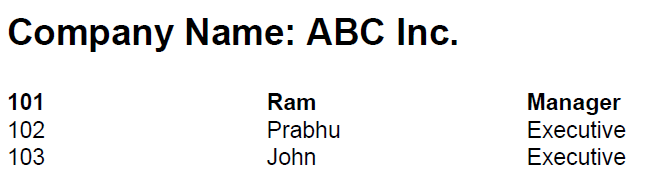
It takes ~2.8 seconds on my laptop (Dell E5470) to generate a PDF file from the XML file. Additionally, you will need some time to create an XML file from the database.
This example was taken from https://github.com/bzdgn/apache-fop-example.
Aspose (commercial only)
Aspose (https://www.aspose.com/products/pdf) allows you to create PDF files directly through the provided API and XML templates. It will also enable you to add PDF capabilities to your applications quickly and easily.
Aspose.Words is a component that provides the capability to create, edit, manipulate, and transform Microsoft Word documents. You may also generate a template MS Word document and use Mail Merge and other features to fill in data and create a final merged MS Word document. The library also provides the feature to save the resulting documents as PDF. This PDF can be delivered to the customer.
The API looks more convenient than those provided by the other libraries, but it is not suitable for every project, primarily because of the price.
However, I was not able to test this stuff, because for some reason the trial request form did not work.
Using PDF templates
PDFs can be created based on an existing template by injecting data into designated areas in the document marked as placeholders. It is really useful when the template is comprehensive, such as multi-page contracts and forms, and/or frequently updated.
There are two options for the placeholders:
- Placeholders are fixed. There is no link with the text they refer to.
- Placeholders are not fixed. They are tightly linked to the text they refer to.
For example, in the following document the fields are marked in red. Fixed placeholders lead to limitations in editing. Any changes in layout may lead to changes in the placeholder configuration. For example, in the following example, I edited the document header:
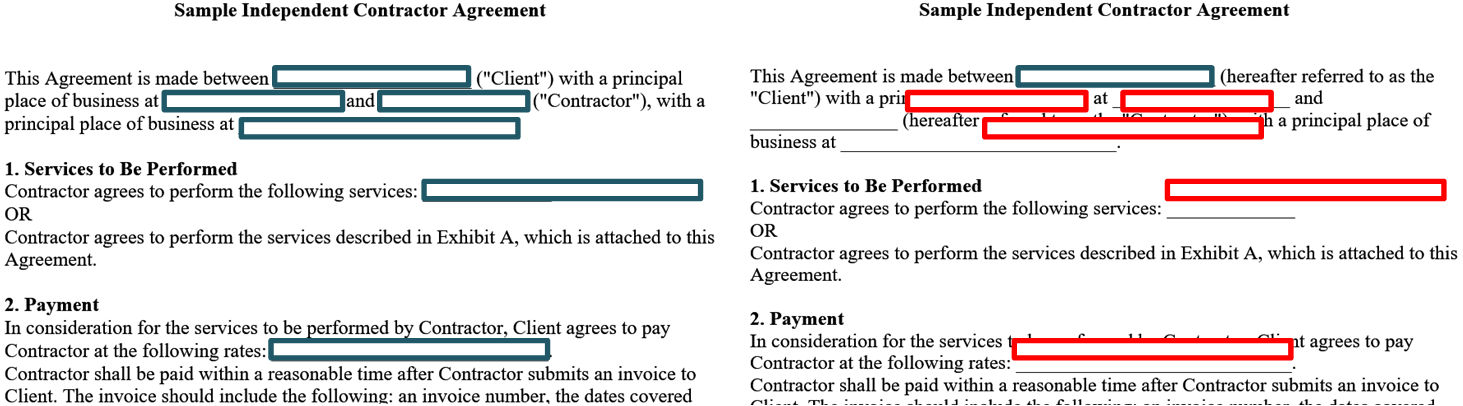
However, fixed placeholders can be used for tickets:
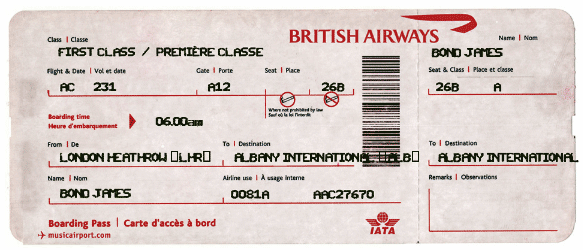
Fixed placeholders
PDFBox provides the simplest way of adding custom objects to an existing PDF (“PDF template”):
try {
    String inputfile = args[0]; // input file
    String outputfile = args[1]; // output file
    String name = args[2]; // First Name
    String surname = args[3]; // Last name

    PDDocument document = PDDocument.load(new File(inputfile));
    PDPage page = (PDPage) document.getPage(0);
    PDFont font = PDType1Font.COURIER_BOLD;
    PDPageContentStream contentStream = new PDPageContentStream(
        document, page, true, true);

    contentStream.beginText();
    contentStream.setFont(font, 12);

    // 100, 587 are coordinates for the first name field
    contentStream.newLineAtOffset(100, 587);
    contentStream.showText(name);
    contentStream.endText();

    contentStream.beginText();
    contentStream.setFont(font, 12);

    // 100, 522 are coordinates for the last name field
    contentStream.newLineAtOffset(100, 522);
    contentStream.showText(surname);
    contentStream.endText();

    contentStream.close();

    document.save(outputfile);
} catch (IOException e) {
    e.printStackTrace();
} finally {
    document.close();
}
Once the fields have fixed positions, changes in the template will lead to the need to re-position the fields. It is manual work and time-consuming for complex documents. However, it has a big advantage: you do not need to solve the problem with fonts and spacing. See the end of the article for an explanation of this challenge.
Non-fixed placeholders
For non-fixed placeholders, there are two options:
- using fields (AcroForm)
- using substitution tags
Using fields (AcroForm)
According to Adobe, an AcroForm is “a flat PDF form that has some additional elements — the interactive fields — layered above the flat render, that allow users to enter information, and allow developers to extract data from.” These fields can be pre-filled on the server using PDF manipulation libraries. The flaw is that you will probably not be able to create a PDF with integrated AcroForm fields without purchasing a package from Adobe or other vendors. The second problem is that your master copy of the document is likely in Microsoft Word rather than in PDF. That means that you need to add fields manually every time you make changes in the document.
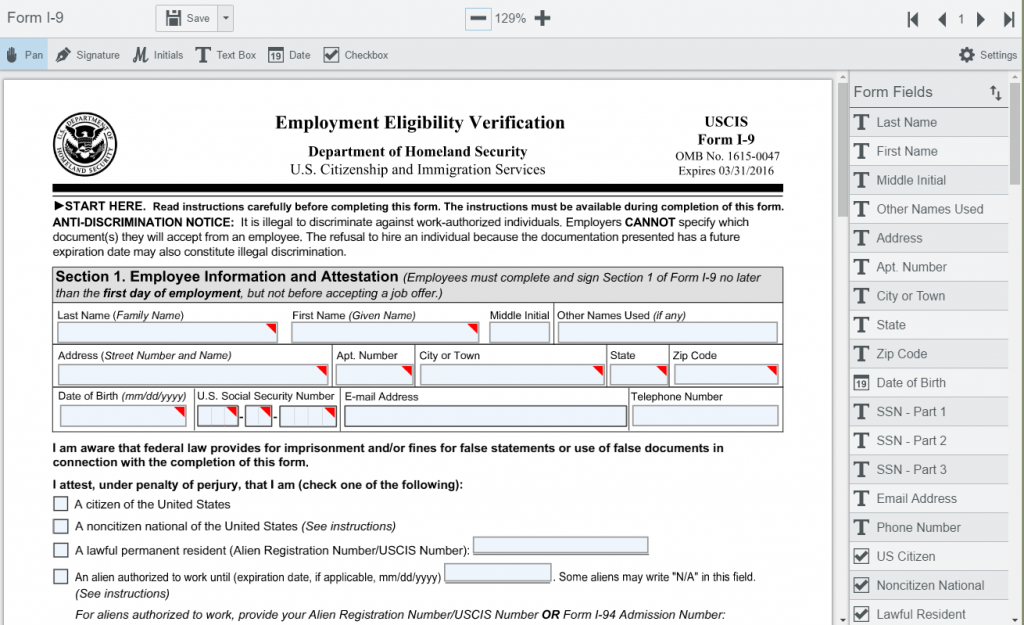
Following is a list of some tools to create AcroForms:
- Adobe Acrobat Professional
- Nuance PDF Converter Professional Versions 4 or 5
- FoxIt Reader Form Designer
- Amgraf OneForm Designer Plus
Using substitution tags
I tried to find ready-to-use solutions for this option, and I failed. So I decided to create my own PoC to illustrate this approach. Please be aware that this approach is experimental and has some limitations.
The idea is to use Microsoft products for creating and editing templates, such as contracts or reports. Data from the database or user input is injected into the document, specifically into named areas. So the approach is close to AcroForm, but no additional software is required.
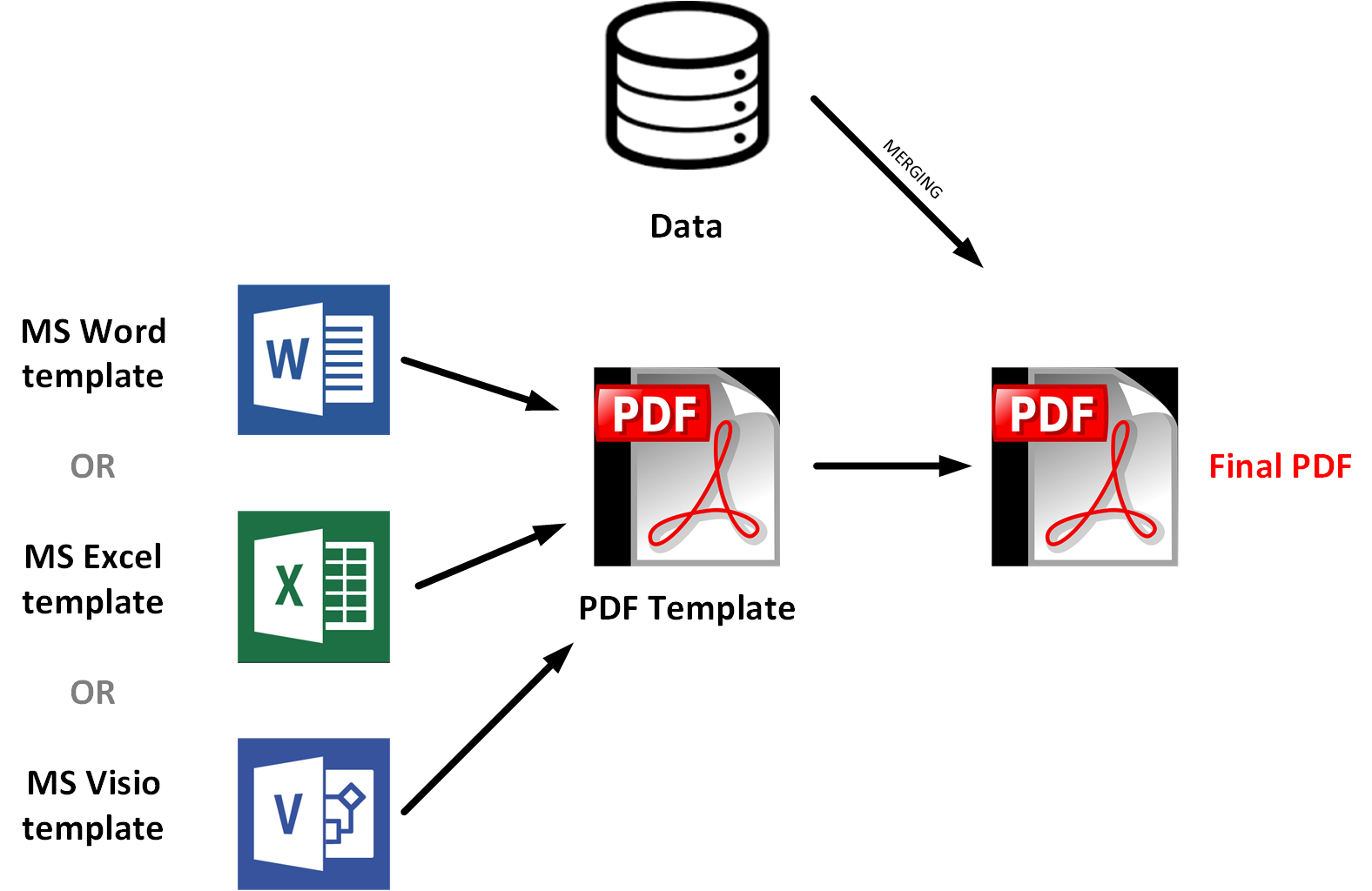
There is a convention for the placeholder design. In the example below, the placeholder has a gray background and curly braces. The same font family and size are used for all fields. The fields have enough room for values of any size within an agreed range.
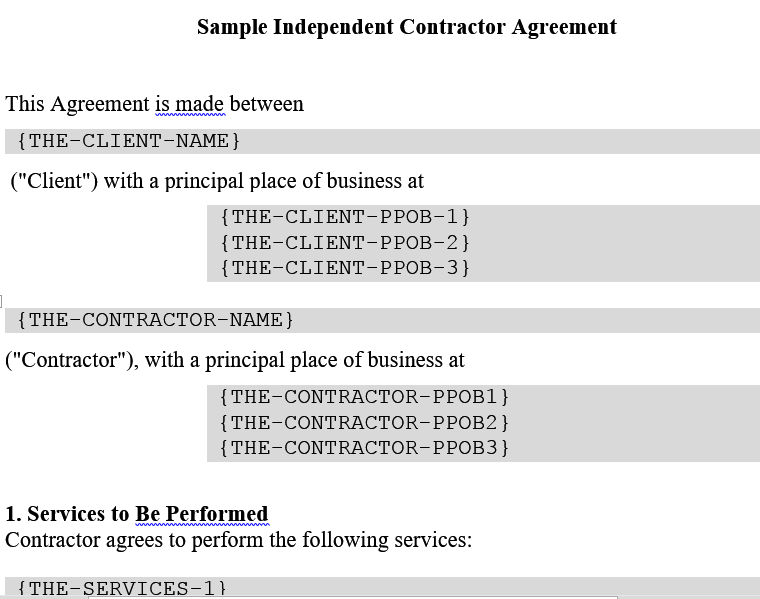
The version for Excel:
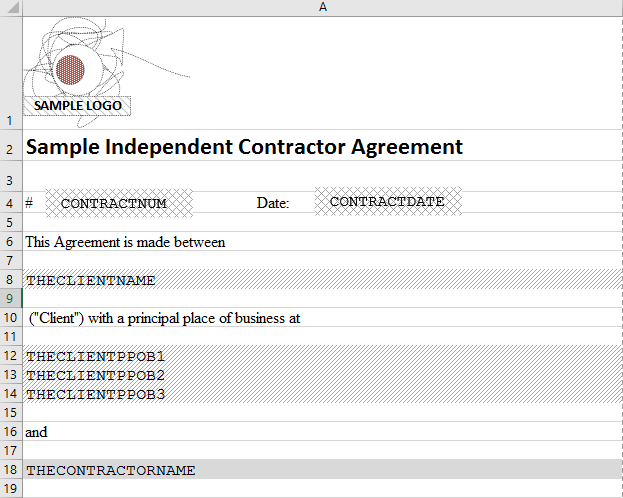
So these templates can be merged on the server with the dataset to create a unique PDF file.
However, it is not as easy as it looks. The template can be stored on the website in the following forms:
- as a PDF file
- as a Microsoft Office (Word/Excel/PowerPoint) file
- as an HTML file
Microsoft Office
Microsoft Word and Microsoft Excel files can be changed using Apache POI. However, in this case the output format will be DOCX, not PDF.
The following code reads MyDocTemplate.docx, replaces THECLIENTNAME with “Rauf Aliev”, and saves the result to GeneratedFile.docx.
XWPFDocument doc = new XWPFDocument(OPCPackage.open("MyDocTemplate.docx"));

for (XWPFTable t : doc.getTables()) {
    for (XWPFTableRow rows : t.getRows()) {
        for (XWPFTableCell cell : rows.getTableCells()) {
            for (XWPFParagraph p : cell.getParagraphs()) {
                for (XWPFRun run : p.getRuns()) {
                    String text = run.getText(0);
                    if (text != null) {
                        text = text.replace("THECLIENTNAME", "Rauf Aliev");
                    }
                    run.setText(text, 0);
                }
            }
        }
    }
}

for (XWPFParagraph p : doc.getParagraphs()) {
    List<XWPFRun> runs = p.getRuns();

    if (runs != null) {
        for (XWPFRun r : runs) {
            String text = r.getText(0);
            if (text != null) {
                text = text.replace("THECLIENTNAME", "Rauf Aliev");
            }
            r.setText(text, 0);
        }
    }
}

doc.write(new FileOutputStream("GeneratedFile.docx"));
Unfortunately, Apache POI cannot generate PDF from DOC. The reasons are clear: converting to PDF requires a word processor engine. If you need to convert DOC to PDF, you can use Unoconv. It converts documents from and to a LibreOffice-supported format. Microsoft formats and PDFs are supported.
unoconv -f pdf MyDocument.docxHTML to PDF
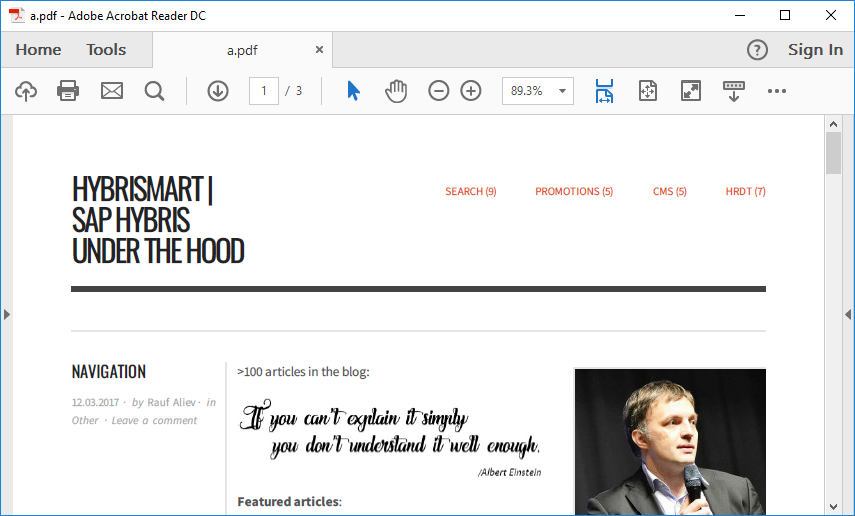
You can create an HTML page and render it to PDF for printing. The simplest and very convenient solution is the PhantomJS headless browser. For example, you can create a PDF of this blog using the following command:
phantomjs rasterize.js http://hybrismart.com hybrismart.pdf A4The resulting PDF:
The following example demonstrates the same with our sample contract. Originally it was created in Microsoft Word, then saved as HTML, uploaded to the server, and the server-side script merged it with the data. The resulting HTML was converted to PDF using PhantomJS:
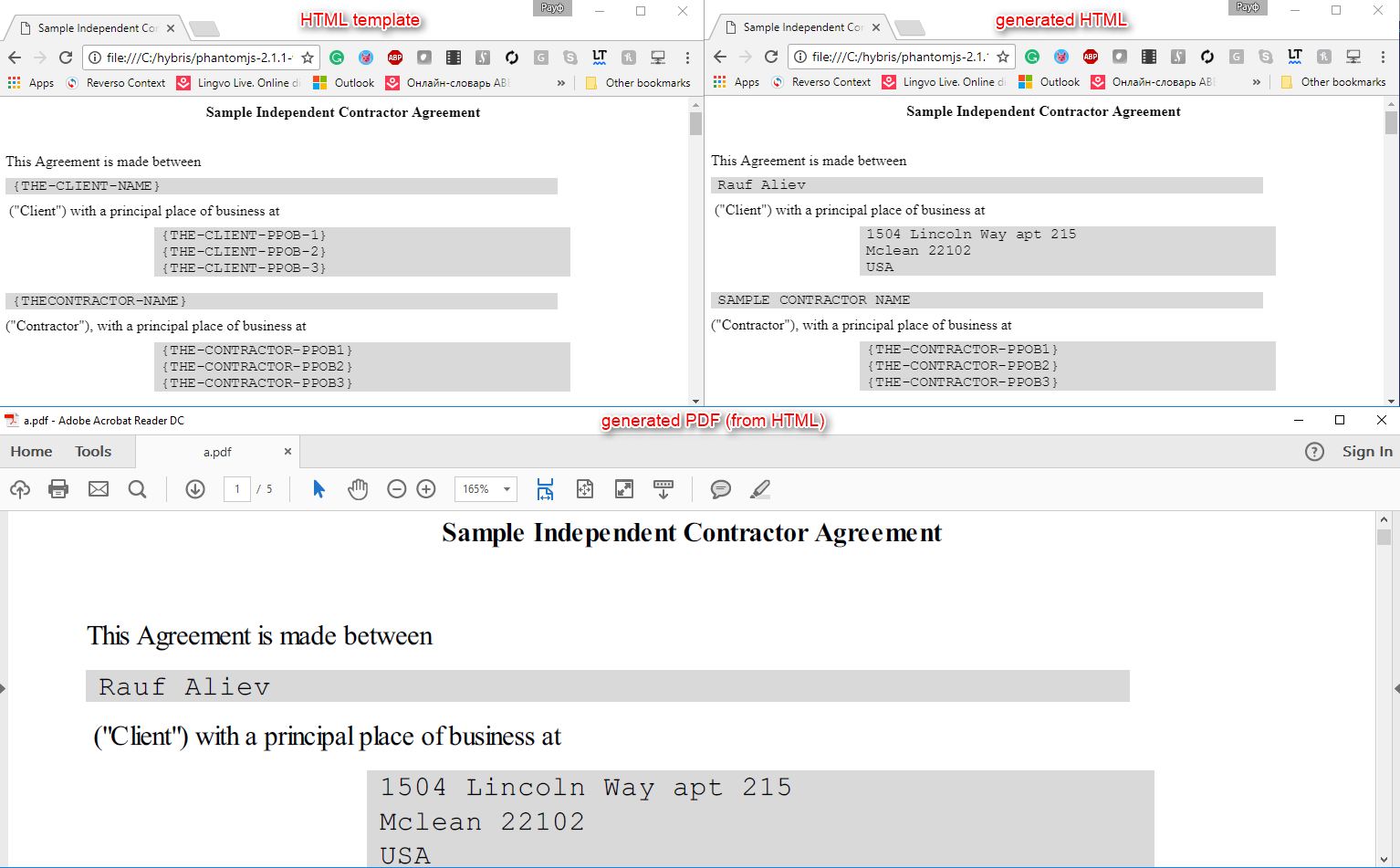
For our example with the contract, you can store the template as HTML. The administrator will be able to edit it with the WYSIWYG editor in Backoffice, and the system will inject data into the template and create a PDF file using PhantomJS.
Using PDF template
The last approach is creating a PDF based on a PDF template. The system uses the PDF template and generates a final PDF by merging the template with the data.
This is a screenshot from my PoC:
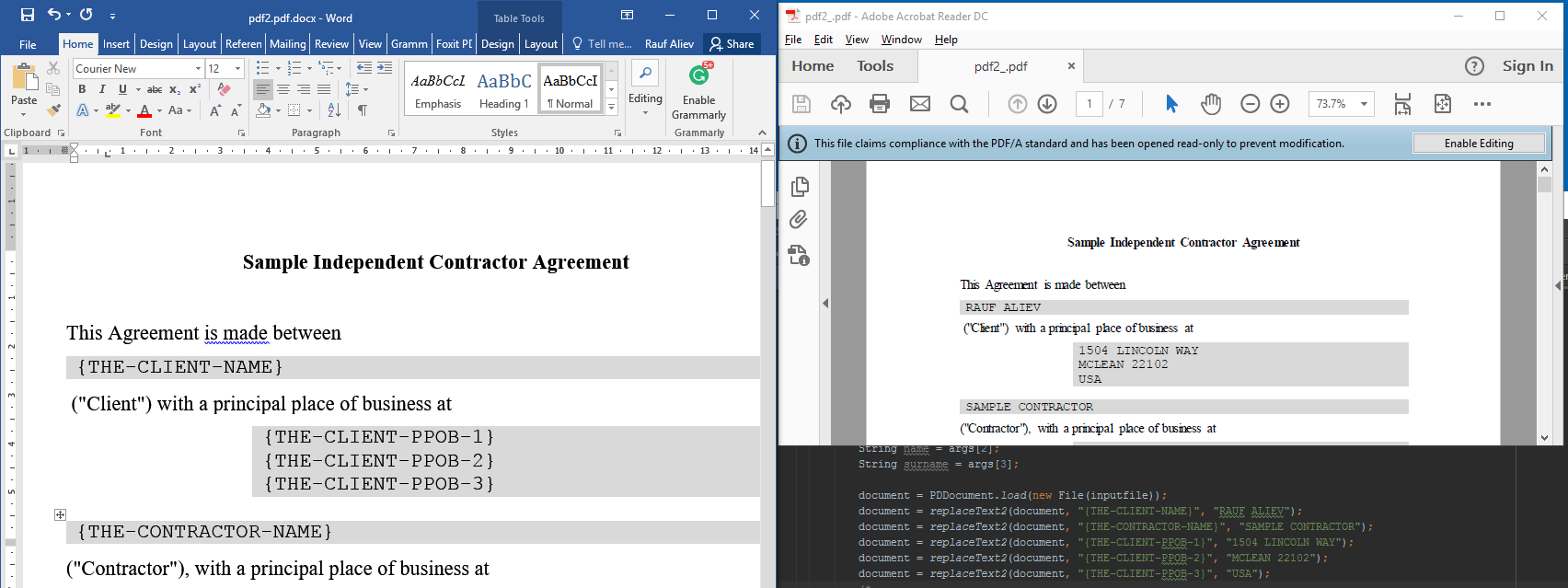
As you can see, the placeholders are replaced with specific data. In this PoC, the rules are hard-coded for demonstration purposes.
The main problem with editing PDFs is that once you have the PDF file, the original layout and meaning formed from text-based building blocks — including words, lines and line breaks, paragraphs, columns, tables, headers/footers, and outlines — are long gone. Once in a PDF, its content just describes how and where each object should be displayed on the page, and nothing more.
That creates the following challenges:
- All objects in a PDF are assigned to a specific location on the page. These locations are calculated by the software that was used for PDF generation: MS Word/Excel in our case.
- All words are separate objects organized into arrays.
- Worse, parts of words are separate objects organized into arrays.
- Even letters can be separate objects organized into arrays.
- There is no logic to how letters, words, or their parts are organized into arrays. It is magic.
- Objects — words, parts of words, and letters — are not nicely linked with each other.
- As a rule, neighboring objects are also close or next to each other in the text.
- The characters in the objects need to be synced with the dictionary explained in the other part of the PDF. If your original document does not have “A” or “C”, and you decide to change “G” to “A” or “C”, you will get an empty box instead of the character.
- There is no “underlined” attribute in PDF; an underline is created by drawing a line under the text that should then appear as “underlined”.
- And so on.
For example, in my demo document, here are objects and arrays:
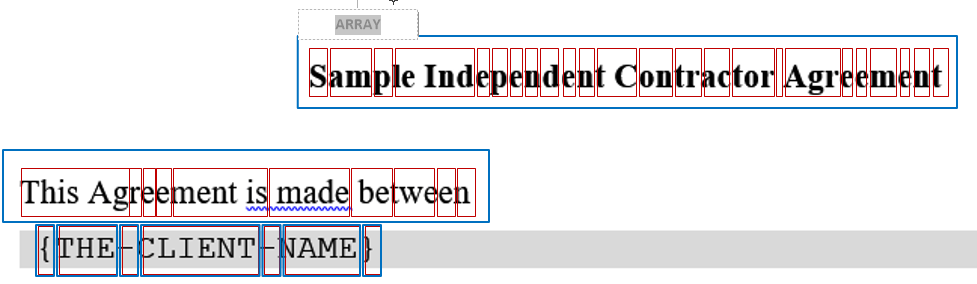
For example, a PDF-to-text utility analyzes these objects based on how close they are, and based on this information it decides whether these objects need to be merged into the same text block or not.
For each small text object, shown as red boxes in the diagram above, the PDF includes coordinates that describe where it should be positioned on the page and how it should be displayed.
In our case, we need to replace the token {THE-CLIENT-NAME} with the name. In my PoC, I replace the characters of the array items with the corresponding fragments from the target string.
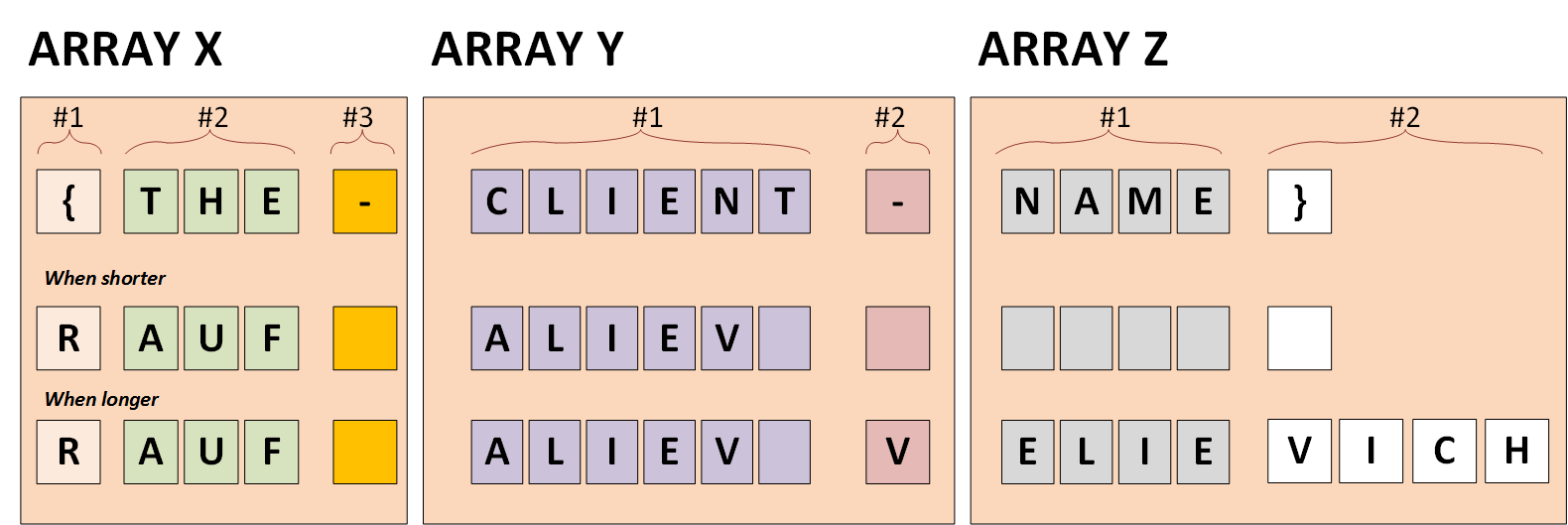
“{” -> “R”“THE” -> “AUF”“-” -> ” ““CLIENT” -> “ALIEV ““-” -> ” ““NAME” -> ” ““}” -> ” “
For option #2:
“-” -> “V” (for option #2)“NAME” -> “ELIE”“}” -> “VICH”
In PDF, these letters are stored with individual distances, or kerning, so fixed-width fonts are used here. For non-fixed fonts, symbols such as I and W have different spacing. It is very difficult, almost impossible, to recalculate these intervals. So it is easier to go with the assumption that fixed fonts are fine for the fields.
The explained approach will work only with particular PDF-generating applications and even with particular versions. I tested it with Microsoft Office: Word, Excel, and PowerPoint. It is very convenient that Office uses ASCII codes for characters in text objects. However, the PDF standard allows using random codes if you create a proper dictionary. The explained approach will not work with PDFs created with non-ASCII characters. This approach was not tested on non-Latin character sets. Unfortunately, it makes it necessary to use a hack to avoid deep changes to the PDF template: in order to build a proper dictionary in the PDF template and a full set of characters, you need to add a line with a full character set in the same font and size as your fields to the page and make it invisible, white on white: “ABCDE….XYZ12345…/.,”.
It should not be forgotten that different countries use different paper standards, so a PDF template formatted for A4 paper size will not work nicely in the USA. If the file is generated for Letter, it can be printed on A4 too, and vice versa, but the versions will have a slightly different look because of scaling.
Useful PDF manipulation utilities
QPDF
QPDF is a PDF-to-PDF converter. It is capable of performing a variety of transformations, such as linearization, also known as web optimization or fast web viewing, encryption, and decryption of PDF files. It is very useful for debugging purposes as well.
You can use this utility to inject the generated page into a multi-page contract created separately using the PDF merge capability of QPDF.
PDFXplorer
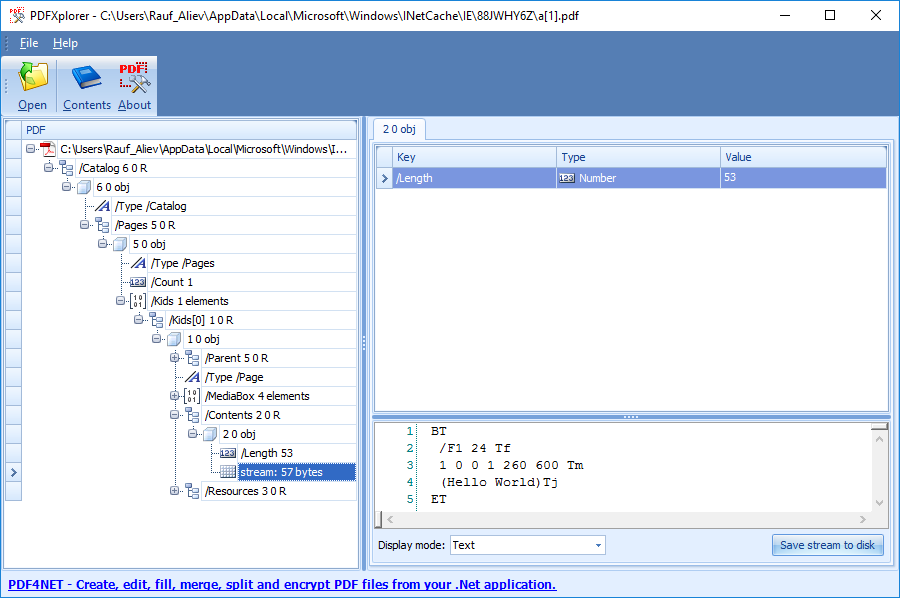
PDFXplorer is a very simple but very useful utility for viewing the structure of a PDF file in a tree-like view. It displays the content of stream objects as text or hex. Image streams can be displayed as images, only DCT-encoded streams, or as hex. The application is free for personal and commercial use.
SAP Hybris and PDF generation
The following components in hybris are related to PDF generation:
- Hybris Cockpit PDF Export. It is a very old module, and PDF is used for exporting data through Jasper Reports Export Service. PDF is generated using Jasper Reports PDF Exporter.
- Hybris Order PDF Export. This module is also old (Jalo). To export order contents to PDF, the order is exported to XML first (CustomOrder2XML), and the XML is converted to PDF according to the schema (XML-FO). For this conversion, Apache FOP is used.
- Hybris also uses JasperReports to generate PDF from cockpits (
JRPdfExporter). - iText 2.1.7 (MPL) is included in hybris. However, there are no signs that this library is used by hybris code.
- hybris MIME Service is capable of identifying PDFs by the first bytes of the content, or header. Normally, the PDF file should start with “%PDF”. Hybris uses Medsea Mime Utils to set the proper MIME type when you download media containing a PDF file.
- Financial Accelerator uses the Apache FOP library for PDF generation. Financial Accelerator is bundled with XML-FO templates for different insurance types: auto, event, life, property homeowner, property renter, and travel. A good overview of classes related to PDF document creation is on the hybris help website: https://help.hybris.com/6.3.0/hcd/8accbb0d86691014a30cb484ecd52786.html
© Rauf Aliev, June 2017
Discussion
Powered by GitHub Discussions — sign in with a GitHub account to join the conversation.