
 |
This article is brought to you by Egor Anisimov, EPAM Senior UX Designer, and Rauf Aliev, EPAM SAP hybris Solution Architect. |
Introduction
Quick order form functionality is becoming common in B2B products. It reflects a basic customer need: to make a purchase quickly and efficiently. However, one thing makes these forms inconvenient. Usually, these forms are represented as a number of fields the customer is asked to fill out. The manual work needed to complete this exercise can be exhausting, especially if the list is long.
Rauf and I created a PoC that demonstrates an efficient way of making bulk orders directly from the search box. In some sense, we reinvented the search box. We have not seen this concept implemented yet.
Solution
The main idea of the solution is to simplify the process of bulk ordering, especially if the list of products to order is concise and specific, such as an SKU or exact product name.
In the next example, the customer types a known SKU first, then part of the product name. As a result, the system shows two products that match the query.

The customer is able to add a particular product to the shopping cart, or all products in one click.
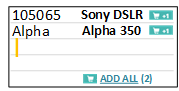
You may ask: what if there are many products with “Alpha” in the title? Which of these products does the system show in the list? The first one. For such a laconic query, the first result may not be the best one. To overcome this issue, there is an option to see a larger list of results for each option:
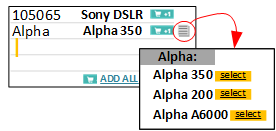
Once the customer chooses “Alpha A6000” as the right option for the query “Alpha”, all further requests for “Alpha” will automatically select “Alpha A6000”.
Key concepts
Universal search box. Some implementations of quick order functionality use a separate page or a separate popup form. We decided to integrate it into the search box concept.
So we decided to use the same concept as the search box for multi-line search. Of course, internally, from a technical standpoint, these are two separate UI elements: an input box and a textarea component. However, for the user, they look like different views of the same thing.
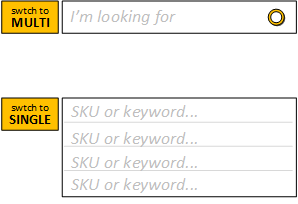
In multi-line mode, for each line, the system resolves the entered keyword or SKU# into the product name and displays the first guess next to the query. In the PoC, the customer needs to click a “MULTI” button to switch the search box into a second mode. It can also be triggered after analyzing the data copied to the regular search box. If the data from the clipboard is multi-line text, the search box will be displayed as multi-line. The same applies when the data entered in the search box matches a particular pattern, such as an exact list of SKUs, where each word represents one SKU.
Each line is a query. In our solution, each line of the multi-line search is a query, the same as in regular search. If the search is configured properly, a query that contains a list of SKUs will show the correct products in the result. A query with keywords may return incorrect results, but we display the suggestion next to the original query, line by line, and the customer can visually check the results and amend the query if the system could not find the right product.
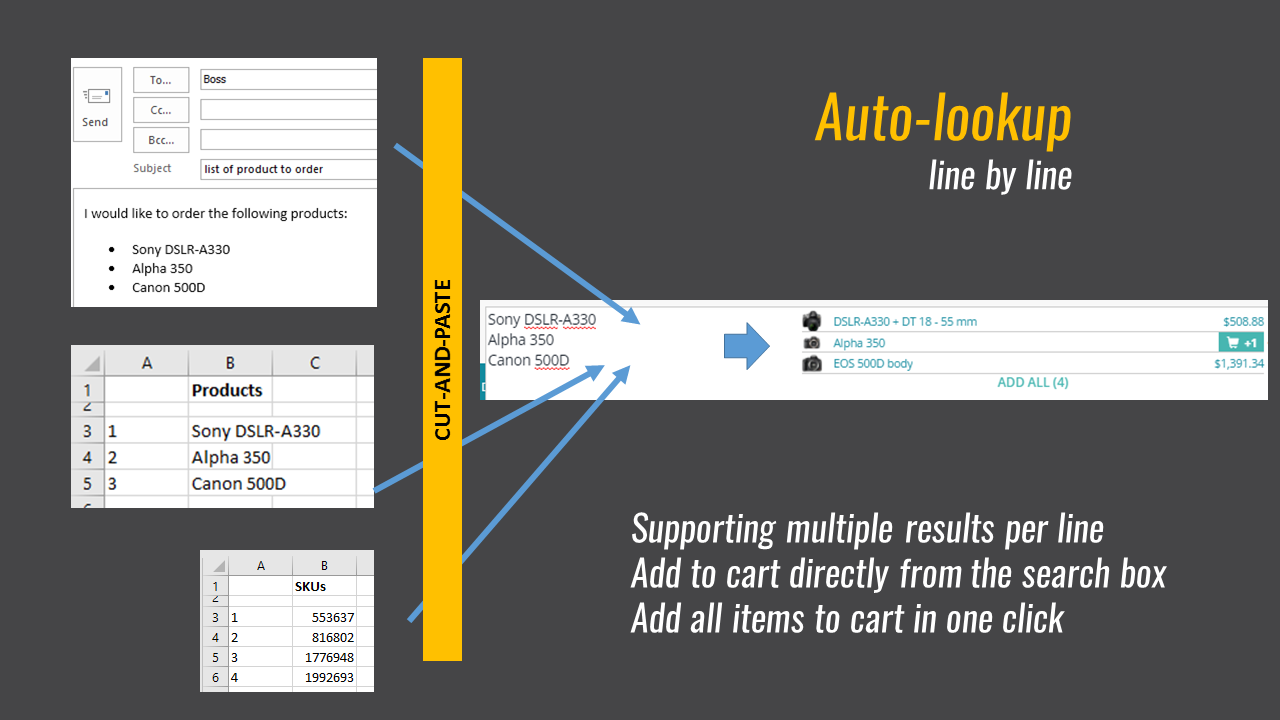
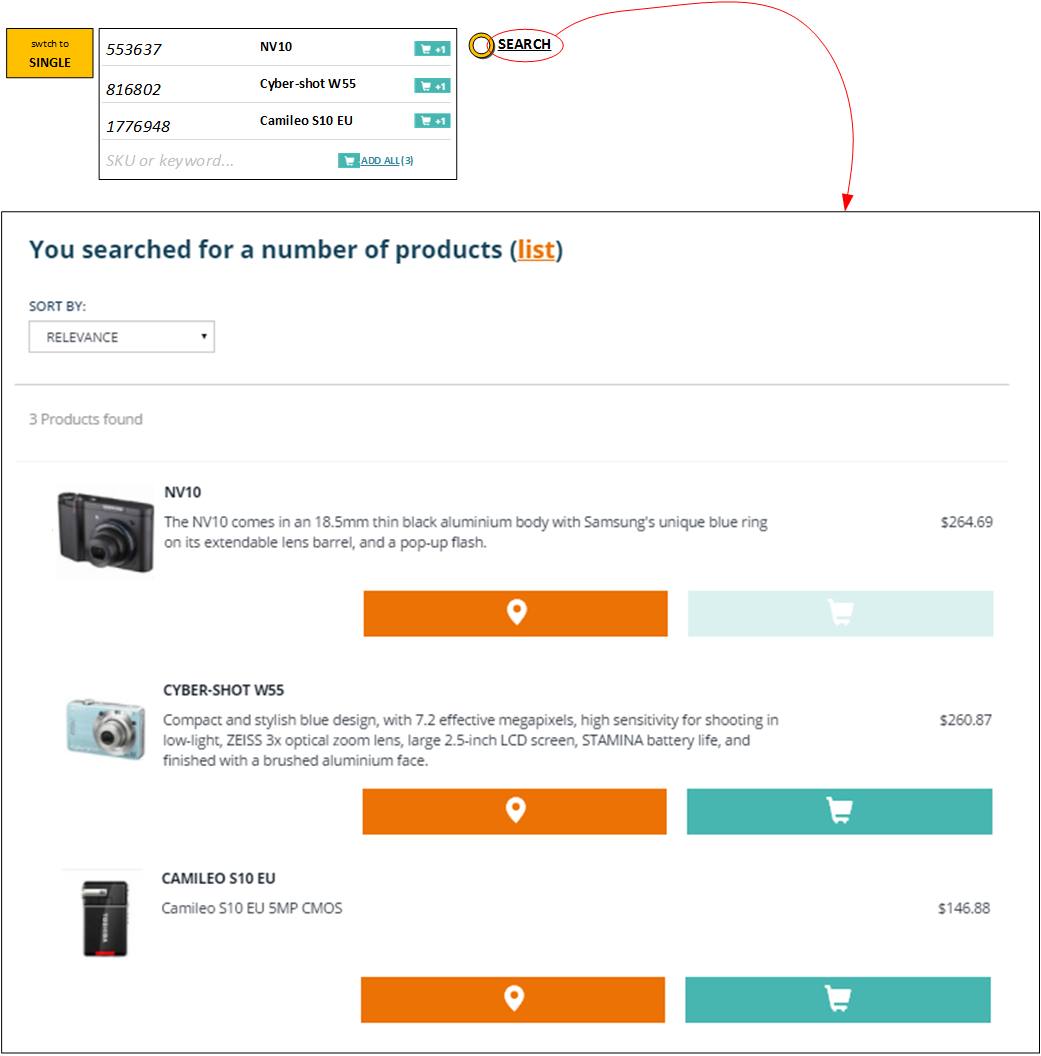
If the customer submits the multi-line request, the system will display the search result with the same look as regular search results, but the displayed results will correspond to the suggestions.
For example, if you look for three products, 553637, 816802, and 1776948, the system will display these three products in the search results.
Source code
The source code of the PoC is available here: https://github.com/batiskafff/hyb_plugin
Discussion
Powered by GitHub Discussions — sign in with a GitHub account to join the conversation.