Automating Banner Crop/Resize Across Breakpoints with Generative AI
In this article, I describe a practical approach to one of the most tedious parts of an SAP Commerce storefront redesign: transforming hundreds of existing banner images to fit new layout dimensions. Using generative AI outpainting, we can automate the bulk of this work — producing production-ready assets for pennies per image — and only send the imperfect ones to designers for manual touch-up.
The Problem: Banners Don’t Fit the New Design
The case: the brand team delivers fresh Figma mockups. The new hero banners are 1440×868 instead of the old 1400×650. The mobile breakpoint shifts from 375px to 390px wide, with a taller viewport. Tablet gets its own dedicated layout at 992×768.
Now multiply that by every banner, promotional image, and hero graphic across the storefront. A typical SAP Commerce site has dozens of content pages, each with several banner slots — homepage carousels, category heroes, campaign landing pages, seasonal promotions. A mid-size retailer might have 200-500 banner images that need to be reformatted.
The traditional options are:
- Send everything to the design team. This works, but at scale it’s expensive and slow. Designers spend days doing mechanical work — extending backgrounds, filling in edges — rather than creative work.
- Crop and stretch. Fast but destructive. Cropping cuts off content; stretching introduces visible distortion. Neither is acceptable for hero banners.
- Use CSS background-size: cover. This pushes the problem to the browser. The image gets cropped differently on every viewport, and the focal point is often lost. It’s a runtime workaround, not a solution.
None of these options scale well when you need three breakpoint-specific versions (Desktop, Tablet, Mobile) of every banner in the catalog.
The Idea: AI Outpainting as a Batch Pipeline
Generative AI models can extend an image beyond its original boundaries — a technique called outpainting. The model analyzes the existing content and generates a photorealistic continuation of the scene in the new areas, matching lighting, texture, perspective, and color. This is not always perfect, but at scale, you may find it really working.
The key insight is that this is exactly what banner reformatting requires. We’re not asking the AI to create new content. We’re asking it to extend backgrounds — fabric textures, gradient washes, blurred bokeh, studio backdrops — which are precisely the kind of patterns these models handle best.
The approach:
- Take the existing banner at its original resolution.
- Tell the model: “Extend this photograph to a new aspect ratio. Keep the original content exactly as-is.”
- The model generates the extended image.
- Optionally, paste the original pixels back on top of the generated result (lossless compositing) to guarantee that the center of the image is pixel-perfect.
For images that already exist in both desktop (horizontal) and mobile (vertical) variants — which is common in responsive SAP Commerce storefronts — we pick the source that best matches each target:
| Target | Resolution | Source preference |
|---|---|---|
| Desktop | 1440×868 | Horizontal (desktop) original |
| Tablet | 992×768 | Horizontal (desktop) original |
| Mobile | 390×740 | Vertical (mobile) original |
This minimizes how much the AI needs to generate. Converting a 1400×650 horizontal banner to 1440×868 only requires extending the top and bottom — a modest change. Converting a 375×667 vertical image to 390×740 is similarly conservative.
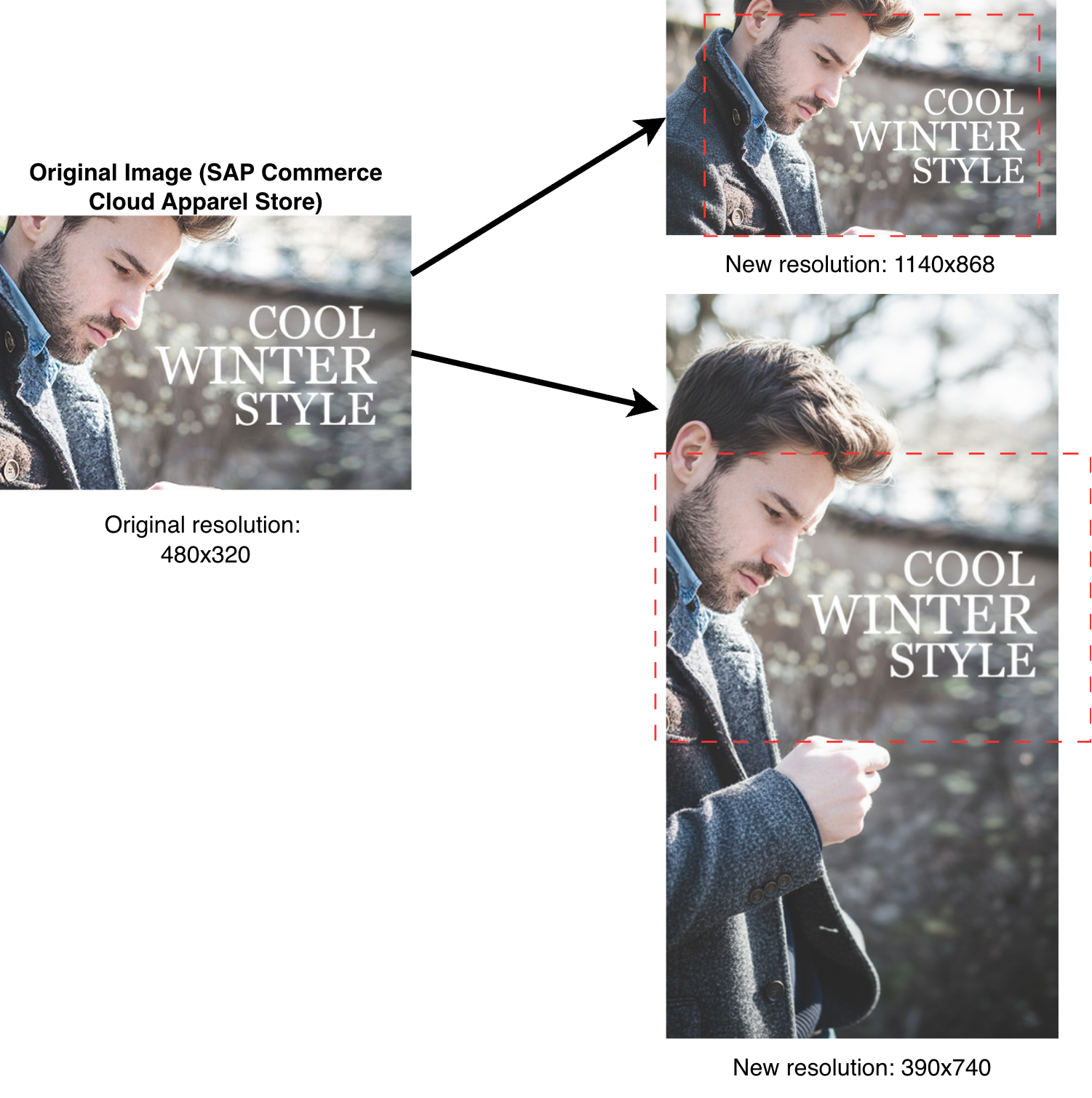
The Pipeline
The tool I built works as follows:
Input: A folder of source images. Each image can exist in several variants — at least one desktop (horizontal) and optionally mobile (vertical) and tablet. The system groups them by base name automatically.
Processing: For each group, it generates three outputs – the resolutions and aspect ratios are configurable:
- Desktop 1440×868 — from the horizontal source
- Tablet 992×768 — from the horizontal source
- Mobile 390×740 — from the vertical source
If only one variant exists (say, desktop only), it falls back to that for all three targets.
API: The images are sent to Gemini 2.5 Flash Image (marketed often as “Nano Banana”) via a standard chat completions endpoint with image output modality. The prompt instructs the model to extend the scene in the appropriate direction without altering the original content.
Post-processing: The generated image is center-cropped to the exact target dimensions (the model respects the requested aspect ratio but not exact pixel dimensions). Then, the original image is template-matched against the generated output and composited back on top with a soft feathered edge — ensuring the core content remains lossless.
Output: PNG files named
Here is the dry-run output for a single image group:
# python banner_outpaint.py -i ./in -o ./out --image-size 2K --workers 2
Found 1 image group(s) | targets: Tablet 992x768, Desktop 1440x868, Mobile 390x740
Model: google/gemini-2.5-flash-image

Group 'Appa_480x320_Category11_EN_01_480W': horizontal=Appa_480x320_Category11_EN_01_480W.jpg, vertical=-

Appa_480x320_Category11_EN_01_480W Tablet 992x768 OK:
- outpaint (4:3, conf=0.00 < 0.3) | tokens: 1394in/1291out, 8.2s | src: Appa_480x320_Category11_EN_01_480W.jpg
Appa_480x320_Category11_EN_01_480W Desktop 1440x868 OK:
- outpaint (16:9, conf=0.00 < 0.3) | tokens: 1395in/1291out, 8.5s | src: Appa_480x320_Category11_EN_01_480W.jpg
Appa_480x320_Category11_EN_01_480W Mobile 390x740 OK
- outpaint (9:16, conf=0.00 < 0.3) | tokens: 1394in/1291out, 12.0s | src: Appa_480x320_Category11_EN_01_480W.jpg (fallback)

============================================================
Results: OK=3 | Errors=0 | Total=3
Wall time: 30.3s
API calls: 3
Tokens: 4183 prompt + 3873 completion = 8056 total
Total API time: 28.6s (avg 9.5s/call)
============================================================
What It Costs
This is not a free operation — every image requires an API call to a generative model. But the cost is remarkably low.
Here are the actual numbers from converting the image from the above example using Gemini 2.5 Flash Image via OpenRouter with Google Vertex as the provider:
| Target | Input tokens | Output tokens | Cost | Time |
|---|---|---|---|---|
| Tablet 992×768 | 1,910 | 1,291 | $0.0393 | ~16s |
| Desktop 1440×868 | 2,426 | 1,290 | $0.0394 | ~16s |
| Mobile 390×740 | 2,426 | 1,291 | $0.0394 | ~16s |
| Total | 6,762 | 3,872 | $0.1181 | ~48s |
Three production-ready banner variants for under 12 cents. The processing time of ~16 seconds per image is for sequential execution; requests can be parallelized.
Scaling the math
For a typical SAP Commerce storefront with 200 banner groups:
| Scenario | Images | API calls | Estimated cost | Time (parallel) |
|---|---|---|---|---|
| Small site (50 banners) | 150 | 150 | ~$6 | ~15 min |
| Medium site (200 banners) | 600 | 600 | ~$24 | ~1 hour |
| Large site (500 banners) | 1,500 | 1,500 | ~$59 | ~2.5 hours |
Compare this to the cost of a designer manually extending 600 images at even 5 minutes per image: 50 hours of design work.
Batch API: 50% discount
Google’s Gemini API offers a Batch mode that processes requests asynchronously with up to 24-hour latency, in exchange for a 50% discount on all token costs. For Gemini 2.5 Flash, the batch pricing is:
- Input: $0.15 per 1M tokens (vs. $0.30 standard)
- Output: $1.25 per 1M tokens (vs. $2.50 standard)
Batch mode does support image generation. For our 200-banner example, this would drop the cost from ~$24 to ~$12. The tradeoff is latency — but since banner migration is a batch operation by nature (you’re preparing assets for a deployment, not serving them in real-time), the 24-hour window is perfectly acceptable.
At scale, a full 500-banner migration with batch pricing costs under $30 — less than a single hour of a designer’s time in most markets.
The 80/20 Strategy
The real value of this approach is not that it produces perfect results every time. It doesn’t. Outpainting works extremely well for:
- Textured backgrounds — fabric, gradients, bokeh, studio backdrops
- Geometric patterns — tiles, stripes, solid colors
- Natural scenes — sky, grass, water, wood grain
It can struggle with:
- People at the edges — extending a person’s body or face is risky but still ok and often perfect for many cases
- Text and logos — the model may hallucinate text or distort logos near the boundary
- Complex foreground objects — if the subject extends to the edge of the frame, the model must invent plausible continuations
The strategy is not to achieve 100% automation. The strategy is to run every banner through the pipeline, then have a human reviewer quickly scan the results:
- ~70-80% will be production-ready with no manual intervention. These go straight into the content catalog.
- ~15-20% will need minor touch-up — a small artifact, a slightly off color in one corner. A designer can fix these in minutes, not hours.
- ~5% will need to be redone manually. These are the edge cases where the AI produced something obviously wrong.
Even at a 70% automation rate, you’ve eliminated 70% of the mechanical design work from the migration. For a 500-banner site, that’s 350 images that require zero designer time.
Integration with CMS Migration
This tool is designed to plug into a larger CMS migration pipeline. In my previous article, I described a system for migrating CMS content between SAP Commerce Content Catalogs using a graph database. The graph captures every page, slot, component, and media reference in the catalog.
The media transformation fits naturally into the pipeline’s transformation layer:
- Extract — The graph-based migration system identifies all Media items referenced by banner components (SimpleBannerComponent, SimpleResponsiveBannerComponent, RotatingImagesComponent, etc.).
- Transform — The outpainting pipeline takes each source image, generates the three breakpoint variants, and writes them to the output directory.
- Load — The transformed media files are packaged with the ImpEx import scripts and uploaded to the target environment.
The graph database makes it trivial to answer questions like: “Which media items are referenced by banner components on active pages?” — filtering out orphaned media, expired promotions, and unused assets before spending API credits on them.
Technical Details
The outpainting prompt is dynamically constructed based on the geometric relationship between source and target:
- If the target is wider (higher aspect ratio), the prompt says: “Extend on the left and right sides.”
- If the target is taller (lower aspect ratio), the prompt says: “Extend on the top and bottom.”
- If the ratios are similar, it says: “Extend on all sides proportionally.”
The prompt also explicitly instructs the model: “Do NOT add new people, faces, text, logos, watermarks or borders.” This prevents common failure modes where the model tries to be too creative.
The lossless compositing step uses template matching (coarse-to-fine MSE search) to find exactly where the model placed the original content in the generated image, then pastes the original pixels back with a feathered edge (default 12px Gaussian blur on the mask). This means even if the model slightly altered colors or sharpness in the center region, the final output contains the exact original pixels there.
If the template matching confidence is below a threshold (default 0.3), the compositing step is skipped entirely and the raw generated image is used — this prevents bad alignment from creating visible seams.
Conclusion
Banner reformatting during a site redesign is the kind of task that feels small until you count the images. At scale, it becomes a significant cost center — one that’s almost entirely mechanical. AI outpainting reduces this to a batch operation costing cents per image, with the majority of results requiring no human intervention.
The tooling is straightforward: a Python script, a generative model API, and about 12 cents per image group. For a 200-banner migration, the total cost is under $25 (or ~$12 with batch pricing) — a fraction of the manual alternative.
The key is to treat it as a filter, not a replacement. Run everything through the pipeline, review the results, and only escalate the failures to human designers. This is where the real savings come from: not in eliminating design work entirely, but in reducing it by 70-80% and letting designers focus on the cases that actually need creative judgment.

Comments are closed, but trackbacks and pingbacks are open.