
Why I needed it
No, it didn't start with transcribing meetings — that's where it ended up.
What I originally wanted was a tool I could launch and then just narrate out loud everything I was doing with an app on the screen.
Say I'm testing some app and talking: "Let's see what happens if I click this button. Oh, a form. What if I enter this value here? Ha, didn't work, it shows an error. Okay, what happens if I select that option over there?.."
Then I wanted to feed such narrated sessions, roughly an hour long, together with screenshots into an LLM and get a useful document or a set of documents out of it. And for any bugs found — nearly ready JIRA tickets: context, steps to reproduce, expected and actual behavior, a screenshot. With the project's knowledge base and the source code, an LLM would do a pretty decent job of figuring out what I was commenting on while looking at the UI.
The second scenario is tutorials. Dictating is easier than writing. If what you say turns into text by itself, a tutorial on some topic takes minimal effort: I just show and tell, then hand it over to the model for editing.
But it ended up with 9 out of 10 uses of the tool being meeting transcripts and a helper for working more effectively during a call.
Jumping ahead a bit: it also turned out to be very handy for turning YouTube lectures into readable articles with screenshots and callouts.
As a teaser, here's what the final result looks like: a document built from a recording of a YouTube talk. In automatic mode it works on a "start the video and forget it" basis: the tool listens and picks the frames on its own, and the document is built with one button.
Most of this article is about the console version: it's the core of the tool. I've recently built a web UI on top of it (./webui.sh), and the video and screenshots below were taken in it. The UI runs the same main.py and adds a live transcript, a screenshots panel, a choice of audio source, capture area (full screen, an area or a specific window) and recognition model, automatic frames, transcript processing with a Beautify button, and a chat over the recording while it's still running. And now the same UI also comes as a macOS app with everything needed inside — more on it at the end.
Beautify and the chat work through Claude Code or through an LLM API, your choice: Gemini, OpenAI, Anthropic, OpenRouter or any OpenAI-compatible server, including local Ollama and LM Studio. With a cloud model, this part, unlike recognition, isn't local.
Here's what it looks like live — recording a YouTube talk, capturing slides with the hotkey, and processing the transcript:
So, we've mentioned that it's not just the audio stream — something is happening on the screen too, and that raises the question
When to capture the screen
And how do you then fit the relevant bits from the screen into the future text? A picture is worth a thousand words, and without one neither a bug report nor a tutorial works.
Originally I dreamed of the system somehow figuring out on its own which frames to keep because they fit the text contextually. I'd start a YouTube video, leave the computer listening to it, and come back to a finished document describing what was in the video, with frame screenshots. For a long time I thought that was too early. It turned out not quite: the tool now has an automatic mode, more on it below. But let's start with the manual one — it came first and is still the main one.
Recording the whole video is overkill: you'd still have to find the right frames later somehow, and it's not yet clear how to approach that. It's much better when a person decides which frame is key, since they're sitting there listening anyway. That's how the idea of a global hotkey came about: press it — a screenshot is saved, and at that very moment a [screenshot: path] marker is inserted into the transcript. Text and image are linked by time, and the LLM later knows exactly which phrase the frame belongs to.
Surprise: it hears the speakers too
Along the way I realized that this thing "hears" what the speaker "says" perfectly well through the microphone. I didn't expect that at all. I thought the laptop microphone somehow filtered out whatever came from the speaker. But it works, and very reliably. And a whole class of use cases opened up right away.
- YouTube and any videos. Start a video, hit the hotkey on important slides now and then — and you get a transcript with embedded screenshots.
- Teams calls. From what I've seen, it recognizes speech even better than Teams itself.
There's a flip side: through the microphone, all of this works only while the sound comes out of the speakers. With headphones or a headset the microphone won't hear the other side, and only your own speech gets into the transcript. So now the call audio can also be taken directly, more on that below.
It also follows that it works best at home, in a quiet room. I haven't tried it in an open space. Most likely the speech detector will let other people's conversations into recognition. The LLM will remove some of that noise in post-processing because it doesn't fit the topic of the call, but I wouldn't count on it.
The built-in Teams transcript has a few inconveniences and conveniences:
| Teams | My tool | |
|---|---|---|
| When the text is available | Only after the call ends | Right away, as the conversation goes |
| Who can download the text | As far as I understand, only the person who recorded; everyone else gets an interactive view you can't properly copy from | A plain .txt on my disk |
| Key frames | None — the whole video is saved | Hotkey screenshots, right in the text |
| Who said what | Knows exactly | Optional voice-based diarization, no names; the names can be taken from Teams' own transcript |
The last point is the only one where Teams clearly wins. But now I can take even that one: the Teams transcript can be loaded into the project as a second source, more on that below. And spending an hour rewatching an hour-long call is a waste. I want a transcript and key frames.
Call audio, directly
Listening to the speakers through the microphone turned out to be convenient, but it doesn't work with headphones. So the tool now has a choice of audio source — the --source flag in the console or the Source list in the web UI:
| Source | What it listens to | What's in the transcript |
|---|---|---|
| Microphone (default) | The microphone, as before | Everything mixed together |
| App + mic | One app's audio, e.g. Teams, and the microphone separately | Lines marked [Them] and [Me] |
| App only | Only the app's audio | Everything it played |
| Audio file | A ready-made file: mp3, m4a, wav, video | Timestamps are positions in the file |
The app's audio is captured by a second native helper, audio_helper, via Core Audio Process Taps (macOS 14.2+). Teams keeps playing into the headphones as usual, while the transcript gets the clean call audio, without the room. The microphone and the app are recognized as two independent channels, each with its own speech detector, so lines don't stick together even when people talk at the same time. And "who said what" is half solved right away: [Me] is me, and only [Them] needs to be split by voice.
A couple of gotchas: Teams doesn't play audio from its main process but from a helper, ModuleHost, so the helper groups processes by app. And macOS asks for a separate permission — System Audio Recording.
Audio file mode is for a recording someone sent after a meeting: it goes through the same pipeline as a live one, only not at real-time pace but as fast as recognition can keep up. No screenshots or frames in this mode, obviously.
One evening and local models only
All these considerations led to me building a tool that suits me, literally in one evening. Okay, not me — Claude Code and I. And then for a few more months I kept adding new features and fixing bugs now and then — what came out of it is described below.
What matters more: recognition runs on local models only. The audio of your calls and the screenshots of your screen don't go anywhere, and that's a huge plus. LLM post-processing is optional, and even for that I usually use local models.
What the product is made of:
- Speech recognition — one of three models to choose from, all on CPU with int8 quantization: faster-whisper with
large-v3-turbo(the default), GigaAM v3 for Russian or Parakeet v3 for mixed Russian and English. More on them below. - Speech detector — Silero VAD. Recognition only runs on chunks where someone is speaking; a phrase is considered finished after 1.5 s of silence.
- Language auto-detection — Russian or English, first check after 30 words, then a recheck every 200 words.
- Native Swift helper — registers global macOS hotkeys and captures the screen. It talks to Python simply via stdout.
- App audio helper — a second Swift binary: captures the chosen app's audio via Core Audio Process Taps and also hands it over via stdout.
- OCR (optical character recognition) — EasyOCR, Russian and English.
- Speaker separation (optional) — SpeechBrain ECAPA-TDNN voice embeddings and clustering. Session data is saved, so the labeling can be recomputed later with different parameters, without re-recording.
All of this runs in several threads at once, so the text shows up in the file practically in real time, with [HH:MM:SS] timestamps.
A caveat up front: the speed and quality estimates in this article are my personal observations from using the tool. I haven't done any systematic measurements. The exceptions are the comparison of recognition models and the automatic frames numbers below.
Speech and screenshots go through two independent pipelines and meet in the transcript via markers; the LLM gets both streams at once.
Screenshots with OCR and pasting selected text
The tool has two global hotkeys that work in any application:
| Hotkey | What it does | What goes into the transcript |
|---|---|---|
| Ctrl+Shift+S | Saves the screen as PNG and runs OCR; all recognized text goes into a .txt next to the image | [screenshot: path to PNG] |
| Ctrl+Shift+W | Grabs the text selected in any window | [selection: the text itself] |
The OCR file then serves as a reference during post-processing. People's names, brands, class and file names on the screen are spelled correctly, and the LLM uses them to fix what recognition misheard. This is noticeably more reliable than recognizing such things from audio alone.
The key combinations are hardcoded in the helper (screenshot_helper.swift), so for now they can only be reassigned in code. I'm aware that Ctrl+Shift+W closes the window in browsers on Windows and Linux, so ports will need different combinations, or better, a setting for them.
Pasting selected text is handy in dictation mode. You say out loud "and here's the company's product list", select the list on the website and hit the hotkey. The list lands in the text verbatim, with no recognition errors.
A couple more features:
- Projects. Each recording goes into its own
projects/<name>/folder with transcripts, screenshots and OCR files. - Audio recording. With the
--save-audioflag the session is additionally saved as MP3. - Speakers. The
--speakers 2or--speakers autoflag turns on "who's speaking" labeling, andrediarize.pyrecomputes it from the saved data.
Automatic frames
Pressing the hotkey on every slide is tiresome, and on a long talk you're bound to miss something. So the tool now has a second mode: Auto frames. It's turned on with a switch before recording, with the Auto button while recording, or with --auto-frames 1 in the console.
The idea is simple: take a screenshot every second and keep only what's worth keeping. Running a model over every frame would be wasteful — in a presentation 95% of neighboring frames are identical, and that can be seen in a millisecond. So the frames go through a cascade, from cheap to expensive:
- Pixels. The frame is shrunk to 256 px in grayscale and compared with the previous one. A frame becomes a candidate not when the screen has changed, but when after the change it has stood still for 1.5 s. So slide transitions, scrolling in progress and typing never become candidates — the final state does. A talking head never stands still and drops out by itself. If only one rectangle keeps moving all the time (the speaker's webcam next to the slides), it's masked and doesn't count.
- Scenes. A candidate opens a new scene if it differs from the current one by more than 3% of the area, or if more than half of the slide's content has changed: on a dark slide a new title takes up just a couple of percent of the frame. Going back to an earlier slide is recorded as a repeat, without a new picture; a scrolled page is marked as scrolling.
- CLIP. Only the candidates get here, a few a minute. The CLIP model computes an image embedding (14 ms on M3 Max) and classifies the frame without training: slide, diagram, table, code, web page, face. A frame that is mostly a face or a video call is dropped. This level can be turned off in the settings, and then only pixels remain.
What's stored is not a screenshot but a scene: the frame plus the interval it was on screen. Scenes live next to the transcript in frames/<session>/ and aren't written into the transcript file; they're matched to the speech by time. In the web UI they show up right in the transcript, where they appeared, marked "auto".
This is the part I did measure, on one recorded talk: 11.5 minutes, slides with a webcam in the corner and a laser pointer.
| What | Result |
|---|---|
| Frames → scenes | 692 → 10 in 2 seconds, not a single slide missed |
| The same slide for 4 minutes with a laser pointer moving over it | One scene |
| The webcam blown up to full screen for 2 minutes | Pixels let 2 frames with a face through, CLIP dropped both |
When the video is only part of the window
If you capture a browser or Teams window rather than the whole screen, most of the frame is static page text, and the video is a single rectangle. Then a slide change is drowned out by the page: a dark slide with a couple of words changes less than 3% of the window, and the slides merge.
For this the capture area has a Detect video button. The tool watches the window for a few seconds and finds the player by an unexpected sign: decoded video flickers by a level or two even on a still slide, while a page drawn by the browser is still down to the bit. In my tests 3–8% of the pixels changed inside the player and exactly 0% outside. If the player's border is visible, the crop snaps to it; if not (a dark slide on a dark page), the area is grown to the video's aspect ratio with some margin. A paused video is found by its border alone.
The crop is drawn on the preview, and it can be moved and resized with the mouse. It applies to automatic frames only: regular screenshots still capture the whole window.
Hundreds of frames, ten needed
Even after the cascade there are dozens of scenes, and not all of them belong in the document. So any line of the transcript, any screenshot and any frame can be hidden with the eye button. A hidden line stays in place but fades; a picture turns grey. Beautify gets everything that isn't hidden, automatic frames included, as screenshots at their own time.
Hiding one at a time is tedious, so next to the eye there's a second button: "this and the similar ones". For lines it hides the same or nearly the same phrases — handy for Whisper hallucinations and endless "uh-huh"s. For pictures it hides every screenshot and frame that looks like the clicked one, by CLIP embedding: the same talking head at different times came out at 0.93 and above, different slides of one talk at 0.84 and below. A mistaken click can be undone from the notice.
The Pick button in the frames panel does the rough selection for you. It keeps the N frames that had the most said about them and hides the rest. The strongest signal is pointing phrases in the speech while the frame was on screen — "as you can see", "here", "on this diagram" — followed by time on screen and the amount of speech. The decision about which frame matters is made by the transcript, not by the picture.
And one more change along the way: the final Beautify no longer starts by itself after a recording. It asks first, and if you say "not now", the Beautify button stays for later.
How it works inside
The main principle: recording never waits for recognition. Audio is written asynchronously, and all the heavy work happens in separate threads connected by queues.
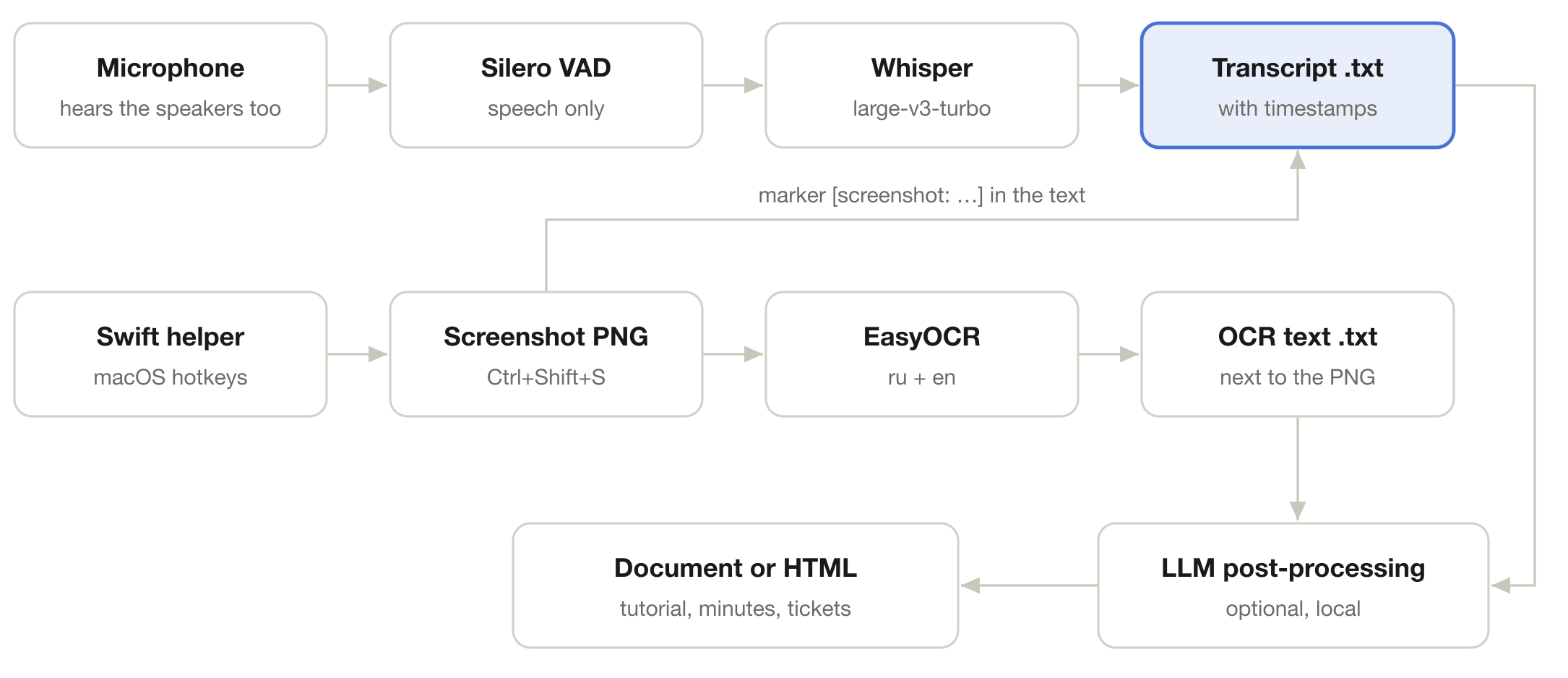
| Thread | What it does | Hands off to |
|---|---|---|
| Audio capture | Microphone and/or app audio from audio_helper: 16 kHz, mono, 100 ms blocks |
Raw audio queue; in App + mic mode, a queue and a speech detector per channel |
| Speech detector (VAD) | Silero over 32 ms windows; a phrase closes after 1.5 s of silence (--pause), fragments shorter than 250 ms are dropped |
Recognition queue: phrase audio + its start time |
| Recognition | faster-whisper (beam search 5), GigaAM or Parakeet, one phrase at a time | Transcript on disk, written right after each phrase |
| Swift helper + its output reader | Hotkeys, PNG, selected text | Marker queue and OCR queue |
| OCR | EasyOCR on each screenshot | .txt next to the PNG |
Voice embeddings (with --speakers) |
ECAPA-TDNN on short phrases | Session data for clustering at the end |
Frame triage (with --auto-frames) |
Pixel comparison, then CLIP on the survivors | frames/<session>/scenes.json and the scene JPEGs |
Recognition lags behind but catches up. Whisper only gets a phrase after a pause, and on CPU it needs time. Phrases pile up in the queue, and at every pause in the conversation recognition catches up. A typical recording has plenty of pauses, so the text appears practically in real time. A long monologue without pauses goes to recognition as one chunk and shows up later — by my impression, about 30 seconds later. All of this is about Whisper: GigaAM handles a phrase in a fraction of a second, and the queue practically never builds up. And for a long monologue the web UI has a Cut button: it closes the current phrase right away and sends it to recognition without waiting for a pause.
Time comes from the audio, not the clock. The [HH:MM:SS] timestamp is computed from the sample number where the phrase started. Even if recognition has fallen behind, the timestamp shows when the phrase was said.
A screenshot goes where recognition will get to, not where it was. The [screenshot: …] marker waits in its own queue, and it's written to the file by the same recognition thread, between phrases. So the marker lands not at the point recognized when the hotkey was pressed, but at the point the queue reaches a couple of seconds later. Otherwise screenshots would be inserted too early: when the hotkey is pressed, the current phrase usually hasn't been recognized yet, or even finished being spoken.
The helper protocol is lines on stdout. The helper writes SCREENSHOT:<path> or SELECTION:<base64 text>, and Python reads them in a separate thread. Commands go the other way, via stdin: SNAP takes a screenshot, AUTO 1 starts automatic frames (a JPEG every second, then FRAME:<path>), AUTO OFF stops them. The helper grabs selected text by simulating Cmd+C and reading the clipboard after 150 ms, so the clipboard gets overwritten in the process. In console mode the screenshot is taken from the main display by default; in the web UI you can pick an area or a single window, and the window is captured even when something covers it. The audio_helper protocol is even simpler: raw 16 kHz float32 on stdout, paced by the wall clock. When the app is silent, zeros are written, so the sample count always matches the elapsed time and the timestamps of the two channels don't drift apart.
Language by the share of Cyrillic. Until the first check, Whisper itself detects the language of each phrase. After that, the last 300 words are taken: 80% Cyrillic or more — Russian, 20% or less — English, in between the language doesn't change. With GigaAM the language is always Russian: it doesn't understand others.
Speakers — at the end of the session. Every engine returns word-level timestamps. Words are cut into phrases at pauses longer than 0.4 s or every 3 s, short ones are padded with audio up to 1 s, and a voice embedding is computed for each as it goes. Clustering runs once, after stopping. In App + mic mode, lines from the microphone are labeled [Me] right away and don't go into clustering. The original text stays alongside as .raw.txt, the session data in a .pkl for rediarize.py.
Ctrl+C doesn't cut the recording off, it finishes it. The system stops listening and sends the unfinished phrase to recognition. Then it works through everything accumulated in the queues: recognizes the remaining phrases, writes out the markers, finishes OCR, saves the MP3 and labels the speakers. The timer-based auto-stop behaves the same way.
From a raw transcript to a document
A raw transcript with screenshots or their OCR texts can then be turned via an LLM into clean text or HTML — interactive or plain.
The repository has a process_transcript.py script for this. It collects transcripts for a day, a date range or a time interval, adds the screenshot OCR as reference material and asks the model to:
- Fix recognition errors by checking against the text from the screen.
- Map the anonymous "Speaker 1", "Speaker 2" to real names if they're visible in screenshots or were mentioned in the audio in context. That is, if Vasya asked Petya to comment, and then Petya comments, the system knows that Speaker 12 is Petya. And if Petya thanked Vasya, it also knows that Speaker 7, who asked, is Vasya.
- Assemble a document: key decisions, a task table and a cleaned-up dialogue with timestamps.
- Turn that into a single-page HTML with tabs, full-text search and a speaker filter.
The document produced from the recording in the video above can be opened in full. This is version 2: the recording was still running, and the model used callouts to mark what was new compared to the first version. Building this version from nine minutes of recording and six slides took 1 min 42 s.
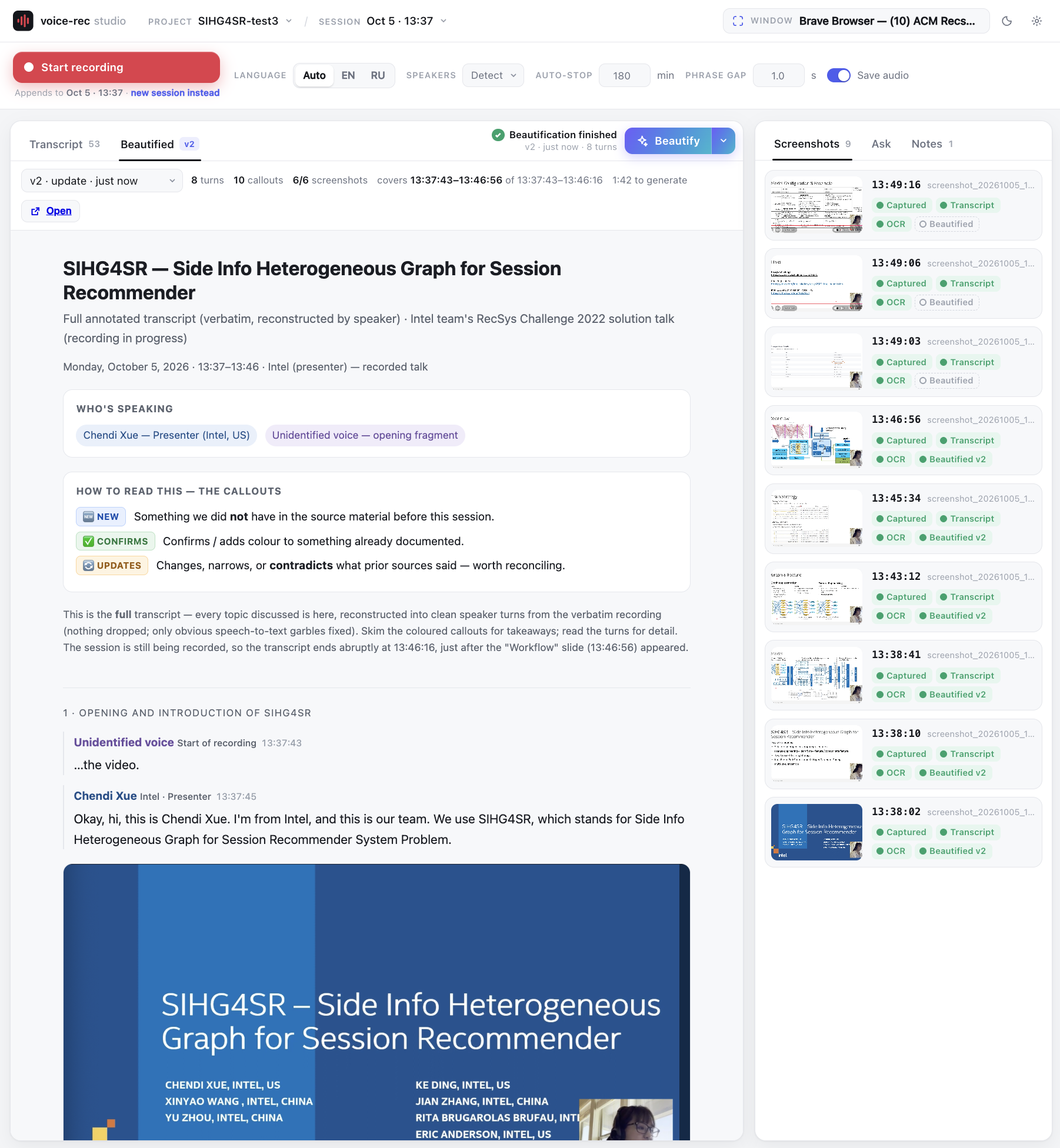
For non-sensitive data I often just hand the project folder to Claude Code. I ask it to keep all the lines and add callouts with the important points — it turns out very convenient. For sensitive data I use local models.
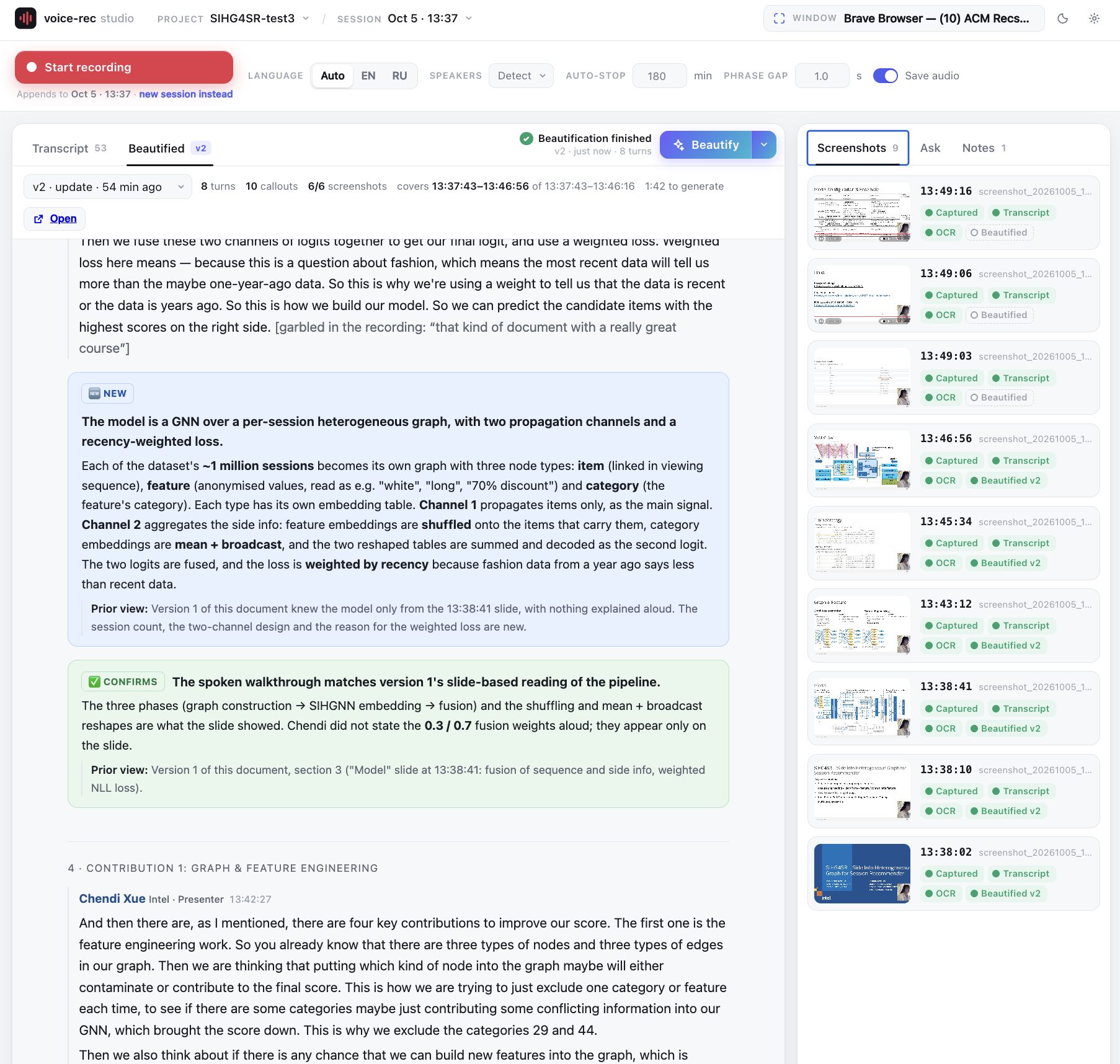
I'll say this separately: transcripts after LLM processing are genuinely comfortable to read. The model removes noise and stray remarks and turns the text into something fairly close to what went into the microphone.
It doesn't become accurate, though: hallucinations are still a thing. Still, I haven't noticed any serious errors so far, and the models handle it quite well.
The Teams transcript as a second source
The Teams transcript and mine have mirrored strengths. Teams knows exactly who's speaking but mangles brands and terms. Mine is the other way around: the terms are right thanks to OCR and the project notes, but the speakers are nameless.
So the Teams transcript (.vtt, .docx, .txt or .srt) can now be uploaded in the Notes tab, and Beautify merges the two sources: it takes the speakers from Teams, the terms and times from mine, and recovers from Teams whatever my recognition missed. The Ask chat knows about the file too.
If there's no Teams transcript, names can be assigned by hand. You select a phrase in the transcript and pick "Who said it": a line - "quote" <-- Name (at HH:MM:SS) goes into the project notes. Beautify attributes that turn to the named person and uses it to recognize the same voice elsewhere.
Transcript + knowledge base: hints during the conversation
This thing combines really well with a knowledge base on the topic of the conversation. The transcript is written to a file as it goes, so it can be processed at any moment, incomplete. You give the LLM what's been said so far along with the context and ask: what questions have we forgotten to ask, even though there was or is a reason for them?
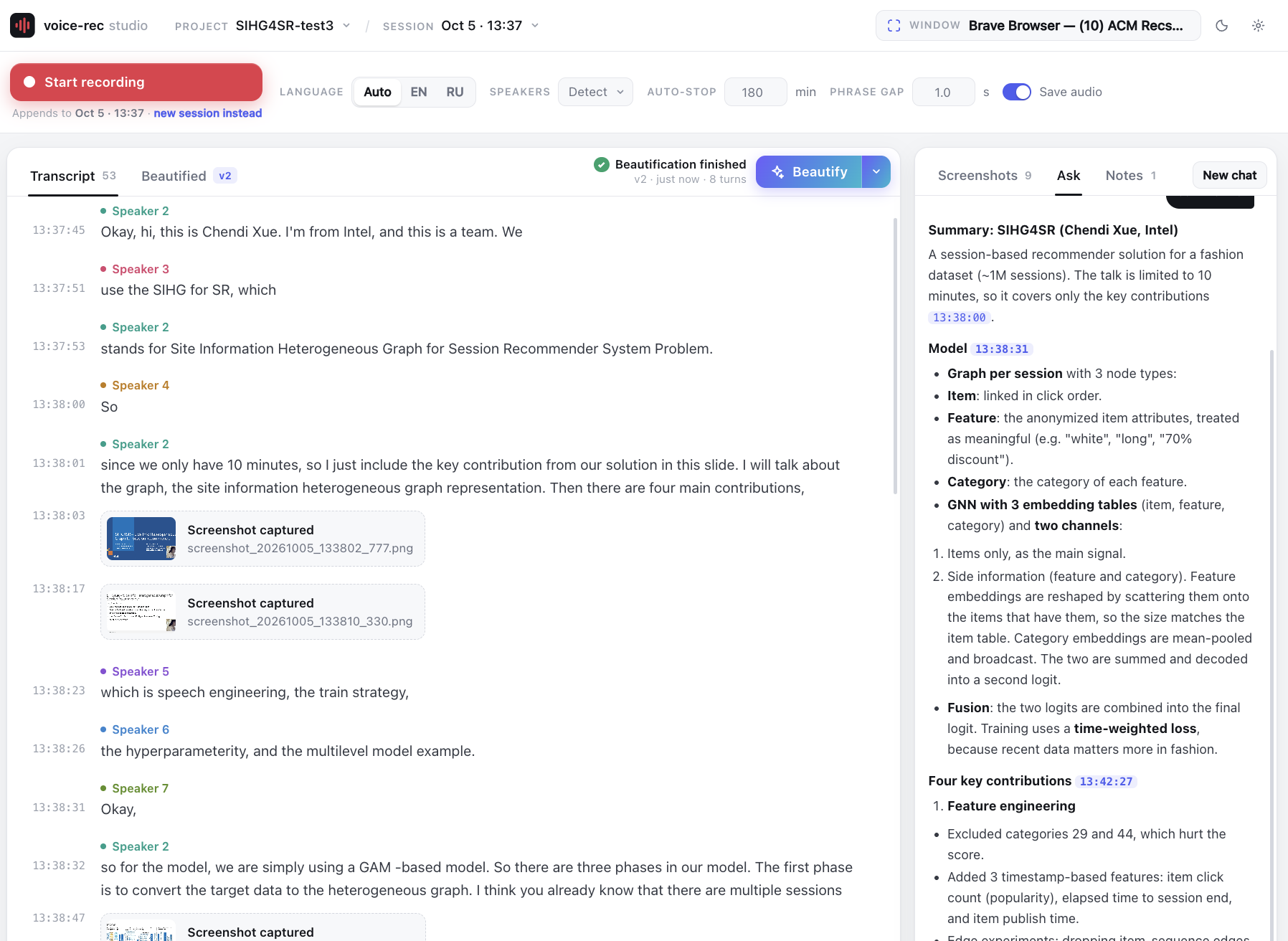
The simplest example is a job interview, on the interviewer's side. You load the candidate's resume, and as the conversation goes the system suggests topics to discuss. It takes both sources into account at once:
- What's already been discussed. The candidate may have mentioned experience that isn't in the resume — and the system will suggest digging into it. And it won't suggest what's already been covered.
- The resume itself. Without it, what the candidate mentioned can be read two ways. With it, the model sees on which project and in which role that happened, and can suggest a follow-up question.
The same works for requirements gathering (knowledge base — project documentation), sales calls (customer history) and testing (specification — which scenarios haven't been checked yet).
On consent to recording
A word on ethics and the law. Recording calls, and especially interviews, without the other people knowing is not okay: in many countries it's directly prohibited by law, and companies usually have their own rules on this. The tool is meant for personal use: your own dictation, public videos, calls whose participants know about the recording and agree to it. If you record other people, tell them in advance. Unlike Teams, the tool doesn't notify anyone about the recording by itself, so the responsibility lies with whoever starts it.
Whisper hallucinations
Whisper has a well-known ailment: on silence, noise or music it doesn't stay quiet, it makes up text. The model was trained on subtitles from the internet, and what comes out is exactly what often appeared at the end of a video there.
- Phrases out of nowhere. "Продолжение следует…" ("To be continued…"), "Субтитры сделал DimaTorzok" ("Subtitles by DimaTorzok"), "Спасибо за просмотр", "Thank you for watching".
- Looping. The same phrase repeats several times in a row.
- Making things up. On an unintelligible chunk the model writes a plausible phrase nobody said. This is the most insidious one: it doesn't catch the eye.
In general, this is fixed by swapping the model, and the tool can now do that (see the next section). GigaAM and Parakeet are built differently: they don't generate text freely the way Whisper does, they match it to the sound frame by frame, so they have nowhere to get "Продолжение следует…" from. In my test GigaAM output nothing at all on silence.
The architecture takes care of part of the problem. Silero VAD lets only speech segments into Whisper and drops fragments shorter than 250 ms. Each phrase is recognized separately, without the preceding text, so one hallucination doesn't drag others along. The rest is cleaned up in post-processing: an LLM easily recognizes "Субтитры сделал…" in the middle of a work call. For important recordings it's worth turning on --save-audio so that a disputed spot can be relistened by its timestamp.
Beyond Whisper: GigaAM and Parakeet
The tool can now work with other recognition models too. The --engine flag, or the Engine list in the web UI, picks one of three:
| Engine | Model | Languages | When to use |
|---|---|---|---|
whisper (default) |
faster-whisper large-v3-turbo |
Any | Anything; the only one that accepts term hints |
gigaam |
GigaAM v3 from Sber | Russian only | Russian calls and dictation |
parakeet |
NVIDIA Parakeet TDT 0.6B v3 | 25 European languages, Russian and English included | Speech that mixes Russian and English |
GigaAM and Parakeet run through onnx-asr on ONNX Runtime, without PyTorch. On first use the model is downloaded: about 250 MB for GigaAM and 700 MB for Parakeet.
Here I did measure. 140 seconds of Russian speech, cut into 7 phrases by the same speech detector, a MacBook with an M3 Max, CPU only. The repository has a bench_asr.py script for this, so you can repeat it on your own recordings.
| Engine | Recognition time | Memory |
|---|---|---|
| whisper | 90 s | 2.3 GB |
| gigaam | 4.4 s | 0.7 GB |
| parakeet | 4.8 s | 1.6 GB |
GigaAM is about 20 times faster than Whisper, and on Russian it's no worse, in places better: it wrote "рулоны бумаги" where Whisper heard "роллы на бумаге", and it puts ё where it belongs. Parakeet is just as fast but noticeably weaker on Russian: it drops words and confuses endings. It makes sense for calls where Russian and English are mixed.
There are drawbacks too:
- No term hints. Whisper can be given a list of correct spellings; GigaAM and Parakeet can't. Instead, the
--vocab-correctflag applies "heard → meant" replacements from the project notes to the finished text. - GigaAM is Russian only. It turns English into gibberish, so with it the language is always Russian.
- Long chunks. These models degrade on long input, so a monologue without pauses is cut into pieces of up to 20 seconds at the quietest point.
What's still unsolved
One problem that stayed open for a long time is now solved for Whisper: how to give the model context already at the audio recognition stage. Those same brands, names, terms — so that Whisper, say, doesn't recognize Hybris as Hybrid. Now the correct spellings from the project notes go to Whisper as hints (in the console, the --vocab-file flag), and such errors are gone already in the raw transcript. GigaAM and Parakeet don't take hints, so they're left with replacements after recognition (--vocab-correct) and post-processing with the screenshot OCR.
The main unsolved thing is processing speed. Beautify is currently a separate and fairly slow process: for an hour-long recording it can take about five minutes. And often I want to see a meeting summary on the fly, one that gets rewritten as context is added: what was discussed at the beginning is reconsidered in light of what came up in the middle. All of this works now, but only after Beautify, that is, with a noticeable delay. If you have experience with this, I'll be glad to hear ideas and get pull requests.
The second open question is picking frames. Pick now relies on what was said and for how long; a slide nobody pointed at loses even if it's the most important one. Next in line are OCR of every scene and a short caption from a local vision model (Qwen-VL or Moondream via Ollama): then the words on a slide can be matched with the speech, and the final choice of frames can be handed to a text LLM along with the transcript.
Where to get it
The tool is free and lives on GitHub: github.com/raliev/audiotranscripts.
The easiest way is the macOS app. It's the same web UI in its own window, with Python and all its dependencies, both helpers and ffmpeg inside, so there's nothing to install. Ready-made DMGs for Apple Silicon and for Intel are in the GitHub releases; macOS 14+ required. There are no models inside: each one is downloaded on first use, with progress on screen, and after that everything works offline. You can also build the DMG yourself with one script, packaging/build_app.sh, including with all the models built in. On first launch the app asks what to use for Beautify and the chat: Claude Code or an API with a key. I don't have a Developer ID signature, so on another Mac the first launch goes through right-click → Open.
The console version needs macOS, Python 3.10+ and, optionally, ffmpeg for MP3. The system will ask for permissions: Screen Recording for screenshots, Accessibility for capturing selected text and, if you listen to an app directly, System Audio Recording.
pip install -r requirements.txt

swiftc -O -o screenshot_helper screenshot_helper.swift \
    -framework Cocoa -framework Carbon -framework CoreGraphics

# project myproject, auto-stop after 60 minutes
python main.py myproject 60

# a two-person call, with audio saved as MP3
python main.py teams-sync 60 --speakers 2 --save-audio

# a Russian call on GigaAM: much faster and lighter than Whisper
python main.py teams-sync 60 --engine gigaam --speakers 2

# a call on headphones: Teams audio and the microphone separately, [Them] and [Me] lines
./build_audio_helper.sh
./audio_helper --list
python main.py teams-sync 60 --source app+mic:com.microsoft.teams2

# a ready-made recording instead of live audio
python main.py lecture 60 --source file:lecture.m4a

# a talk with automatic frames (a screenshot a second, only new scenes are kept)
python main.py talk 60 --auto-frames 1

# tune the frame thresholds on a downloaded video, without recording
python autoframes.py talk.mp4 --out /tmp/frames

# post-processing for a day
python process_transcript.py myproject 2026-10-01

# or the web UI at http://127.0.0.1:8765
./webui.sh
During recording the Ctrl+Shift+S and Ctrl+Shift+W hotkeys work, and Ctrl+C stops it. After that the system keeps working through the queue for a few more seconds, so don't close the terminal right away.
Windows and Linux: volunteers wanted
Right now the tool works fully only on macOS. The only parts tied to macOS are the Swift helpers: global hotkeys via Carbon, screen capture via CoreGraphics, selected text via simulated Cmd+C, app audio via Core Audio Process Taps. Everything else is Python, and faster-whisper, onnx-asr, Silero VAD, EasyOCR, SpeechBrain and sounddevice are cross-platform and should work everywhere.
Essentially, a port comes down to one thing: writing a helper for your OS that speaks the same protocol. It takes the screenshot folder as an argument and prints SCREENSHOT:<path> and SELECTION:<base64 text> lines to stdout. The Python side barely changes: it just needs to pick the helper binary by platform.
| Windows | Linux | |
|---|---|---|
| Works now | No | No |
| Global hotkeys | RegisterHotKey (Win32), or pynput / keyboard in Python |
X11: XGrabKey or pynput; Wayland: global hotkeys are forbidden for apps — via the GlobalShortcuts portal or a hotkey in the desktop environment settings that runs a command |
| Screenshot | mss, or Windows.Graphics.Capture |
X11: mss; Wayland: Screenshot portal (xdg-desktop-portal), grim on wlroots |
| Selected text | Simulated Ctrl+C and reading the clipboard | X11: PRIMARY selection via xclip / xsel, no copying; Wayland: wl-paste --primary |
| Speaker audio | WASAPI loopback — you can record audio directly, without a microphone | PulseAudio / PipeWire monitor source, also directly |
| Difficulty | Medium | X11 — easy, Wayland — noticeably harder |
On the Mac the call audio is now taken directly via Process Taps, and Windows and Linux have built-in mechanisms for it, listed in the table. So App + mic mode ports the same way: it needs one more helper that writes raw audio to stdout.
If you're up for building a helper for Windows or Linux — let's get organized, here's the repository, or write to me. I'll be glad.
Enjoy.
Discussion
Powered by GitHub Discussions — sign in with a GitHub account to join the conversation.