

In various sources, terms like autocomplete and suggestions are not defined clearly. They are too broad to avoid confusion when defining design patterns and software requirements. Customers use the wrong terms in RFPs, while partners try to use the RFP language and mix it with their own terminology. In this article, I review these topics in depth and share my recommendations for design and implementation.
Also, I have been thinking about a library of standard design patterns for e-commerce, and this article may become the first article in the series.
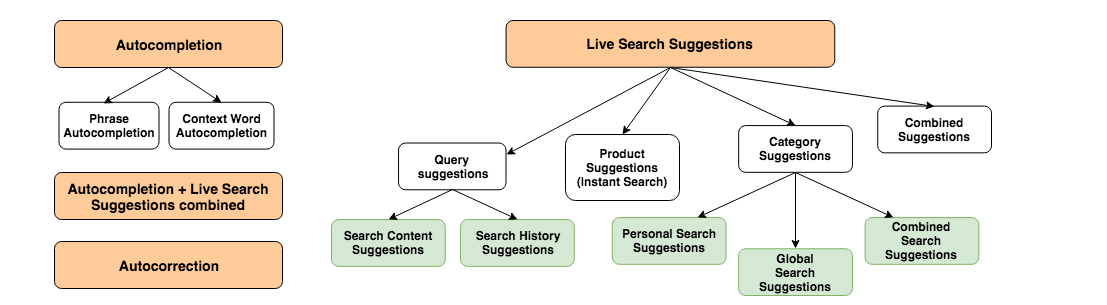
There are three topics I explain below in detail:
- Autocompletion
- Autosuggestion, or live search suggestions
- Autocorrection
1. Autocompletion
Autocompletion is a feature that offers to complete a word, phrase, or address that is only partially typed in. Autocomplete is especially useful for people using mobile devices, making it easy to complete a search on a small screen where typing can be hard. For both mobile and desktop users, it is a huge time saver.
There are two main types of autocompletion:
- Phrase autocompletion
- Context word autocompletion
1.1 Phrase autocompletion
Phrase autocompletion is the most common way to use the autocompletion concept.
If the system is able to offer a suggestion, it displays the whole phrase “underneath” the current entry and visually splits the part typed by the user from the tailing part of the phrase.
Users can press the Tab key, left/right arrow keys, or End key to accept a suggestion, or the down arrow key to accept one of several suggestions if drop-down lists are enabled.

Users can press the Backspace key to turn the suggestion mode off. In the example above, the input field will contain “hybri”.
To pick the best autocomplete prediction, the system searches over a pre-populated list of possible predictions. The key difference from suggestions is that autocomplete picks predictions that begin with the term or phrase entered by the user. Suggestions may have more comprehensive logic. For example, drop-down suggestions may be typo-tolerant. However, they require more space, which may be an issue on small screens.
Autocomplete works well if the prediction phrase is displayed in full. In the case of long predictions that are longer than the input box, the user may be confused about how to ensure the prediction is what they want.
The best case for autocomplete is when you have only one prediction for the first two or three letters and more than one for the first letter.
That is a very narrow case in web forms and website search. It makes autocomplete less popular than live search suggestions.
The big downside of this pattern is that it works well for those who prefer to use a keyboard rather than a mouse. For a better user experience for all types of users, I recommend going with a combined method, described below, or the live search suggestions approach, also described below.
This feature does not come with out-of-the-box SAP Commerce Electronics and Apparel Accelerators. In the case of a business need, you need to implement it from scratch.
Use autocomplete to:
- Facilitate accurate and efficient data entry
- Select from a finite list of names or symbols, especially if the item can be selected reliably after typing the first 1–3 characters
1.2 Context Word Autocompletion
Context completion completes the current word based on the current context, or the phrase entered.
This UI pattern is rarely used in web applications, except in some online code editors.
This feature does not come with out-of-the-box SAP Commerce Electronics and Apparel Accelerators.
2. Live Search Suggestions
The suggestions are live because a list of them is displayed as you type a query. This is also known as search as you type or type-ahead search.
There are the following types of drop-down live search suggestions:
- Query suggestions, namely:
- Search Content Suggestions
- Search History Suggestions
- Product suggestions
- Category suggestions
- Combined suggestions
Use live search suggestions to:
- Facilitate novel query reformulations
- Select from an open-ended list of terms or phrases
- Encourage exploratory search, with a degree of complexity and mental effort that is appropriate to the task
- Where appropriate, complement search suggestions with recent searches; see Search History Suggestions
2.1 Fixed List Suggestions
This pattern is used for small or medium-sized lists with a fixed number of items. A typical example is selecting a country from a list.
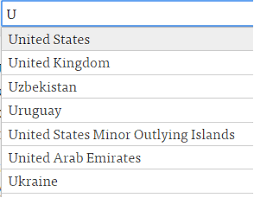
The first item is selected by default. Users can press the Tab key to accept the first suggestion from the list, or the down arrow key to accept one of several suggestions if drop-down lists are enabled. A list of suggestions is rebuilt when the filtering query is changed. Users can select the item by clicking on the suggestions. In this case, the suggestion will be copied to the input box.
There are two options for what to do with an exact match:
- Show one suggestion that is the same as the selected query
- Show no suggestions
It is good practice to use synonyms for the items. For example, “USA” will show “United States of America” and vice versa.
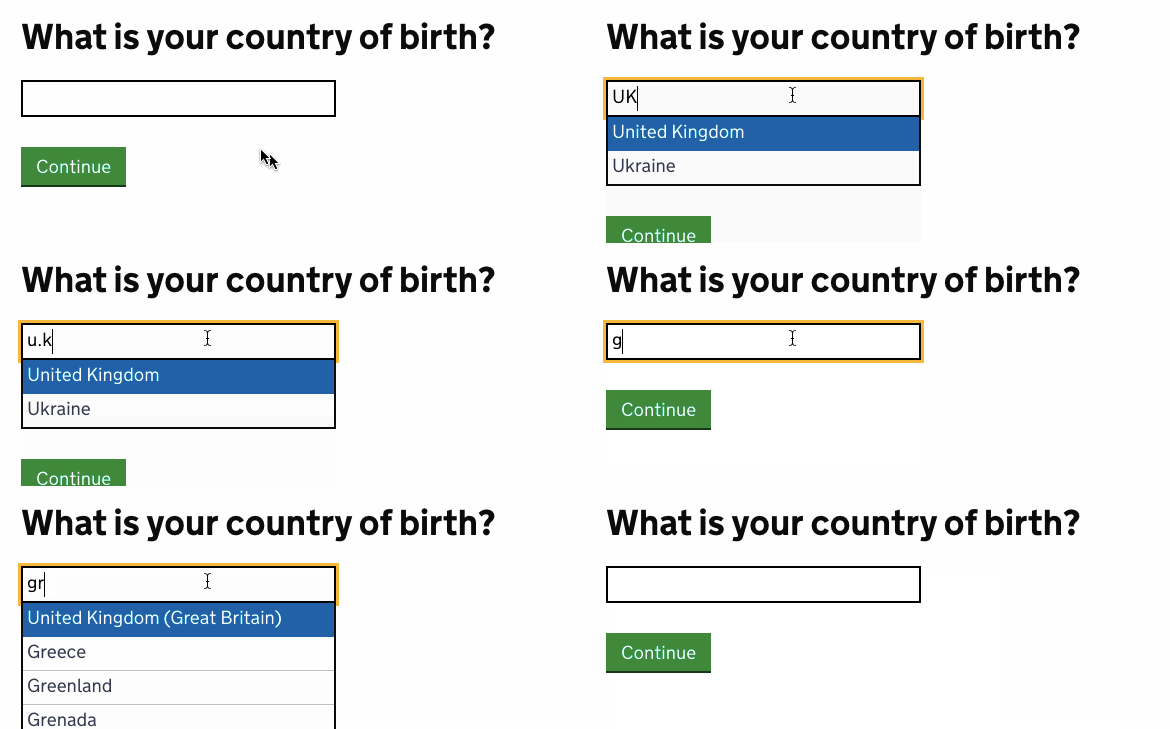
End and Home should work too. The scrollbar is acceptable here.
Allow the user to cancel the suggested items list by pressing the Esc key. Pressing the Esc key causes the suggested items list to close; however, typing more characters after pressing the Esc key will restart the autocompletion behavior.
Test the field with form autofill, a browser feature.
In most cases, the trivial standard select box is enough for this case.
Most of the listed features are applicable to Query, Product, Category, and Search History suggestions.
2.2 Query Suggestions
There are two types of Query Suggestions:
- Search Content Query Suggestions
- Search History Query Suggestions
2.2.1 Search Content Query Suggestions
This pattern is used primarily in search fields.
The concept is to use the search content and incomplete user query to suggest a complete query for the user.
It is a dropdown with suggested search text alternatives to what you typed, more or less matching something you were about to type.
The simplified version of this feature comes with out-of-the-box SAP Commerce Accelerators. In the search box, you can type the name of a product, and the system offers suggestions.
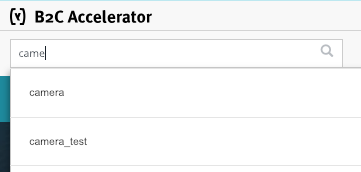
There are three options for what to do with an exact match:
- Show one suggestion that is the same as the selected query
- Show no suggestions once we have an exact match
- Show phrase suggestions, if any: multi-word queries where the typed words are part of the phrase
In SAP Commerce, the second option was chosen. You may want to improve this behavior.
In the default implementation, there is a known issue with building phrases for autosuggestions. For example, if you try to type “memory tri”, the system will display a suggestion phrase, “memory tripod”, which does not exist in the product attributes. This happens because the suggestion phrases are formed as a concatenation of the words typed in full and a suggestion from SAP Commerce for the unfinished word, the last one. This algorithm is very basic and is one of the possible areas for improvement.
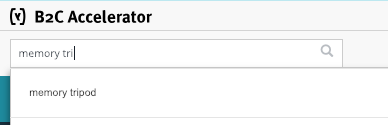
A better solution should use a pre-populated list of possible suggestions and a mechanism to search over them in a fast and flexible manner. You can use a custom Solr index for search suggestions. In this case, the suggestions are live search results from the Solr index and sorted by popularity or probability of sale. Regularly, you can update the suggestions in this index based on the real queries. The downside of this approach is that some suggested queries, marked as popular, may eventually return no results because the products they led to in the past are no longer available. So the system should detect such cases and hide those suggestions from the list.
2.2.2 Search History Suggestions
This pattern is used primarily in search fields on e-commerce websites.
The concept is to use past queries and an incomplete user query to suggest a complete query for the user.
There are three types of search history suggestions:
- Personal search suggestions, only from the current user
- Global search suggestions, from all users
- Combined search suggestions, personal first, then global
In the case of global search suggestions, your marketing team may decide to pre-populate a list of global search queries with specific queries and set the highest priority for them to make them appear at the top. I do not recommend automatically populating the global search suggestions from the real query history without manual cleansing. It is better to export a list of real queries, group and filter them, sort by popularity, remove typos, and add the cleansed list to a global search suggestions database.
Also, remember that the Global Search Suggestions approach may raise privacy concerns: some users can use their personal data in a search query. Of course, such queries must not be added to the global search suggestions database.
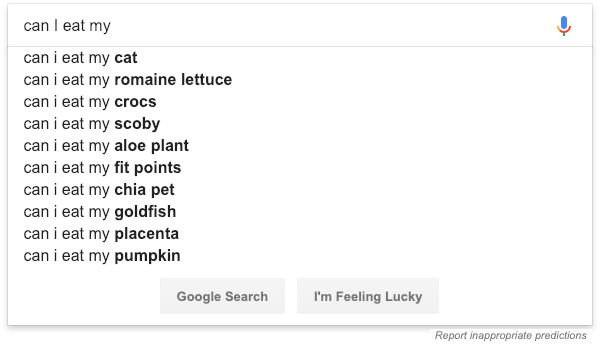
This pattern is not implemented in SAP Commerce in the default Accelerators.
2.3 Product Suggestions
This pattern is used primarily in search fields on e-commerce websites.
The search suggestions contain a list of products matching the query and cropped to the specified maximum number of displayed categories.
This pattern is also known as instant results.
This feature comes with out-of-the-box SAP Commerce Accelerators. In the search box, you can type the name of a product, and the system offers suggestions as a set of snippets. Each snippet has a product image, product title, and product price. The keywords from the query are highlighted. Selecting a product from this list leads the customer to the product page, where the product can be added to a cart. The products in this list are normally the same as those at the beginning of the search results for the query. The number of items is configurable.
The downsides of the default implementation are the following:
- If the results are displayed in the dropdown list, the suggestions cannot be closed or hidden until the customer removes the query or submits the search form.
- For small screens, a suggestion window inside the main window does not look elegant or efficient. Possibly, activating full-screen mode after typing a query is a solution, but it creates additional UI complexity.
As an improvement, the product can be added to a cart directly from the list of product suggestions.
As another improvement, you can experiment with boosting the products from the current category.
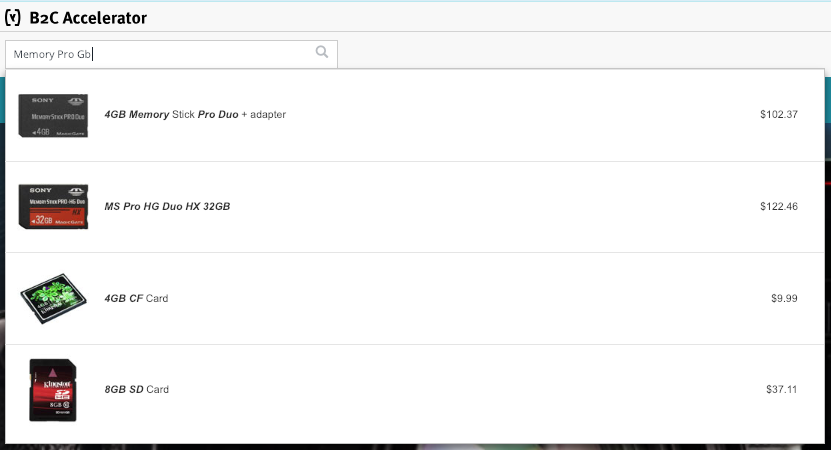
Use Product Suggestions to:
- Promote specific items or products
2.4 Category Suggestions
This pattern is used primarily in search fields on e-commerce websites.
The search suggestions contain a list of categories matching the query.
The categories are not organized into a tree by default. The categories are sorted by the number of products found in them, meaning products matching the query.
In this pattern, there are three options for what systems should do when a user selects a category from the list:
- Open a category page
- Show the search results filtered by the selected category
- Show the search results filtered by the selected category and full-text query
In SAP Commerce, this pattern is not implemented in the Electronics and Apparel Accelerators.
2.4.1 Brand Category Suggestions
Brand suggestions are often identified as a separate suggestion entity. In some implementations, brands are just categories; in others, they are standalone entities. Even if implemented as a category in SAP Commerce, it is good practice to separate a list of brands from a list of navigation categories.
2.5 Combined Suggestions
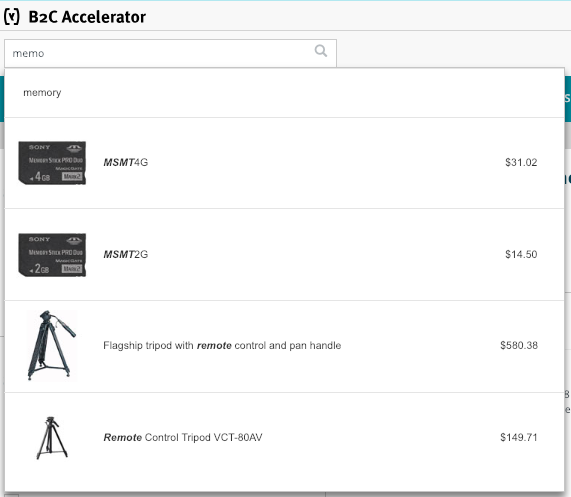
In this pattern, a list of suggestions may contain:
- A list of query suggestions plus a list of products matching the query, if any
- A list of query suggestions plus a list of categories matching the query, if any, plus a list of products matching the query, if any
- A list of query suggestions plus search history queries matching the query, if any, plus a list of categories matching the query, if any, plus a list of products matching the query, if any
- Other combinations
Combination #1 is implemented in SAP Commerce by default.
3. Autocompletion and Live Search Suggestions Combined
In the combined method, the user’s query is autocompleted, but there is also a dropdown that contains a list of suggestions.
You can find this pattern in macOS:
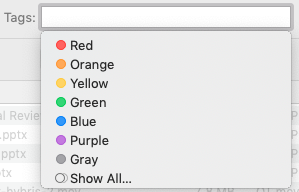

In SAP Commerce, this pattern is not implemented in the default Accelerators.
4. Autocorrection “Did You Mean”
This pattern is used to help the customer change a misspelled query to the corrected version in a single click.
It is also used primarily for search functionality on e-commerce and content websites.

SAP Commerce has a basic implementation of the autocorrection mechanism. The known issue is that the algorithm does not check the validity of the phrase offered as an autocorrected version.
For example:
- If:
- Your query consists of two words, WORD1* and WORD2*, and
- Both words can be autocorrected to three variations:
- WORD1* → {WA1, WA2, WA3}
- WORD2* → {WB1, WB2, WB3}
- Only one combination of WAi and WBi returns a non-empty list of results, and
- All remaining combinations return zero results
- The algorithm in SAP Commerce:
- Picks a random, unpredictable combination instead of one with results
- Uses the search terms extracted by Solr
Consider improving the out-of-the-box mechanism to support phrase autocorrections that do not return zero results.
If the original query returns zero results, there are two options:
- Change the user’s query automatically and display non-zero results for the corrected query
- Display zero results and a link to a corrected query
Live Search Suggestions Guidelines
The recommendations below are a compilation of those given by Baymard Institute and taken from my own experience.
- Style Auxiliary Data Differently
- Avoid Scrollbars and Keep the List Manageable
- Highlight the Differences
- Support Keyboard Navigation
- Match User’s Hover Expectations
- Recent Searches
- Test on Small Screens and Slow Connections
- Collect and Analyze Search Stats
- Cache the Results, Even Partial Results
- Best First
1. Style Auxiliary Data Differently
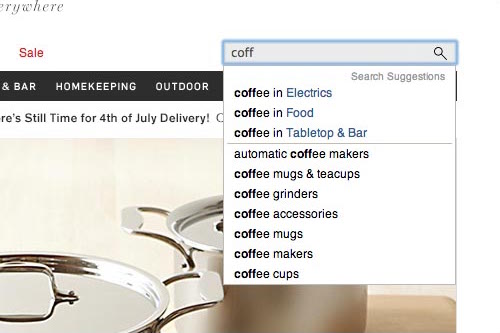
All auxiliary data in the suggestion, such as category scopes or a number of matches, should be styled differently from the actual suggested search terms. For example, in the following example, the search scopes are styled in blue, making it instantly obvious to the user that “coffee in Electrics” is not a simple query but rather a query for “coffee” within the “Electrics” scope.
2. Avoid Scrollbars and Keep the List Manageable
Having a separate scroll area within an already interactive widget is a recipe for interaction disaster and should be avoided in favor of simply having the widget expand to its natural size. The list of autocomplete suggestions should be kept to a maximum of around 10 items to avoid inducing choice paralysis.
3. Highlight the Differences
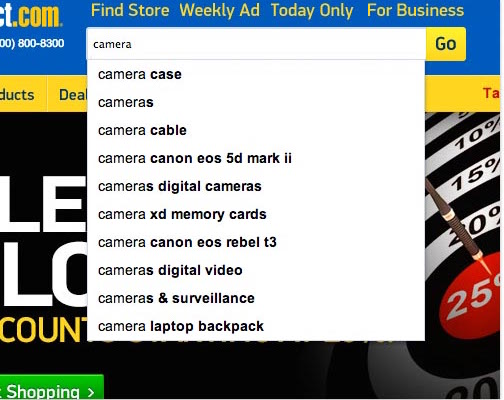
It is a good idea to style the entered and suggested terms differently so the user can easily tell what is suggested. Many sites highlight the terms the user has already entered themselves rather than highlighting the new suggested terms that would be added to the entered query. Since the user is already well aware of the terms they have entered themselves, it makes more sense to highlight the additions in the suggested queries rather than repetitively highlighting the same term in each and every query.
4. Support Keyboard Navigation
This means the up and down arrows should navigate the autocomplete suggestions, while the Return key should submit the currently focused suggestion. Ideally, the list also “loops” back to the beginning when the user reaches the end of the suggestions.
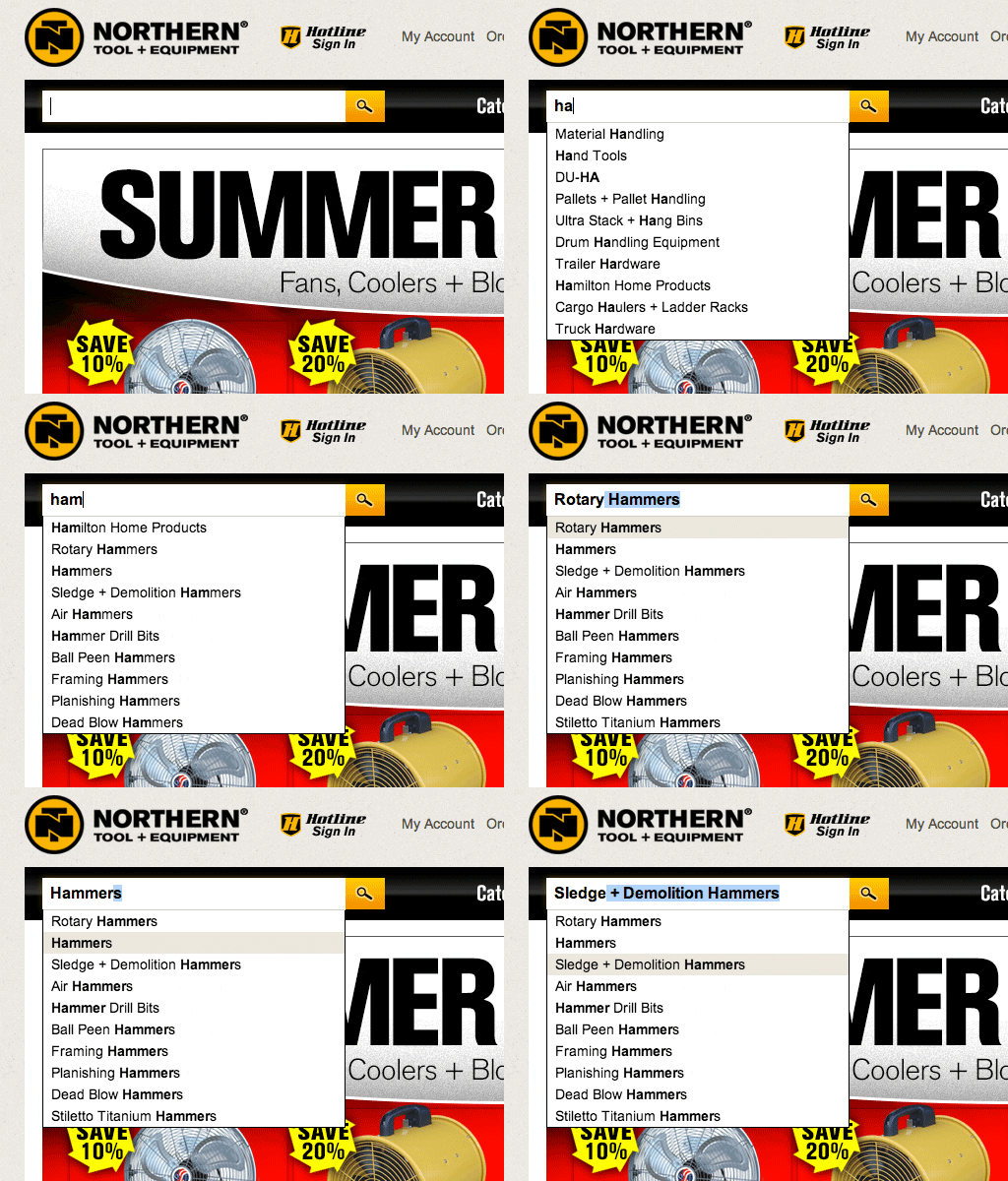
Note that the suggestion is copied to the search field when it receives keyboard focus. This not only helps less experienced users more easily grasp the autocomplete concept, but also allows them to “continue” the suggested query, adding further details before submitting it, for example adding a query qualifier such as “lenses” to a suggestion for “Nikon D7100”. Note that if the user navigates back to the search field using the arrow keys, the search text should revert back to the original text and scope.
5. Match User’s Hover Expectations
Just as keyboard navigation should be supported, mouse interaction should be supported too. Less experienced users, in particular, may use their mouse to select autocomplete suggestions.
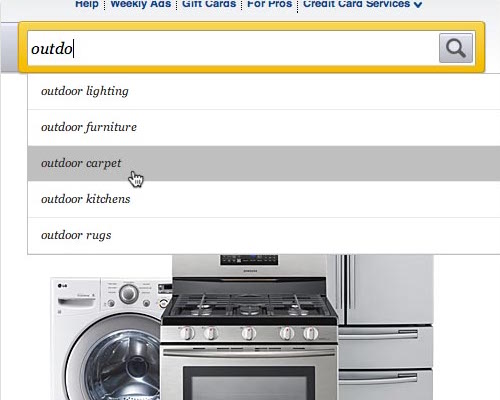
It is important that the hovered autocomplete suggestion is highlighted and invokes the “hand” cursor, to make it 100% obvious to the user that these are indeed clickable links and to underscore which suggestion is about to be submitted.
However, contrary to the keyboard navigation behavior, the “focused” item should not be copied to the search field when hovered by the mouse. Hover should therefore be treated as a non-committing action, as opposed to mouse clicks and keyboard input, where the objective is to manipulate data.
6. Recent Searches
Knowing which autocomplete suggestions users have already tried may seem like a rare scenario unless the same users search your site on a daily basis.
7. Test on Small Screens and Slow Connections
The autosuggestion mechanism works smoothly if the connection is good and stable. However, in the case of a poor connection, the user may experience a wide variety of troubles, from huge delays to UI performance issues. Test suggestions that are wider than the browser window and drop-down lists with more items than the device screen can fit.
Requests must be throttled. Since autocomplete requests generally correspond directly to user input, it is important to account for fast typers and throttle requests when using the autocomplete endpoint. Some devices and networks, for example mobile phones on a slow connection, may respond poorly when too many requests are sent too quickly, so be sure to do some testing on your own.
Responses are asynchronous. This means you cannot be sure responses will be returned in the same order they were requested. If you were to send two queries synchronously, first:
'Lo'then:
'London'you may find the:
'London'response would arrive before the:
'Lo'response. This will result in a quick flash of:
'London'results followed by the results for:
'Lo'which can confuse the user.
8. Collect and Analyze Search Stats
Understanding user behavior will definitely help you plan the next steps in improving the search subsystem. The following things are very important to track:
- User ID, or “anonymous” if the user ID has not been assigned yet
- Session ID
- Date and time
- Query, full or partial
- Suggestions
- Keyboard or mouse
- Selected suggestion, if selected
- Current page
For search results, log the following:
- User ID, or “anonymous” if the user ID has not been assigned yet
- Session ID
- Date and time
- Query, full or partial
- Top 10 results
- Clicked search result #, if clicked
- Page #
- Current page URL
The events you need to track:
- Query being typed
- One of the suggestions being selected
- User clicking on the item in the search results
- Pagination events on the search page
9. Cache the Results, Even Partial Results
Since you need to send requests for suggestions each time the customer updates the input box, there is a high risk of having identical requests in the same session or even in different sessions for different users. Caching will help you significantly reduce the load on the server.
10. Best First
In the autosuggest results, sort the results by relevance to the typed query. Within groups of equal relevance, sort the items by popularity.
11. Support Wrong Keyboard Layouts and Misspellings
For websites that have more than one language, think about supporting input queries typed in the wrong keyboard layout.
For example, “a photo camera” in Russian is “фотоаппарат”. If you try to type “фотоаппарат” while switched to the English layout, which is set by default for many customers, you will get “ajnjfggfhfn”. Below is an example from Svyaznoy.ru:
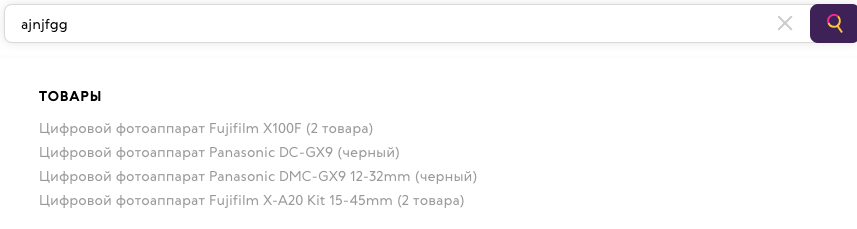
Also, I recommend having a list of frequent typos in the form of query transformation rules. These typos are not always processed efficiently by the search engine that provides the suggestions. So the recommendation is to add a new layer between the search box and search engine that would transform the query according to these rules.
Summary
Use autocomplete to:
- Facilitate accurate and efficient data entry
- Select from a finite list of names or symbols, especially if the item can be selected reliably after typing the first 1–3 characters
Use autosuggest to:
- Facilitate novel query reformulations
- Select from an open-ended list of terms or phrases
- Encourage exploratory search, with a degree of complexity and mental effort that is appropriate to the task. Where appropriate, complement search suggestions with recent searches.
Use instant results to:
- Promote specific items or products
Discussion
Powered by GitHub Discussions — sign in with a GitHub account to join the conversation.